Questions
On this page, you can add all the questions for your test. An effective test is organized by skill areas, providing hiring teams with clear insights into a candidate's strengths and weaknesses across key competencies. Start by identifying the essential skills for the role and then create questions that assess each skill area. For instance, if a role requires technical knowledge, problem-solving, and communication skills, group questions accordingly. This structure enables hiring teams to evaluate specific skills, rather than relying solely on an overall score. Skill areas also enhance data analysis, allowing performance assessment by individual skills.
At the top, you can add Sample Questions (optional). Including sample questions familiarizes candidates with the test format, reducing anxiety and improving accuracy. Sample questions give candidates a preview of the types of questions in the test, making the experience fairer. Ideally, each skill area should contain at least one sample question to prepare candidates for the variety of questions in the test.
Unlike the General Details form, changes on this page are saved automatically. However, when editing questions within the Question Editor window, changes must be confirmed by clicking Save.
Skill Areas
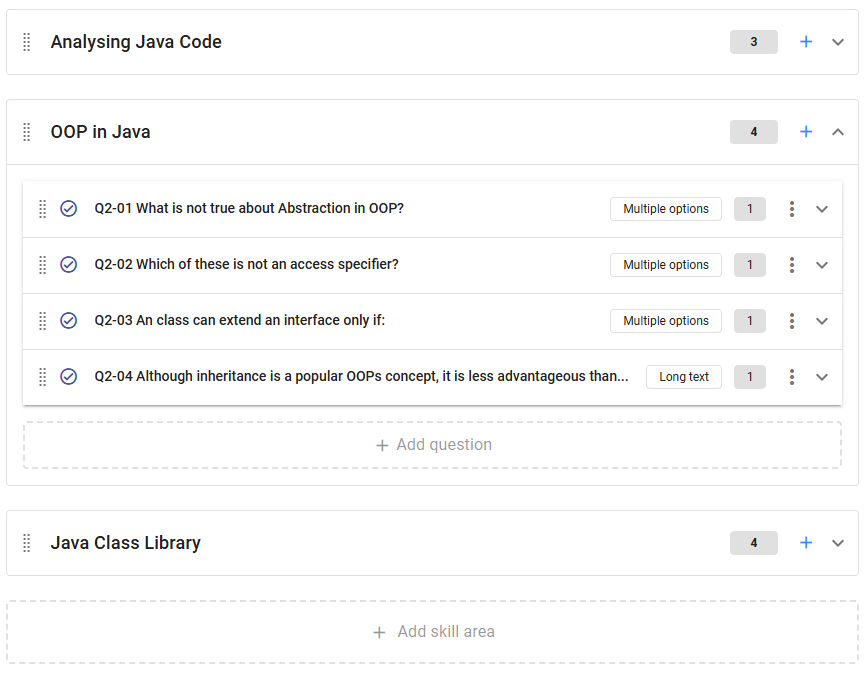
A Skill Area refers to a category of expertise that questions aim to assess, such as technical knowledge, problem-solving, or communication skills. Each skill area represents a distinct competency relevant to the role. Grouping questions by skill areas allows hiring teams to evaluate candidates’ abilities across multiple dimensions, not just a cumulative score. This approach provides a detailed view of a candidate’s strengths and improvement areas, aiding in more informed hiring decisions.
Skill areas are required to add questions. If you don't need specific areas, you can create one skill area (e.g., “General”) to contain all questions. To add a new skill area, click on Add Skill Area at the bottom of the page. You can rename skill areas by clicking their names, and delete or reorder them using the Delete and Drag icons.
Questions
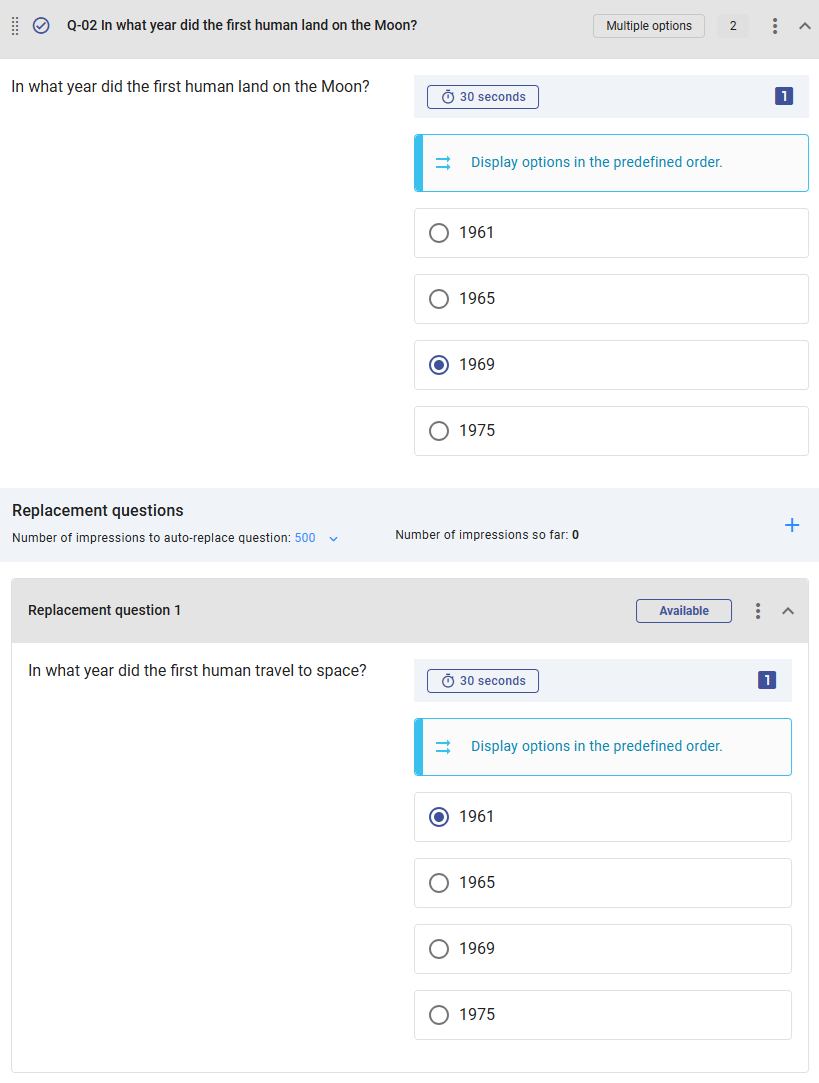
In Zamdit, questions can have replacements, which appear after a specified number of impressions to maintain test integrity. This reduces the chance that candidates might encounter repeated questions through sharing or multiple interview stages, helping ensure responses reflect actual knowledge.
To add a test question, click the Plus icon in the relevant skill area or use the 'Add Question' panel at the bottom of the area. When you add or edit a question, the Question Editor opens in a new popup window, where you can modify question settings, answer options, and more.
Questions are displayed in expandable panels, with key information shown in the header. In the header, you’ll find:
- Drag icon for reordering questions within the skill area.
- or icons indicating if a question is active.
- The question name, automatically assigned based on the skill area, question order, and question text, can be renamed by clicking on it.
- Icon if the question is in the fast version.
- The type of question.
- Number of total questions, replacements, and the main question.
- Menu icon for additional actions.
- Expand/collapse icon.

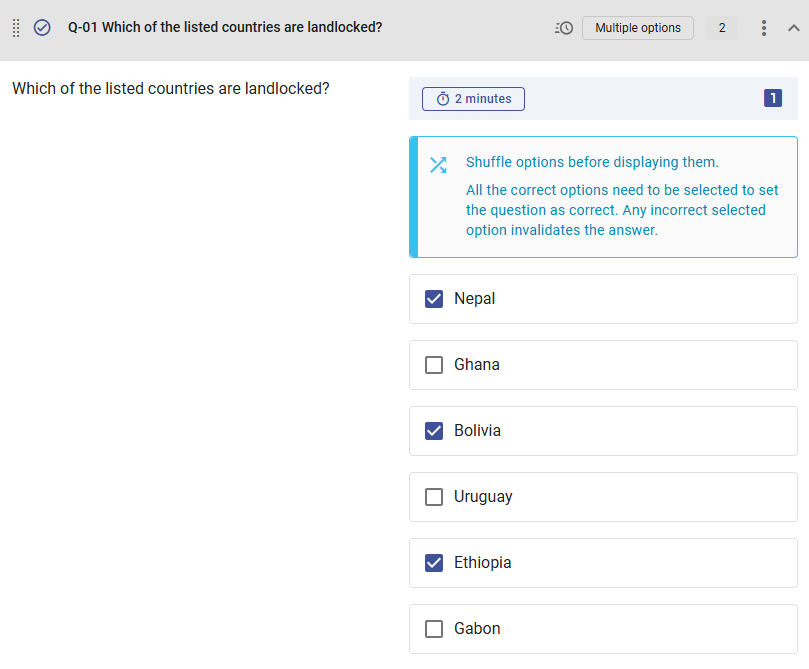
Expanding a question shows the text, options, correct answer, and settings. Depending on the type, you’ll see expected duration and test case summaries. Hover over icons for hints.
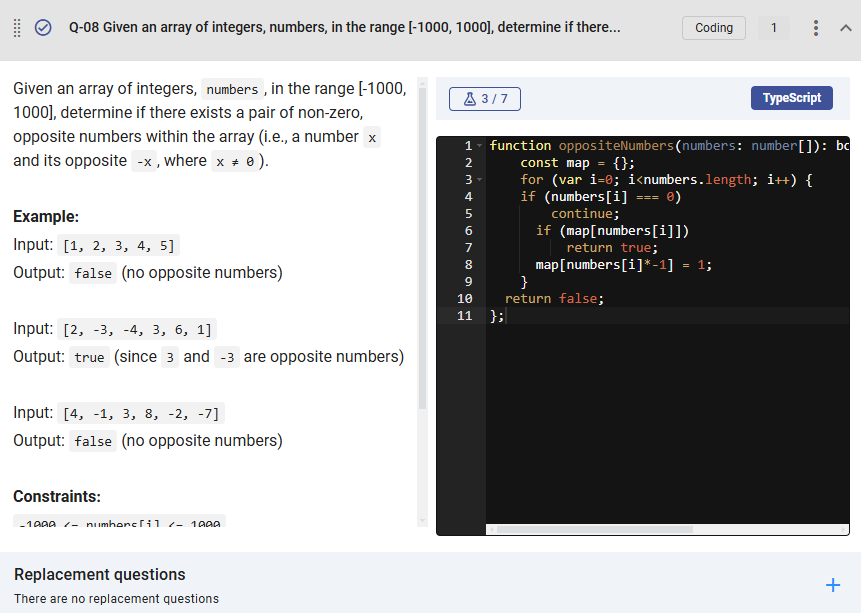
For multiple-choice and image-based questions, the input type (radio or checkbox) indicates whether one or multiple answers are correct. Correct options are ticked.
Available Actions
Click the three dots icon for actions:
- Edit: Opens the Question Editor to modify the question.
- Move to another Skill Area: Moves the question to a different skill area, including Sample Questions. Note: Sample questions cannot have replacements.
- Move to another question as replacement: If the question has no replacements, you can move it as a replacement for another eligible question of the same type.
- Inactivate/Activate: Toggles question activity status. Inactive questions are not shown to candidates.
- Include/Exclude from fast version: Adds or removes the question from the fast version.
- Delete: Deletes the question (without warning), unless it has replacements.
When the test is active, actions are unavailable.
Replacement Questions
Replacement questions maintain the test's relevance over time. Use replacements to avoid creating entirely new tests when updating. Replacements should match the main question in difficulty, relevance, and clarity, ensuring a fair assessment for all candidates. They should focus on the same skill area and target similar competencies as the main question.
The replacements panel is below the main question. Use the Plus icon on the panel header to add replacements (same type and, if applicable, coding language). You can set an auto-replace interval or manually swap questions, even during an active test.
Replacement Actions
Click the three dots icon for actions:
- Edit: Opens the replacement question in the Question Editor.
- Swap with active question: Replaces the main question with this replacement.
- Move to another question: Moves the replacement to another main question as a replacement.
- Move to new main question: Moves the replacement to the skill area as a standalone question.
- Disable/Enable: Disables or enables the replacement question.
- Delete: Deletes the replacement without warning.
During an active test, only Swap with active question and Disable/Enable actions are available.
Instructions for Reviewers
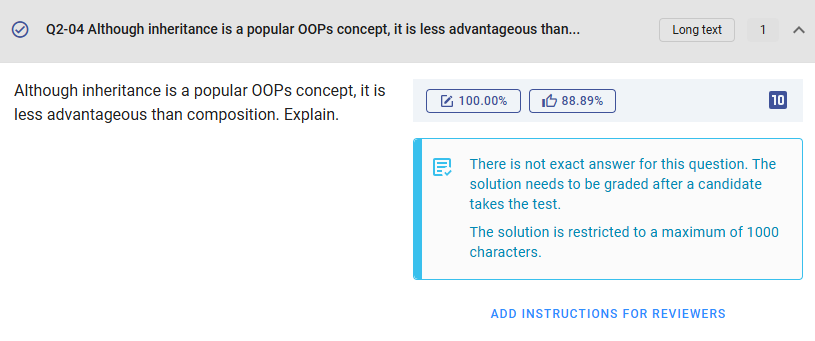
For coding and specialized open questions, involving subject matter experts in the review process is essential. External reviewers or hiring team members with the necessary expertise can provide detailed and informed evaluations of candidates' answers, ensuring fair and accurate assessments.
Use the Add Instructions for Reviewers button to enter detailed guidance that will be shown to both internal and external reviewers when they evaluate responses to the question. You can update these instructions at any time, even after the test is live. Remember, changes will only take effect once you click Save.