
Pipeline - Questionnaires
Online interview questionnaires are a powerful tool for evaluating candidates early in the hiring process. These questionnaires allow you to assess specific skills, collect detailed information, and pre-screen applicants before advancing them to the next stage. By automating this step, you can streamline your process, maintain consistency, and focus your attention on the most promising candidates.
In Zamdit, questionnaires are fully customizable, allowing you to adapt them to the unique needs of each role. They support various question types, such as video responses, multiple choice, open-ended, and skill-based questions. Additionally, dynamic workflows with section jumps enable tailored interview experiences for candidates. Responses are automatically recorded and centralized, simplifying the review and comparison process for hiring teams.
Overview
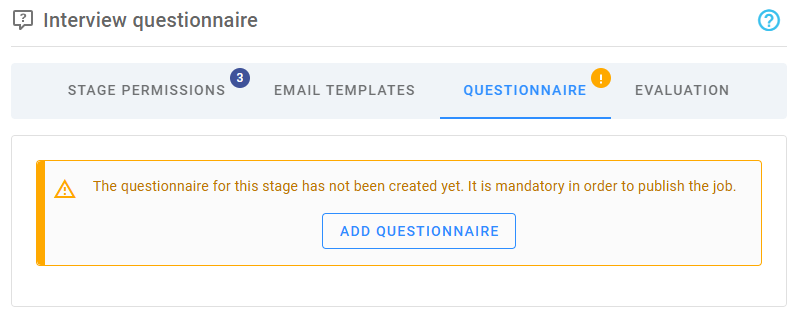
When you create a pipeline from a template, questionnaires for Interview Questionnaire stages can be pre-populated from their corresponding settings, including predefined Interview Questionnaire Templates. If no template is specified or a new stage is added, you must add a questionnaire. You can either create one from scratch or select from available templates. Adding a questionnaire is mandatory to publish the job.
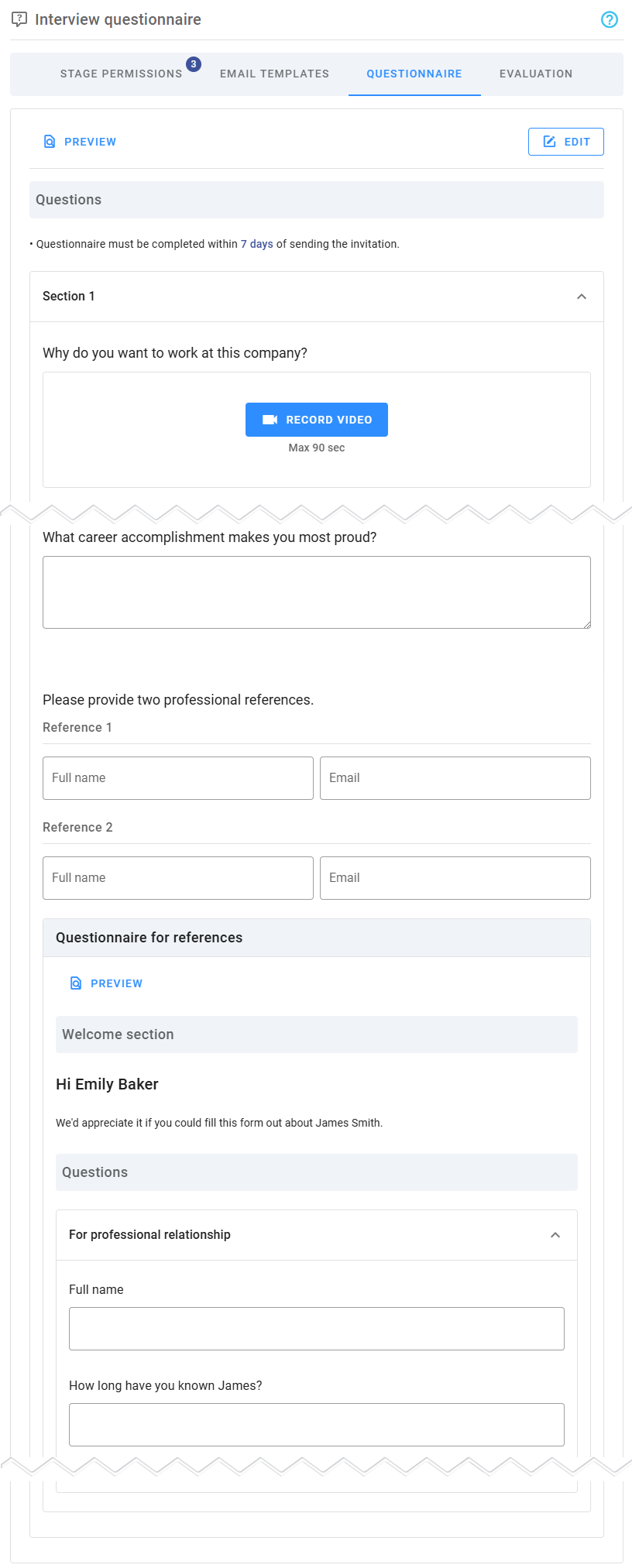
Once added, this section displays a non-interactive preview of the questionnaire, broken down into collapsible sections. These previews may include reference questionnaires for reference check questions. Custom welcome and thank-you messages, if configured, will also be shown. To view the questionnaire as candidates will experience it, click the Preview button. Reference questionnaires have a separate Preview button.
Editing questionnaires
When adding or editing a questionnaire, details are organized into a popup window. The interface consists of general fields at the top, followed by a panel for sections and questions. Sections are particularly useful when designing a dynamic workflow with section jumps, where candidates are directed to specific sections based on their answers to required single-choice questions. To enable section jumps, it is recommended to add all sections first.
You can build a questionnaire from scratch or start with a template, customizing it to meet the job’s requirements. Changes are saved only when you click Save.
Heading and texts
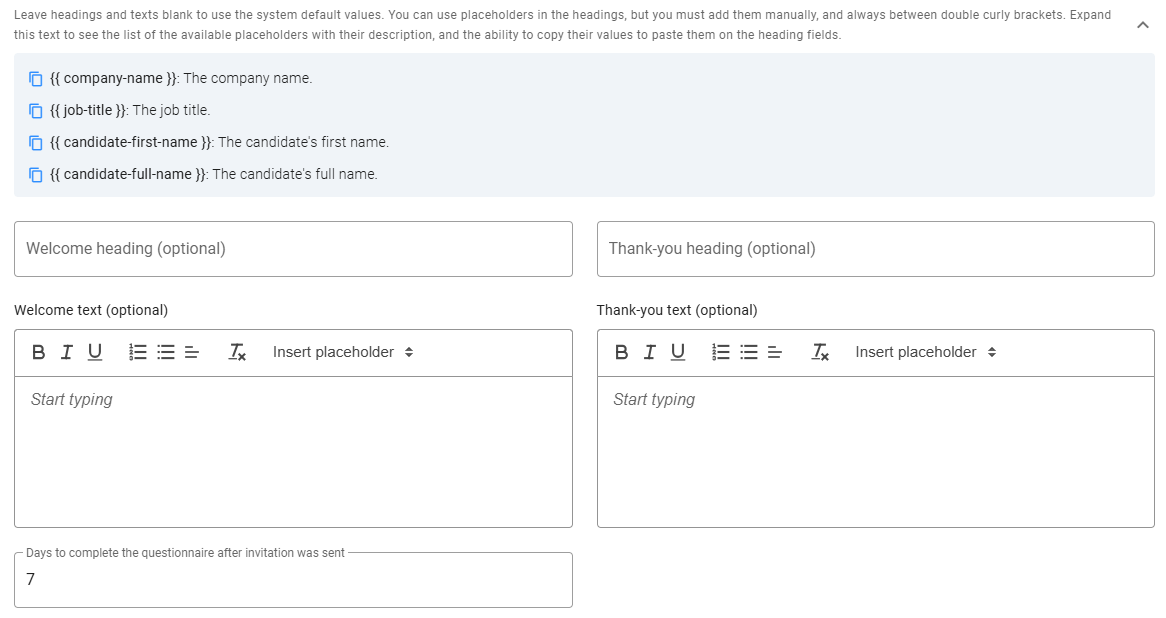
Customize the Welcome and Thank-you messages shown to candidates before and after completing the questionnaire. Default messages are provided, but you can modify the headings and text as needed. Use placeholders, accessible at the top of this section (click the expand icon), for dynamic content. To copy a placeholder, click the icon next to it.
Additionally, define the number of days candidates have to complete the questionnaire after receiving the invitation.
Questions
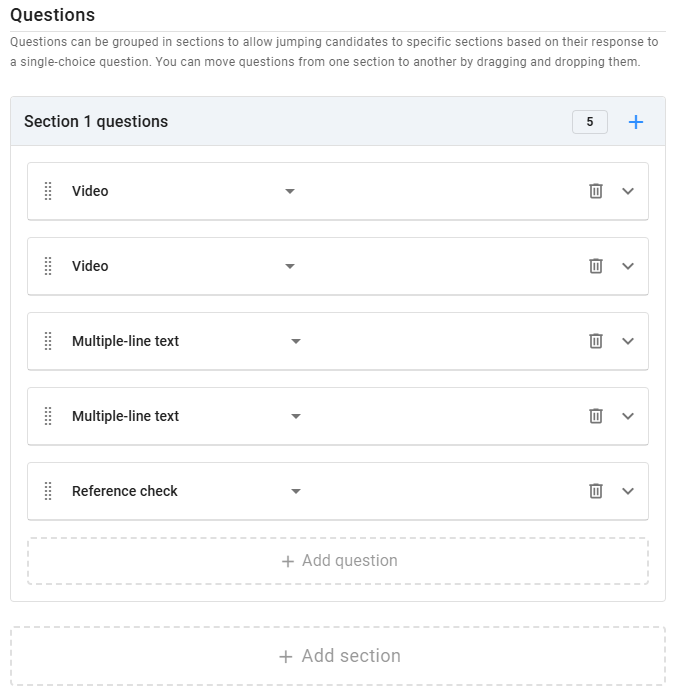
In the Questions panel, add all necessary questions. For complex workflows, you can group questions into sections and set up section jumps based on answers to Single choice questions.
Zamdit supports multiple question types: Checkbox, Number, Single choice, Multiple choice, Single-line text, Multiple-line text, Video, Files upload, Reference check, Rating, Star rating, and Smiley rating. For each question, you can add an optional description (hint) to clarify its purpose and specify if it’s mandatory. Choice questions require at least two options, and you can select the UI component (dropdown, checkbox, or radio button). Rating and Star rating questions allow customization of range and labels.
Most of the question types are used across the whole system, and their use is self-explanatory, but there are three question types designed specifically for Candidate Interview Questionnaires:
Some question types are tailored for interview questionnaires:
- Video: Allows candidates to record a video response, assessing communication skills, confidence, and presentation. Set a maximum duration (up to 5 minutes).
- File Upload: Enables candidates to upload documents like portfolios or certifications. You can define accepted file types (PDF, text, or images).
- Reference Check: Gathers contact details for references and links to a reference questionnaire for structured feedback.
To delete a question, click the Delete icon. To reorder questions, drag and drop them using the Dots icon.
Reference questionnaires
When adding a Reference Check question, specify the number of references required and their type (professional or personal). If only professional references are accepted, make this explicit in the question heading or hint. If unspecified, candidates can select the type of relationship for each reference.
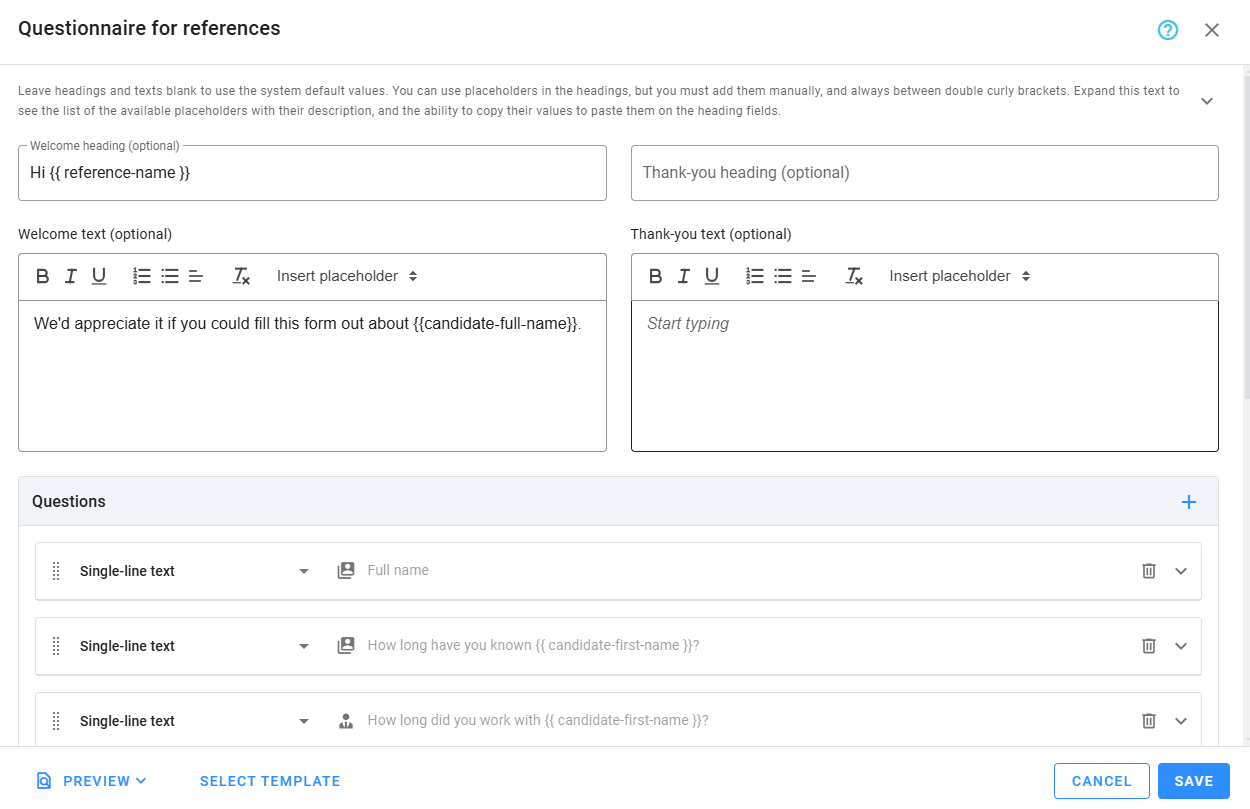
Reference questionnaires gather structured feedback from references, offering insights into a candidate’s skills, reliability, and suitability. You can create these questionnaires from scratch or use templates. Customize the questions and preview how references will see the questionnaire by clicking Preview.
Welcome and thank-you messages: Customize the welcome and thank-you messages displayed to references. Use placeholders to personalize the messages dynamically.
Questions for references: Add questions specific to references, specifying whether they apply to professional, personal, or both types of relationships. Zamdit only displays relevant questions based on the selected reference type.
Section Jumps
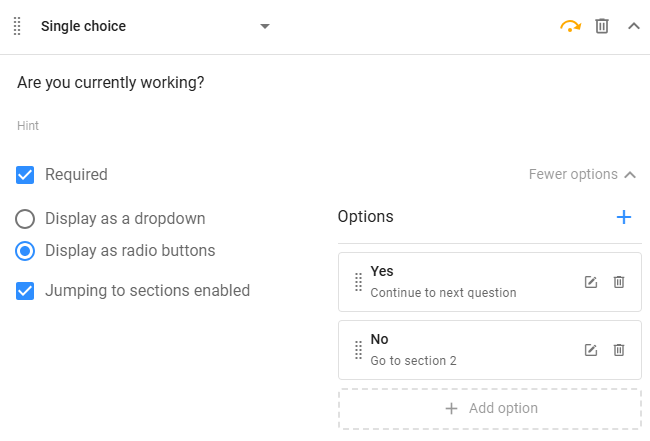
Section jumps allow dynamic workflows, guiding candidates to specific sections based on their responses. This feature is only available for required Single choice questions. Enable section jumps by selecting the Jumping to sections enabled checkbox when configuring the question. You can then assign specific sections or the next question for each answer option. Questions that contain jumps to other sections are marked by an amber jump icon on top.
Preview
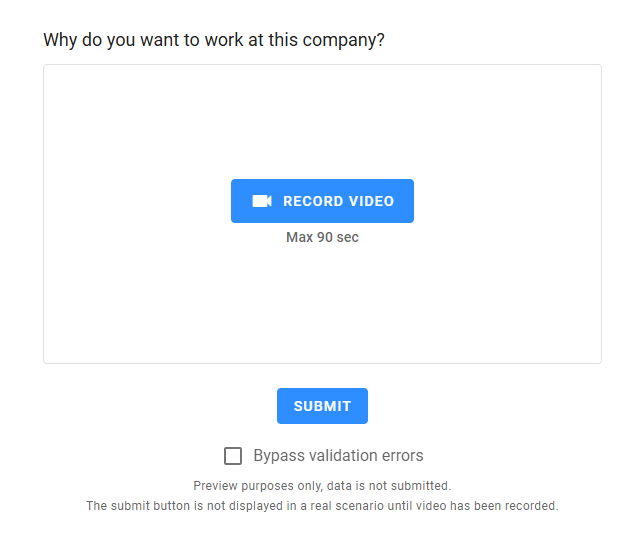
Preview your questionnaire in two modes:
- All questions in the same view: Displays all questions without considering section jumps. Video and file upload features are non-interactive.
- As candidates would see it: Simulates the candidate experience, including section jumps and validation rules.
Select the Bypass Validation Errors box to test without completing required fields.
Best practices for creating questionnaires
To maximize the effectiveness of your online questionnaires, follow these best practices:
Define Clear Objectives
Determine the purpose of the questionnaire. Are you assessing technical skills, gathering behavioral insights, or verifying qualifications? Clear goals ensure the questions are relevant and focused.Keep It Concise
Avoid overwhelming candidates with excessive questions. Include only those essential for evaluating their suitability for the role, balancing thoroughness with brevity to maintain engagement.Use a Variety of Question Types
Leverage the range of question types supported by Zamdit to create a dynamic and engaging questionnaire. Mix text-based, multiple choice, and video questions to gain diverse insights.Craft Clear and Direct Questions
Write questions that are easy to understand. Avoid ambiguity or jargon, and provide examples or hints where necessary to ensure candidates understand the expectations.Incorporate Dynamic Workflows
Use section jumps to create tailored experiences. By presenting only relevant questions, you save candidates time and improve the quality of their responses.Test Before Publishing
Use the Preview feature to experience the questionnaire as a candidate would. Ensure all jumps, validations, and instructions function as intended.Provide Context
Add descriptions or hints for questions where necessary, particularly for complex or less familiar concepts. This helps candidates provide more accurate and complete answers.Respect Candidate Privacy
Avoid unnecessary questions that could make candidates uncomfortable or violate privacy. Focus only on job-relevant information.Review Regularly
Continuously refine your questionnaires based on feedback from candidates and hiring teams to improve clarity, relevance, and efficiency.
By following these practices, you can create effective, candidate-friendly questionnaires that enhance your hiring process.