Pipeline - Offer Decision
Offer decision forms simplify the final step of the hiring process by enabling candidates to securely accept or decline job offers. These forms streamline communication, improve tracking of candidate responses, and ensure a professional and organised process for both parties.
Although using offer decision forms is optional, they provide a clear and structured way for candidates to communicate their decision and any additional comments. This approach enhances the candidate experience by making the process transparent, straightforward, and aligned with a professional hiring journey.
Overview
When you create a pipeline from a template, the decision form in the Offer stage can be pre-populated with the corresponding Offer Decision Form Template. If no template is configured or a new stage is added, a default empty form will be applied, which you can easily overwrite by selecting a pre-defined template.
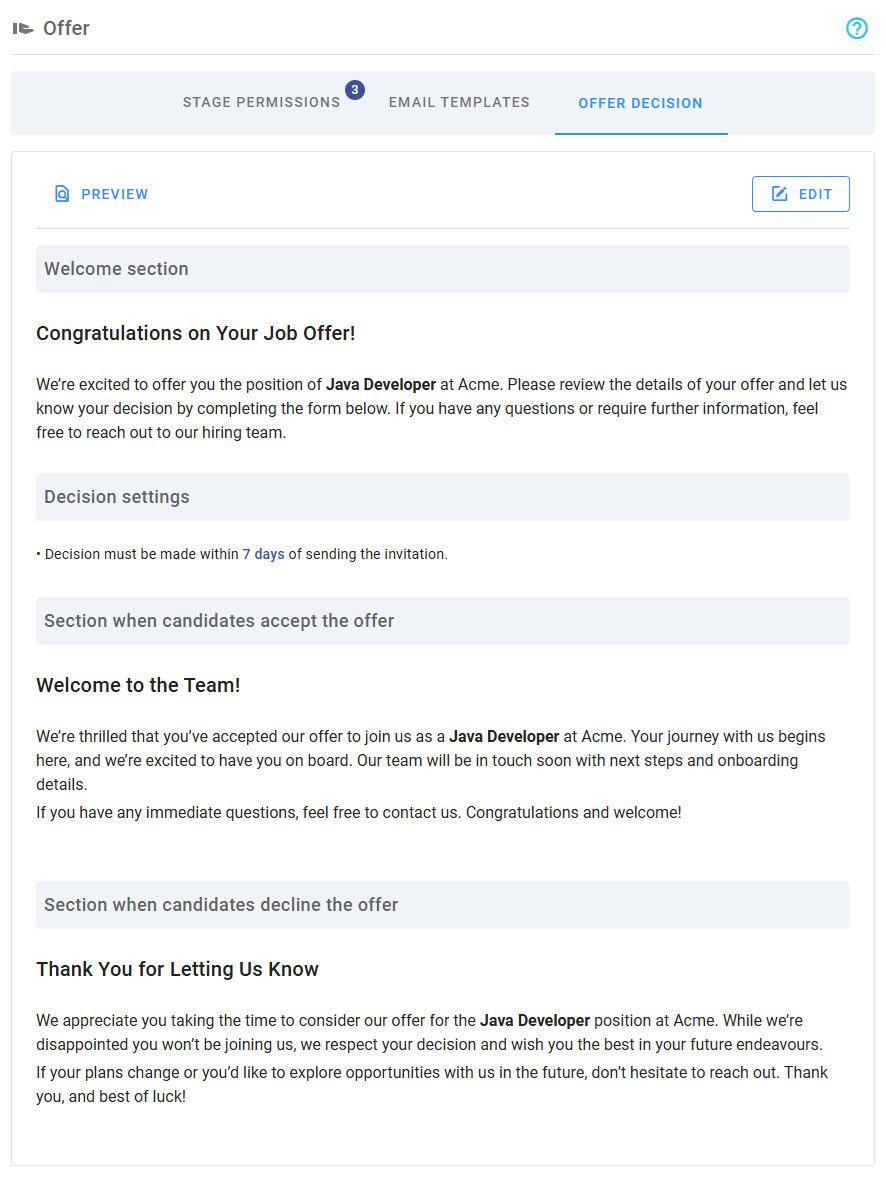
This section displays an overview of the form's configuration, including headings, messages to show candidates, and the deadline for candidates to respond.
Editing offer decision forms
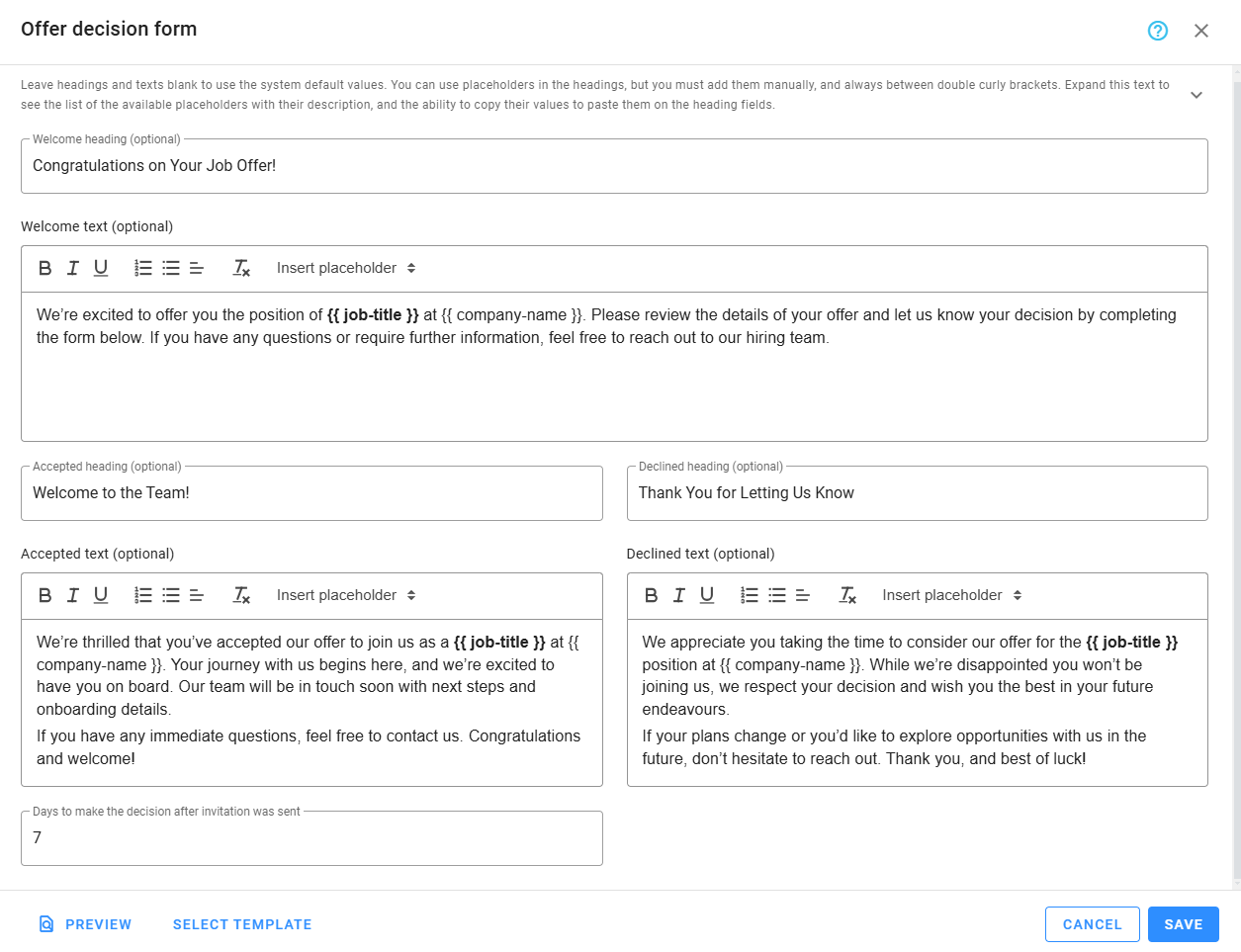
Offer decision forms can be customized through an intuitive editing popup. To streamline the setup, you can load an existing template using the button at the bottom left.
Customization options
- Welcome Message: The initial heading and text presented to candidates when they open the form.
- Accepted Message: The heading and text shown to candidates who accept the offer.
- Declined Message: The heading and text displayed to candidates who decline the offer.
While default messages are provided, it is recommended to personalize them to reflect the specific role and your company’s tone. Dynamic placeholders (listed at the top of this section) allow you to include customized details, such as the candidate’s name or job title. Simply click the icon next to a placeholder to copy it.
You can also specify the number of days candidates have to respond after the invitation is sent, setting a clear deadline for decision-making.
Changes are applied only after clicking Save.
Preview
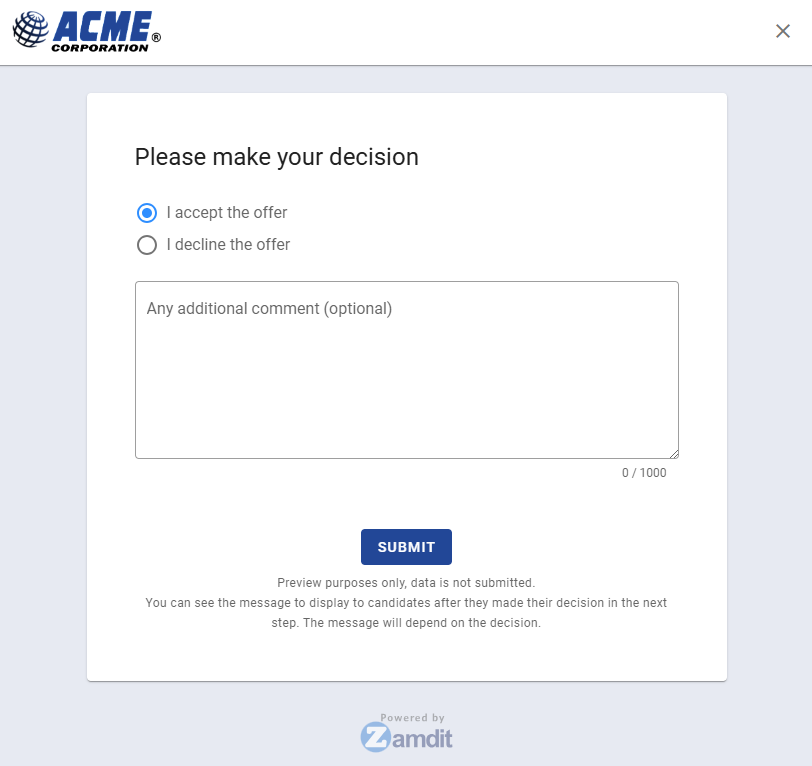
To preview how the form will appear to candidates, click the Preview button. This feature allows you to review the layout, flow, and clarity of the form before making it available.
To ensure the form meets expectations, you can click the Preview button to review how it will appear to candidates. The preview simulates the candidate's experience, allowing you to verify the layout, messaging, and decision flow.
The preview starts with the Welcome heading and message, followed by the decision options for accepting or declining the offer. If a candidate declines, they will be prompted to provide a reason and may add optional comments. In either case, a customized final view will confirm their decision.