Candidate Email Templates
Emails are essential in Zamdit for streamlining communication, improving candidate engagement, and keeping all stakeholders informed throughout the hiring process. Automated emails help facilitate workflows, save time, and maintain a professional and consistent experience for candidates.
Zamdit supports predefined email templates for various stages of the hiring process. These templates correspond to actions that commonly require notifying candidates, which helps streamline communication at key touchpoints. Below is a summary of the nine stage types and the associated actions that can trigger candidate emails:
- Applied: Request to apply, Invite to apply, Auto disqualified and Rejected.
- Phone screen: Schedule phone call, Appointment confirmed, Appointment scheduled and Rejected.
- Interview questionnaire: Send questionnaire and Rejected.
- Online assessment: Send assessment and Rejected.
- Onsite assessment: Schedule onsite assessment, Appointment confirmed, Appointment scheduled and Rejected.
- Online interview: Schedule online interview, Appointment confirmed, Appointment scheduled and Rejected.
- Onsite interview: Schedule onsite interview, Appointment confirmed, Appointment scheduled and Rejected.
- Offer: Send offer letter.
- Hired: No predefined actions.
Each scenario has a default template available in all supported languages, but you can create additional templates for specific stages and actions as needed. Note that manual emails can also be sent and replies from candidates received directly through Zamdit.
Creating and editing email templates
When adding or editing an email template, details are organized within a popup window with two main sections. Changes are only saved upon clicking Save.
Template details
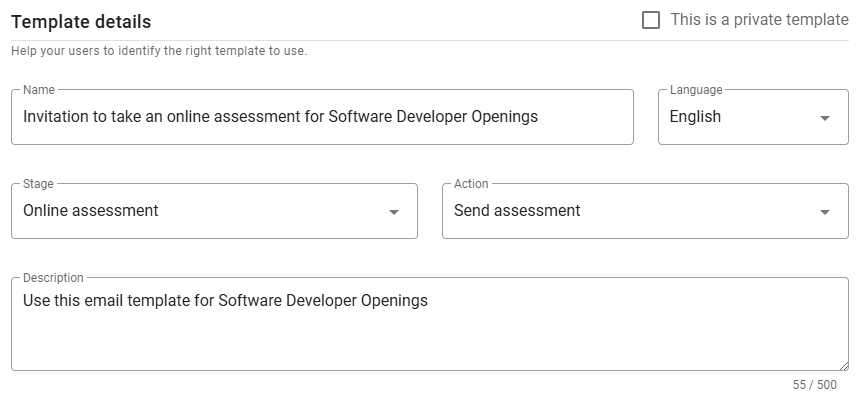
In this section, you’ll define template attributes such as Language, Name, Description, Stage Type, and Action. Setting these fields first ensures compatibility when you proceed to define the message subject and body.
⚠️ Note for Admin users
When creating a new template, you have the option to mark it as private by selecting the checkbox in the top-right corner. Once saved, this setting cannot be changed.
Message
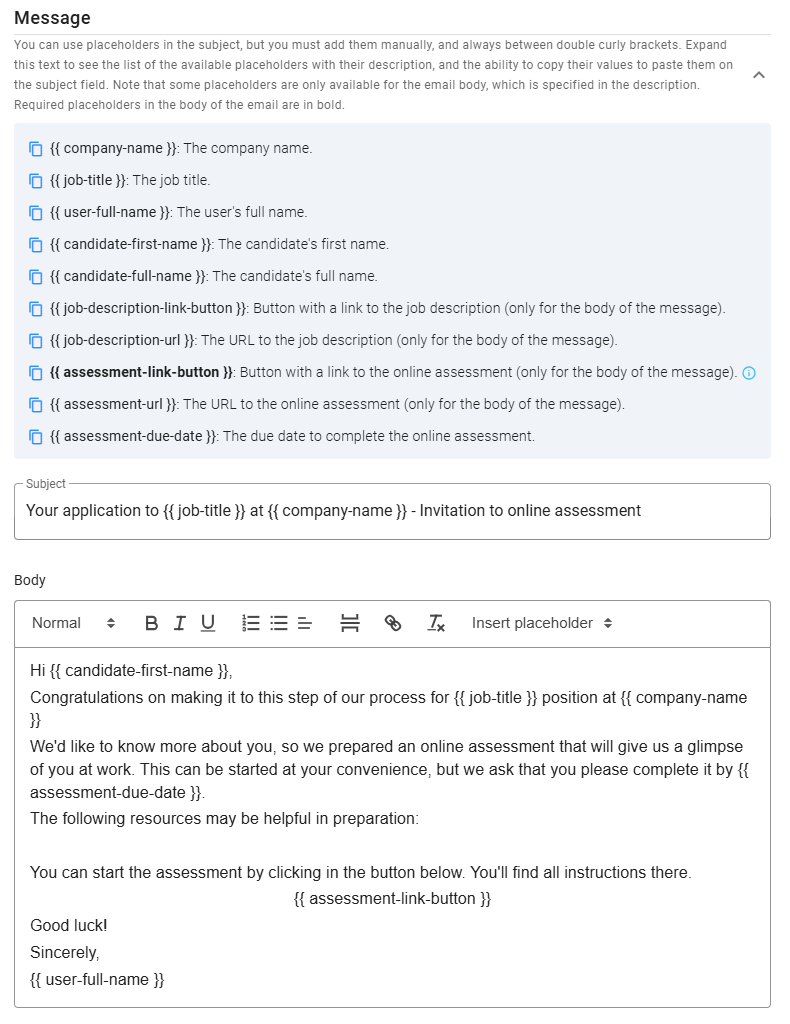
This section allows you to define the subject and body of the email. You can include placeholders (accessible by expanding the list at the top of this section) to automatically populate dynamic content. In the subject line, placeholders must be added manually, but you can copy a placeholder from the list by clicking the icon next to it. Some placeholders are required for specific email actions and appear in bold to indicate that they must be included in the message body.
Preview
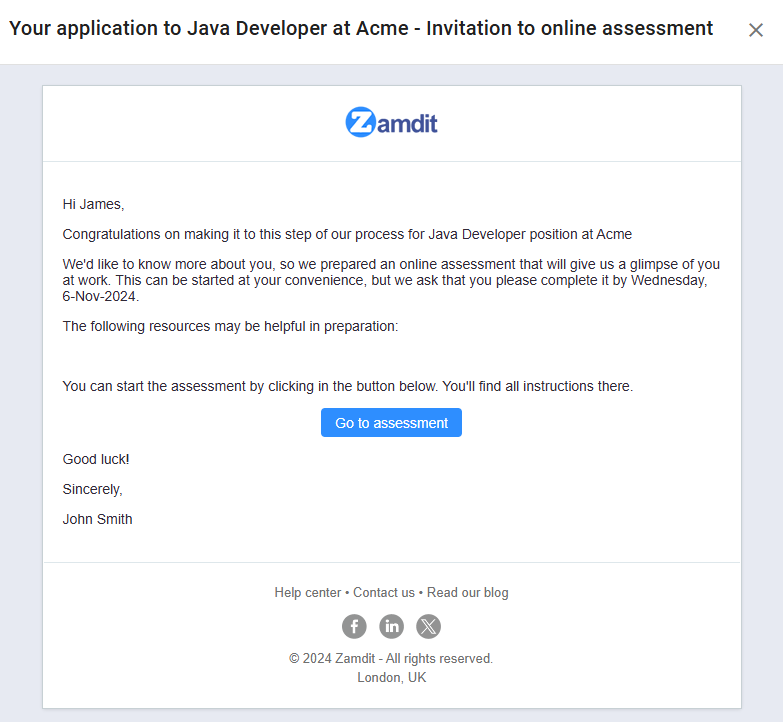
You can preview an example of the final email by clicking the Preview button at the bottom left of the form. This preview includes the master email template, which applies a consistent format and design to all outgoing emails. The master template can either be the system default or a custom template if your subscription plan is Standard or higher. For more information on customizing the master email template, see Email Master Templates.