
Job Edition - Pipeline
The Pipeline in Zamdit is a central component of your hiring process, offering a clear, visual representation of the stages that candidates go through. From the initial application to the final offer decision, each stage in the pipeline reflects a key milestone, providing structure and transparency in candidate progression. By customizing the pipeline for each job, you can align it with your organization's unique hiring strategy and create a more efficient evaluation process.
In the Job Edition view, the Pipeline section enables you to add, remove, or reorder stages, giving you the flexibility to adapt the workflow to each position's requirements. You can also configure automation rules to streamline repetitive tasks, such as scheduling interviews or sending assessments. This customization ensures your hiring process is both consistent and adaptable, empowering your team to make data-driven decisions while maintaining a professional and candidate-friendly experience.
Creating the pipeline
When building the pipeline for a new job, you can choose between two methods:
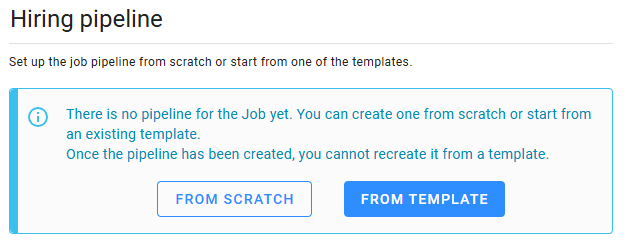
From scratch
This option creates a basic pipeline with only two fixed stages: Applied and Hired. You will then manually add and configure additional stages to suit your recruitment process. This method is ideal for workflows that differ significantly from existing pipeline templates, although you can use predefined templates for each stage to simplify the setup. If your hiring process aligns closely with pre-configured templates, we recommend starting with a template instead.
⚠️ Note
Once you choose to create a pipeline from scratch, you cannot apply a template later.
From a template
This is the recommended option if your organization has pre-configured hiring pipeline templates. Templates ensure consistency across roles while saving time, allowing you to replicate established workflows. Select a template that matches your job's language and audience, and Zamdit will create a pipeline complete with stages and related components, such as Email Templates, Interview Evaluations, and Schedules. Default templates will fill in any gaps for stages that lack specific settings.
⚠️ Note
Once a template is applied, switching to another pipeline template is not possible.
Adding, editing, and managing stages
Adding stages
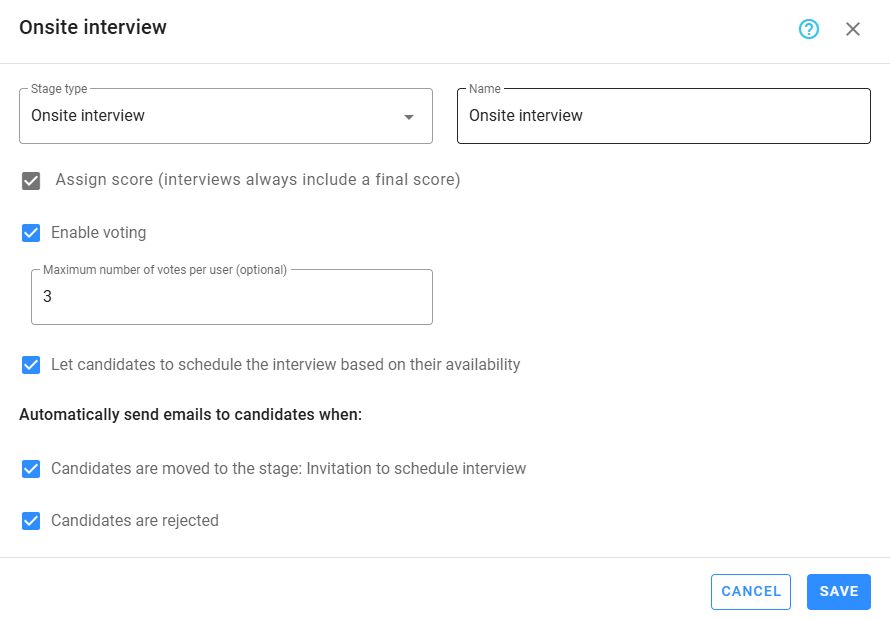
To add a stage, click the Add Stage panel before the fixed Hired stage. Select the Stage Type and a name (default suggestions are provided). Most stages have settings for:
- Assign Score: Required for interview-related stages and optional for others. Scoring quantifies candidate performance, aiding objective comparison.
- Enable Voting: Allows team members to vote for candidates for collaborative decision-making. Managers can set a maximum number of votes per member.
For stages involving interviews, you can enable self-scheduling, allowing candidates to select time slots. Automation rules, such as sending emails, can also be configured at this step.
Stage types
- Applied: The starting point for all candidates. Automatically handles disqualified applicants if Pre-qualify Questions are used.
- Phone Screen: For initial phone interviews to assess candidate suitability.
- Interview Questionnaire: Sends structured questionnaires to evaluate candidates' qualifications.
- Online Assessment: Facilitates evaluating candidates through tests.
- Onsite Assessment: In-person evaluation of job-related skills.
- Online or Onsite Interview: Stages for video or in-person interviews, tailored to the job's needs.
- Offer: For finalizing job offers before transitioning candidates to "Hired".
- Hired: Indicates the completion of the hiring process for successful candidates.
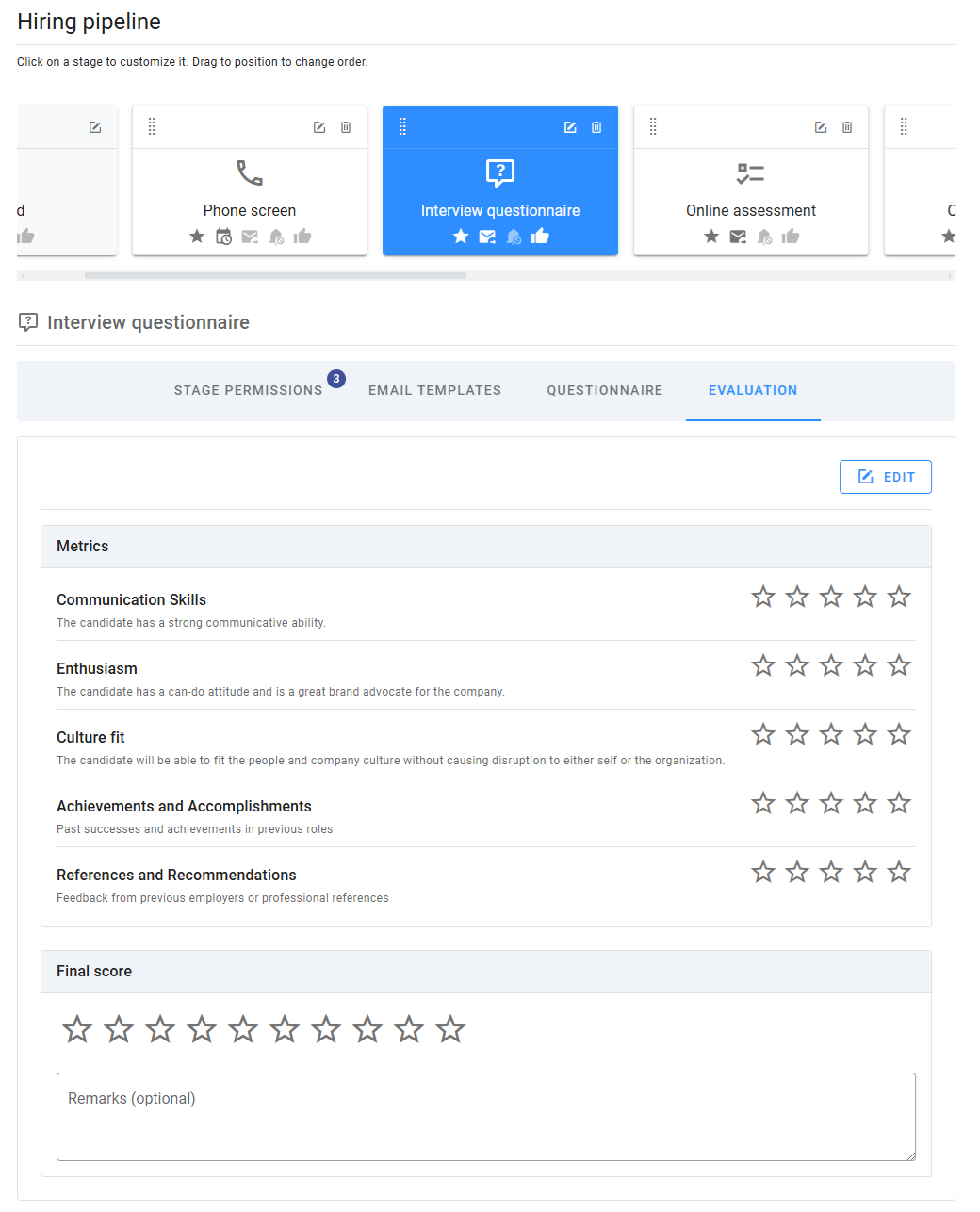
Stage cards display the type, name, and icons indicating settings or automation. Hover over an icon to view details. While a job is in Draft, you can edit stages by clicking the Edit icon (note: the stage type cannot be changed). For active jobs, adding new stages to the pipeline is not allowed. However, you can edit or delete stages that no candidates have reached yet. This approach provides flexibility in managing the pipeline while ensuring fairness and consistency for candidates already in progress.
Reordering and removing stages
Drag stages into place using the Dots icon. The Applied and Hired stages are fixed and cannot be moved. To remove a stage, click the Delete icon on the card. Confirm before deletion, as this action is irreversible.

Setting up stage sections
Each stage in the pipeline can be customized with specific configurations tailored to its purpose. When you click on a stage card, its configuration sections will be displayed below. These sections vary depending on the stage type but generally include options for managing permissions, email templates, evaluations, schedules, questionnaires, assessments, and offer decisions. While the stage remains editable, all its sections can also be modified, allowing you to adjust the setup as needed to align with your hiring process.
Stage permissions
Permissions for each stage control what actions team members can perform. While overall job and pipeline permissions are managed in Hiring Team & Permissions, you can refine stage-specific permissions here. Team members fall into three categories:
- Full Access Members: Can view and perform all actions on all stages.
- Read-Only Members: Can only view and comment.
- Stage-Specific Members: Have access to selected stages, with customizable actions.
To modify permissions, click the Edit icon next to the permissions list. You can also add or remove team members for the stage. Note that changes made here affect only the specific stage, so we recommend defining general permissions in the Hiring Team & Permissions view before fine-tuning at the stage level. For more information, see Hiring Pipeline Permissions.
Email templates
Zamdit supports predefined email templates to streamline candidate communication at each stage. These templates are used for common actions, such as notifying candidates of their application status or scheduling interviews. Key details:
- Templates are auto-populated based on the Candidate Email Templates or system defaults.
- All stage types, except Hired, include templates for relevant candidate actions.
- You can customize the subject and body of each email or select a different template if needed.
This feature ensures consistent, professional communication while saving time for hiring teams. For more details, refer to Hiring Pipeline Email Templates.
Evaluations and interviews
For stages involving interviews, evaluations play a crucial role in assessing candidates. Each evaluation includes a final score (out of 10), which helps quantify candidate performance. While scorecards (referred to as Metrics in Zamdit) and specific questions are optional, they enhance the evaluation process. Key points:
- Interview Evaluation Templates: These can be used to predefine questions, scoring criteria, and other metrics.
- Interview Stages: For stages like Online Interview, or Onsite Interview, you can add multiple interviews, each requiring an evaluation. The stage Phone Screen only support one interview.
For more information on configuring evaluations, see Hiring Pipeline Interviews.
Schedules
Schedules provide candidates with the flexibility to select available time slots for interviews. This section is available for stages involving interviews (phone, video, or in-person) where self-scheduling is enabled. Key features:
- Predefined Time Slots: Set up availability using Interview Schedule Templates.
- Customization: Adjust time slots and templates as needed for each stage.
Efficient scheduling helps improve candidate experience and reduces back-and-forth communication. For information on setting up the time slots, see Hiring Pipeline Schedules.
Questionnaires
Stages like Interview Questionnaire allow you to include structured questionnaires tailored to the role. These questionnaires enable teams to collect targeted responses, assess qualifications, and identify top candidates early. Features include:
- Support for over 10 question types, such as video responses, file uploads, and reference checks.
- Dynamic workflows through section jumps for customized interview experiences.
- Templates: Use Interview Questionnaire Templates to save time.
By integrating questionnaires into the pipeline, you streamline evaluations and ensure a consistent process. For details, refer to Hiring Pipeline Questionnaires.
Assessments
Online Assessment stages are designed to evaluate candidates’ skills and knowledge using tailored tests. These assessments are essential for objective, data-driven hiring decisions. Key points:
- Test Library: Choose from system-provided or custom organization tests.
- Candidate Feedback: Include a feedback form post-assessment to gather insights.
- Templates: Start with Assessment Setup Templates to configure tests efficiently.
Integrating assessments into the pipeline ensures fair, consistent candidate evaluation. For setup details, see Hiring Pipeline Assessments.
Offer decisions
The Offer stage includes an Offer Decision Form, which simplifies the final step of the hiring process. This form allows candidates to accept or decline job offers directly and securely. Features include:
- Templates: Use Offer Decision Form Templates for standardized content.
- Customization: Tailor the form for each role or hiring process.
- Optional Sending: You can decide whether to send the form link or discuss the offer via other channels.
Offer Decision Forms streamline communication and improve tracking of candidate responses, ensuring a professional and organized process. Learn more in Hiring Pipeline Offer Decisions.