Appearance & Preferences
In this section, you can update your preferences for using Zamdit, including changing its appearance, date and time format, and other options that adjust the look, feel, and behavior of the system. Note that changes made in this section apply only to the current device.
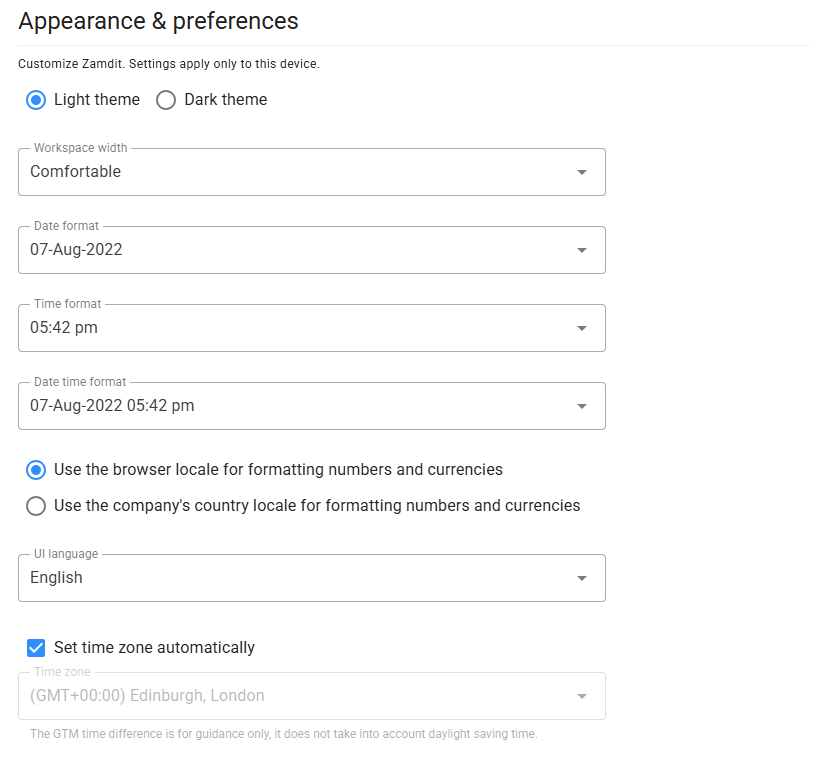
The first fields are self-explanatory, but the last ones may require further explanation:
- Remember parameter values for reports
Reports often have parameters like date range. When this option is selected, the latest parameter values will persist the next time you open a report. If this option is not selected, they will reset to their default values.
- Use flat design for cards
Removes drop shadows from cards for a cleaner, flatter appearance. This setting also applies to embedded forms, such as notes and emails in the candidate view on the Progress Board.
- Open candidate details in new tabs or popup windows
When opening candidate details, the system provides two ways to do this: in new tabs added to the view where candidates are listed, or in popup windows. In both cases, you can open multiple candidate details, making it easier to compare candidates side by side.
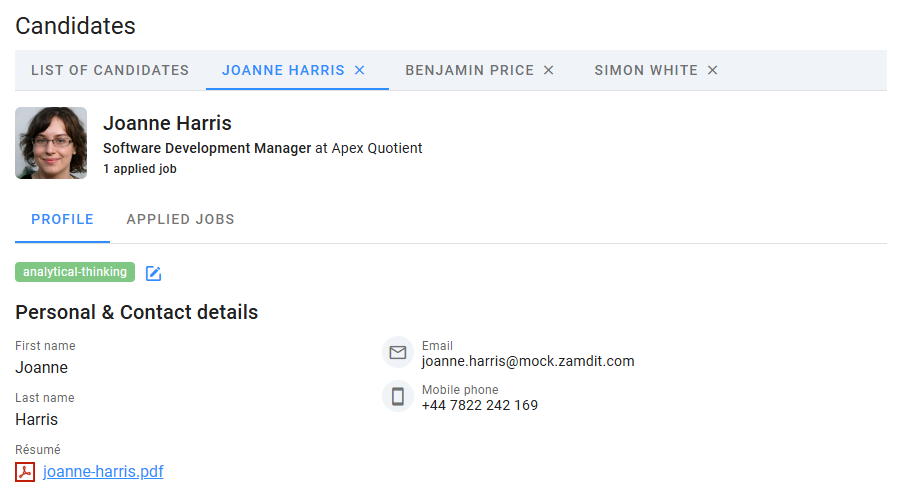
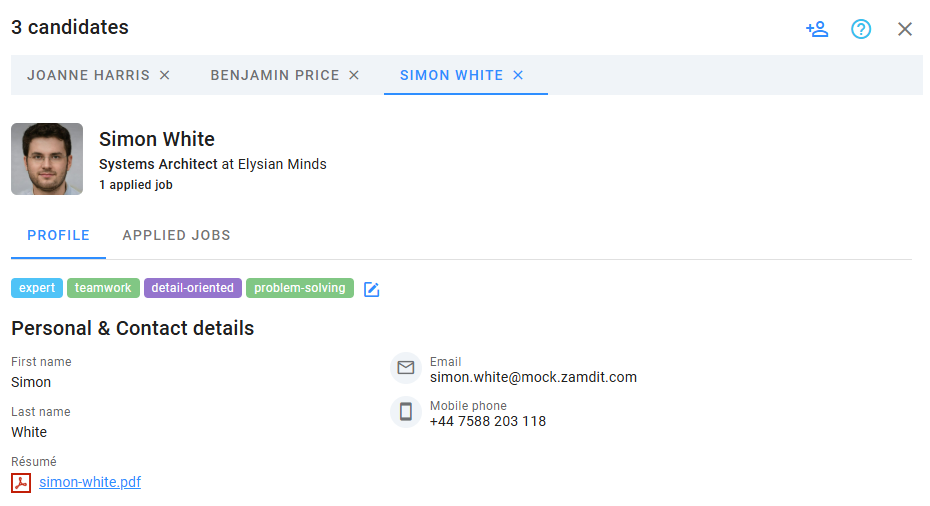
If the second option is selected, you can use the icon button at the top right of the window to minimize it and open new candidate details while keeping the others accessible.
- Use the same background color for candidate avatars without an image
Most candidates in the candidate pool might not have an avatar photo. In such cases, the system will display an avatar consisting of a background color and the initials of the candidate's name. Background colors are automatically selected based on the candidate's email address, but they serve mainly to differentiate candidates visually.
If you prefer a neutral color for avatars without photos, select this option.
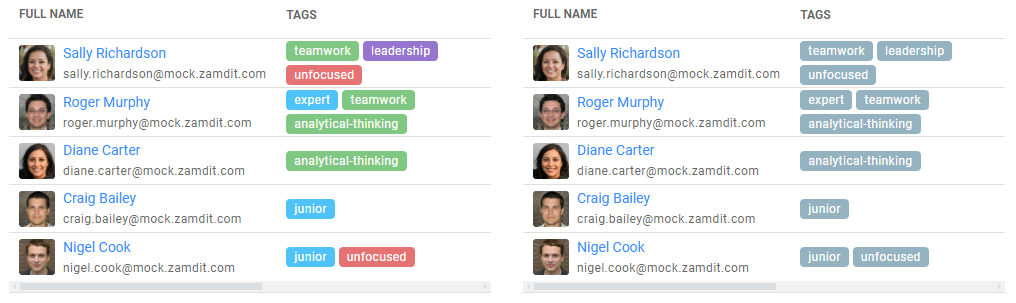
- Use the same color for all candidate tags
When creating candidate tags, each is assigned a color. If candidates with multiple tags are distracting, you can select this option to make all the tags a neutral color.
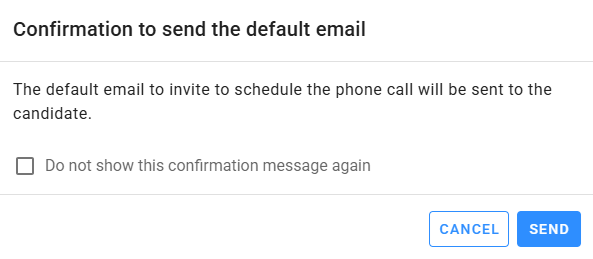
- Show a confirmation dialog when manually sending default emails
When default emails are not sent automatically as candidates move through stages in a hiring pipeline, users must send them manually. If this option is selected, a confirmation dialog will appear to prevent sending emails by mistake.