
Candidate Feedback Form Templates
Gathering feedback from candidates after online assessments helps enhance their experience by identifying areas that may be unclear or misaligned with the role, allowing for targeted improvements. This process demonstrates that candidates’ opinions are valued, which can enhance the employer brand and leave a positive impression, even if candidates are not selected. Additionally, feedback can reveal how well the assessment evaluates job-relevant skills, enabling refinements that better align with role-specific competencies.
Incorporating feedback data improves completion rates and supports a data-driven hiring approach. Addressing candidate concerns promotes a fair, engaging process, and tracking feedback trends over time allows for continuous optimization. This creates a hiring experience that effectively selects the right candidates while reflecting a respectful, candidate-focused approach.
Zamdit allows you to create Candidate Feedback Forms that can be included at the end of an online assessment, giving candidates an opportunity to provide their insights. While customizing feedback forms based on the assessment’s content and role requirements is recommended, Zamdit includes a default template in each language with commonly used questions.
Creating and editing feedback form templates
When adding or editing a feedback form template, the details are organized within a popup window divided into two main sections. Changes are not saved until you click Save.
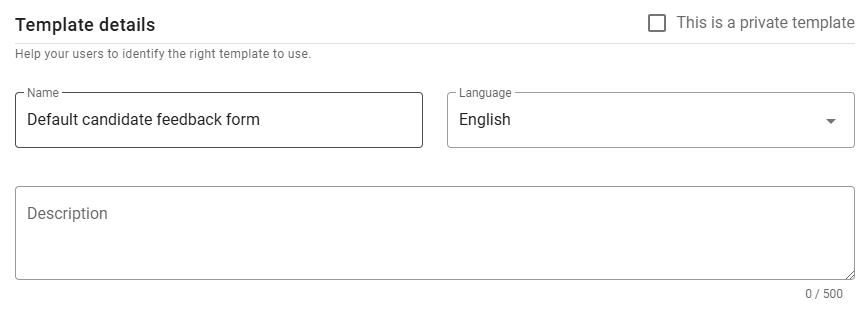
Template details
In this section, define the template's Name, Language and Description. Set the language before adding questions to ensure compatibility.
⚠️ Note for Admin users
When creating a new template, you can mark it as private by selecting the checkbox in the top-right corner. Once saved, this option cannot be changed.
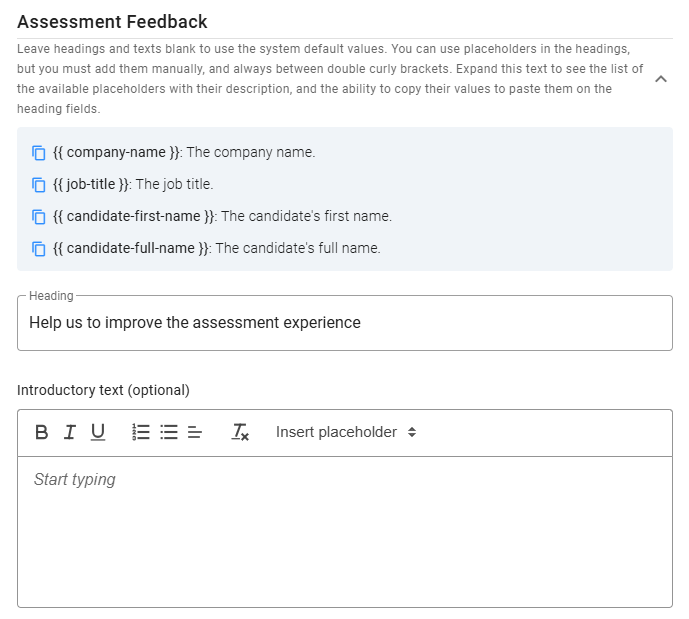
Assessment Feedback
This section lets you customize the Heading and Introductory Text shown at the top of the form. Note that there are no default texts, and while the introductory text is optional, the heading is required.
You can use placeholders, listed at the top of this section (click the expand icon), for dynamic content. To copy a placeholder, click the icon next to it.
Feedback questions
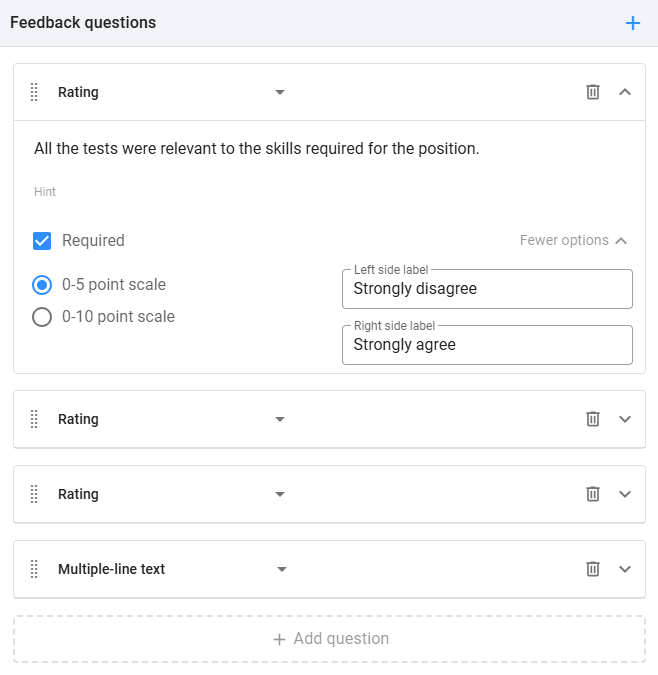
In the Feedback questions panel, add questions for candidates to complete. Zamdit supports various question types, including Checkbox, Number, Single choice, Multiple choice, Single-line text, Multiple-line text, Rating, Star rating and Smiley rating. For each question, you can include an optional hint to clarify its purpose and mark it as required. Choice questions require at least two options, and you can select the UI component (dropdown, checkbox, or radio button). Rating and Star rating questions also allow customization for range and labels.
To delete a question, click the Delete icon on the right. To reorder questions, drag and drop them using the Dots icon.
Preview
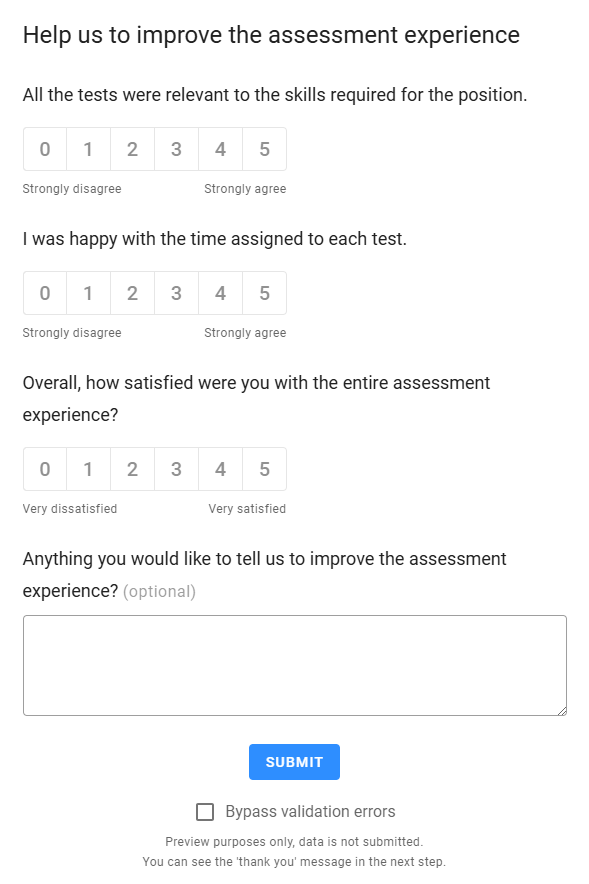
To preview how the form will appear to candidates, click the Preview button at the bottom left of the form. The Heading and Introductory Text (if provided) will be displayed at the top, followed by all questions, enabling you to test labels, fields, and validation rules. If you want to move through the preview without completing validation requirements, check the Bypass Validation Errors box.
The Thank-you message is configured within the assessment itself. If no feedback form is included, candidates will still see a Thank-you message upon completing all tests.