Candidate Details
The Candidate Details view provides comprehensive information about a candidate's profile, past applications, and performance. This page allows users to manage candidate tags, review their application history, and take actions such as inviting them to open positions. It also supports a multi-view setup for comparing candidates side by side, ensuring informed decision-making.
Open Multiple Detail Views
You can open multiple Candidate Detail views side by side, which is particularly useful for comparing candidates' profiles and performance in previous job applications. By default, these detail views open as tabs on the Candidate List page, with a persistent List of Candidates tab at the start for easy navigation.
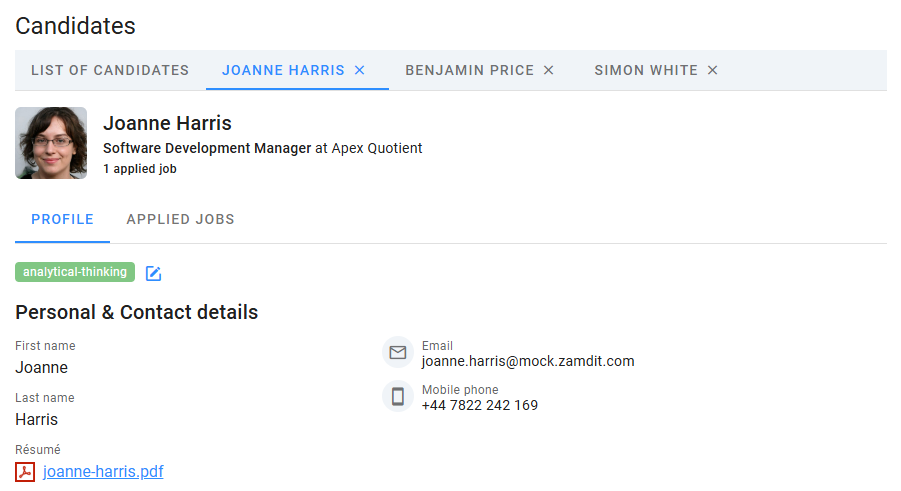
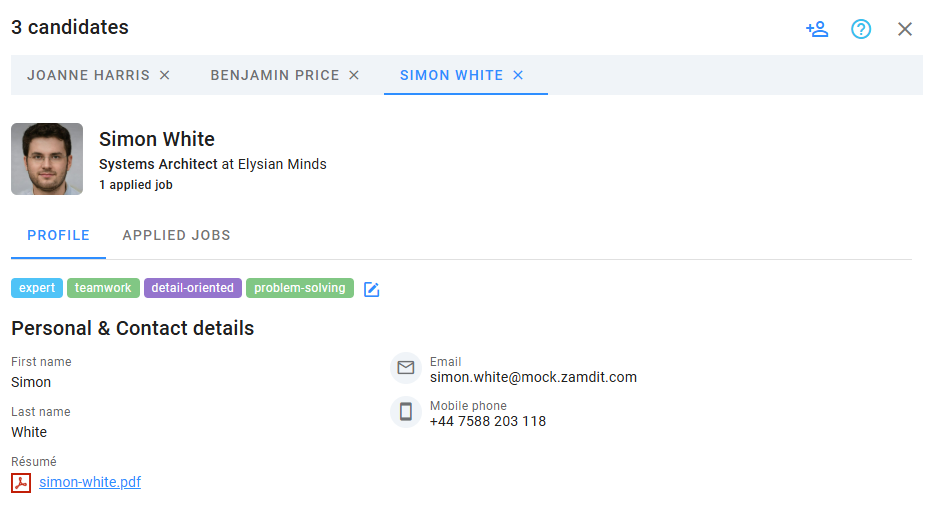
Alternatively, you can configure detail views to open in a popup window. Adjust this setting in the Open candidate details in new tabs or popup windows option within the Appearance & Preferences section. In popup mode, tabs for opened candidates are accessible within the window. Use the Add candidate icon at the top-right corner to add more candidates. Closing the popup resets all opened candidates.
Profile
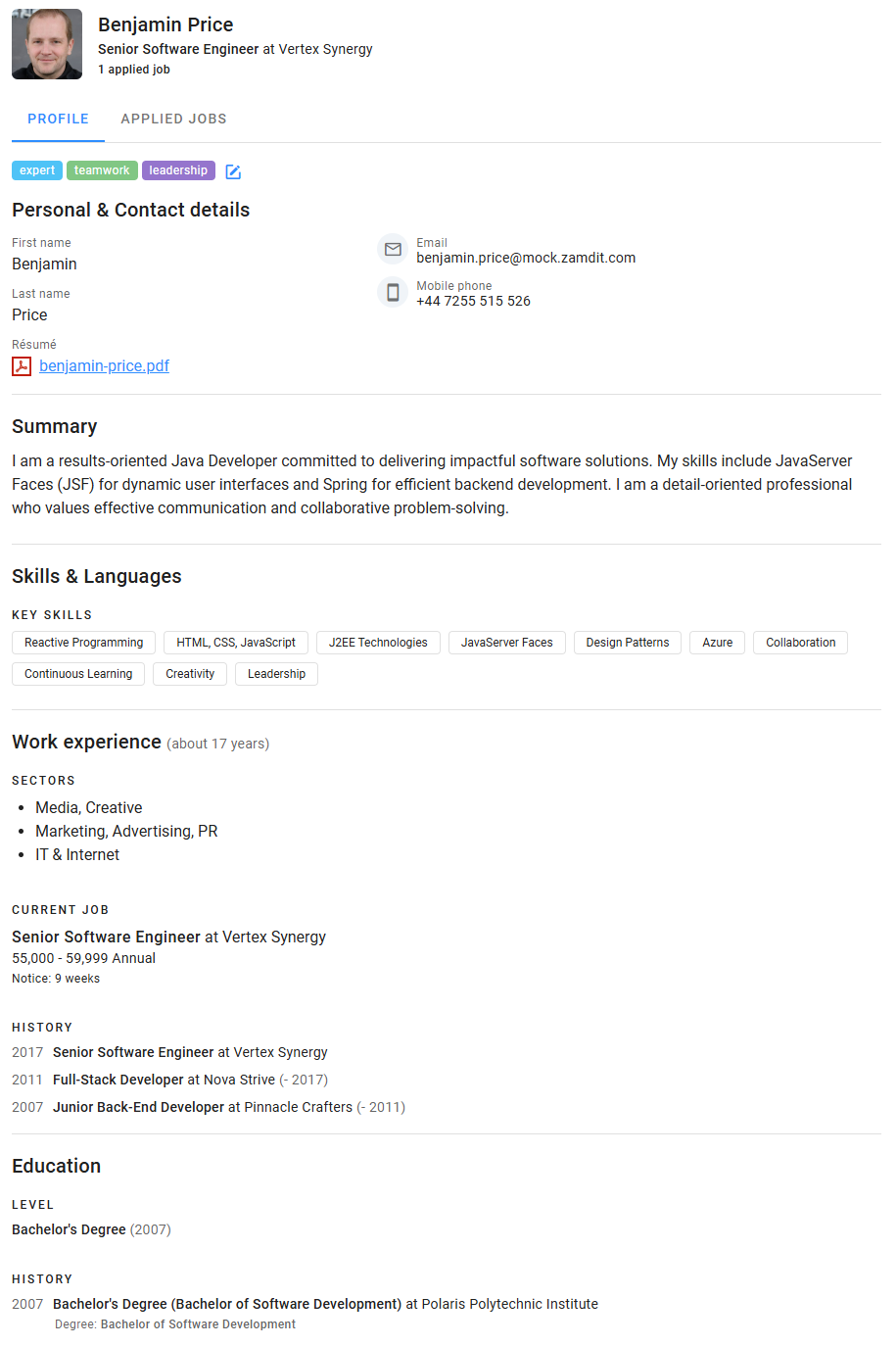
The Profile section displays all information in the candidate's record, including:
- Personal and contact details
- Résumé
- Summary
- Skills and languages
- Work experience and education
This data may come from application forms submitted by the candidate, imported records, or manually added entries.
Tag Candidates
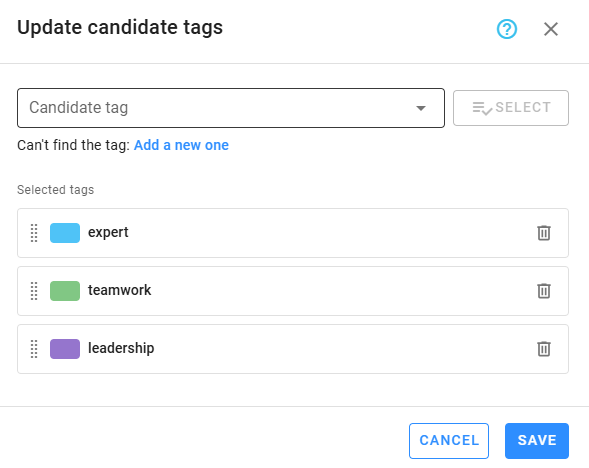
Tags assigned by users appear at the top of the Profile section. To edit tags, click the Edit icon. You can search for existing tags or create new ones. Arrange the selected tags to prioritize relevance, then click Save to confirm changes.
Applied Jobs
The Applied Jobs section provides a detailed history of all jobs the candidate has applied for, including those in active hiring processes. This section includes:
- Job titles.
- Application results and current stages (for active jobs).
- Interview evaluations, including scorecards, final scores, and reviews.
- Online test scores, broken down by skill areas (if applicable).
This section helps evaluate the candidate's past and current performance across various roles.
Invite to Open Positions
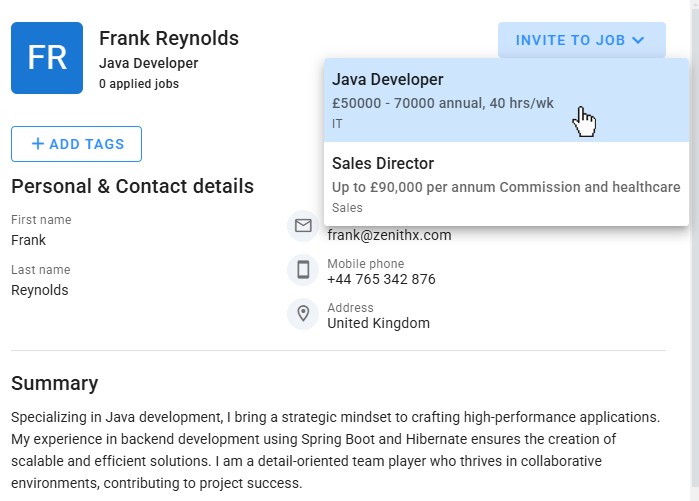
If there are open positions suitable for the candidate’s skills, you can invite them to apply. Click the Invite to Job button to view a list of available open positions. Select the desired job to send the invitation immediately. No confirmation message will be displayed after making the selection, and the invitation will be sent automatically.
Changelogs
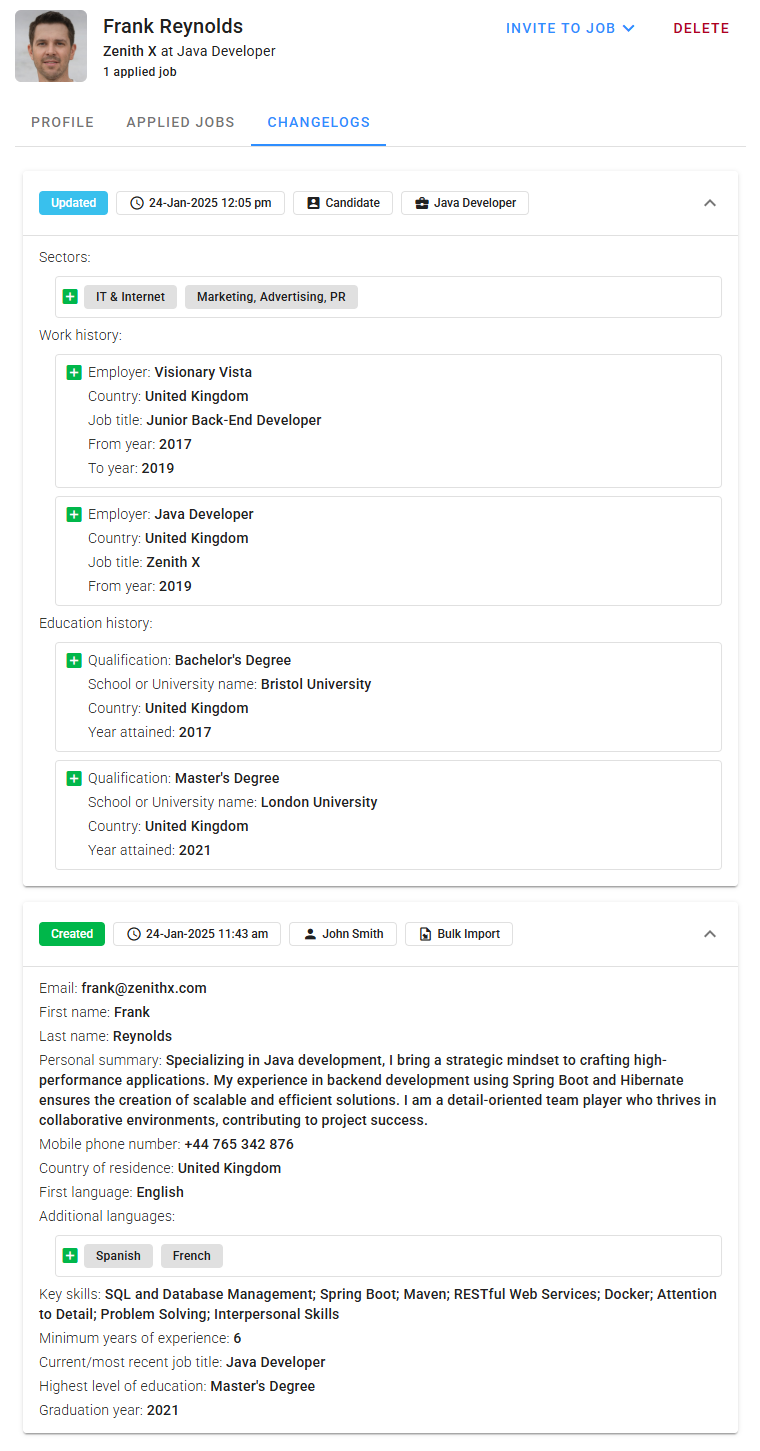
Admin users can view all changes made to candidate records within the past 12 months. The system logs changes made by users via the candidate form, updates resulting from data imports, and modifications made directly by candidates when applying for jobs.
Changes are displayed in reverse chronological order, with the most recent ones at the top. Each changelog entry includes a heading indicating the type of change (e.g., Created or Updated), the timestamp, the person responsible for the change, and additional details, such as the job the candidate applied for or whether the change was part of a bulk import.
For changes related to Work and Education history, Sectors, and Additional languages, the log specifies which items were added or removed, using intuitive icons to represent the action.