
Manage Notifications
Notifications keep users informed about real-time events such as new job applications, assigned tasks or incoming emails, and upcoming events that require attention.
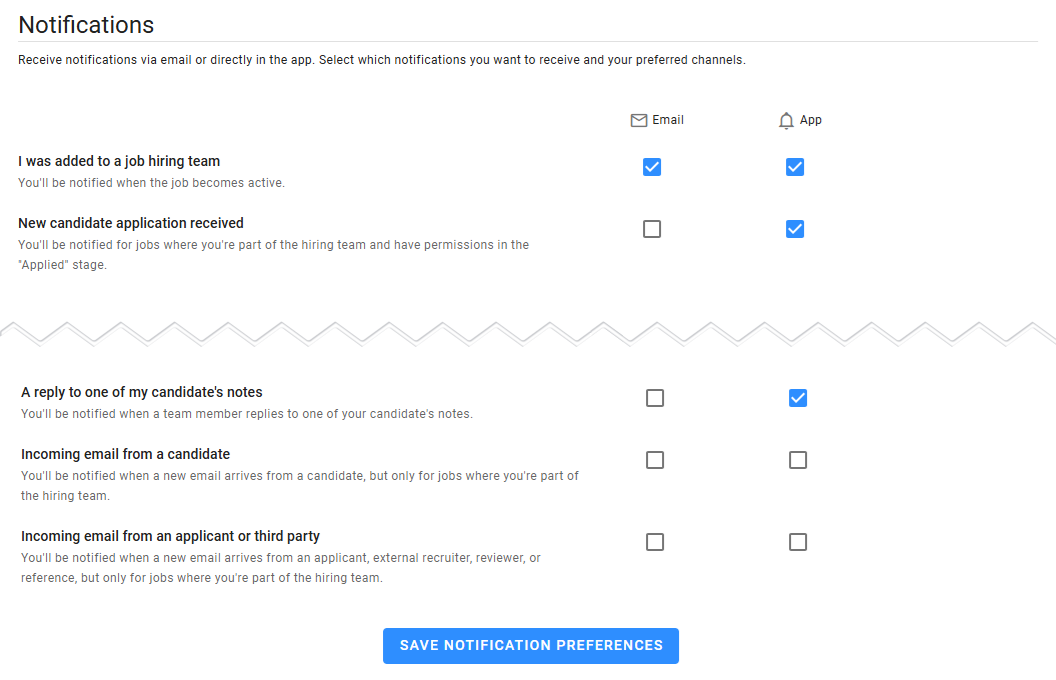
Notifications to receive
Zamdit allows you to customize which notifications you want to receive and choose the channels: Email, App notifications, or both. Each notification includes a brief description explaining when it is sent.
Notification alerts
When a new notification is sent to the App and you're actively using it, a brief message (snackbar) will appear at the bottom of the screen, displaying the notification heading or the number of notifications if there are multiple. If you prefer not to see these brief messages, open the Notifications Panel by clicking the bell icon and activate "Do Not Disturb" mode by clicking the icon with a bell and a "Z" inside.
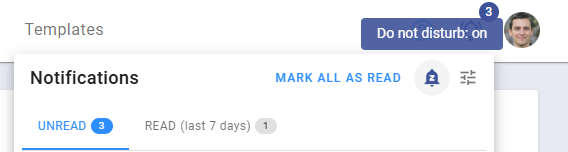
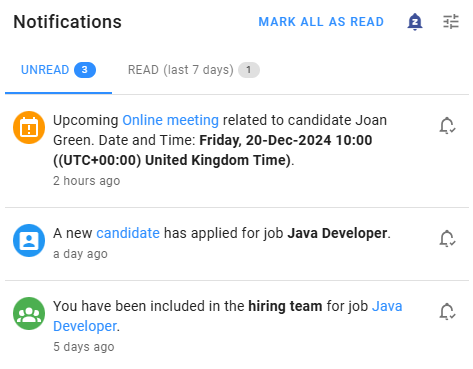
All new notifications are listed in the Notification Panel, along with read notifications that are less than 7 days old. To mark a notification as read, click the icon with a "checked bell" on the right of the notification message. Once a notification is marked as read, it will automatically be removed after 7 days, though you can manually remove it from the "Read" tab.
To mark all notifications as "Read", click the button at the top of the Notifications Panel.
Icons and colors
Each notification is accompanied by an icon and background color to help you quickly identify its type and urgency.
Special notifications
These notifications are sent automatically (not via subscription) to specific users like the "Account Owner" or users flagged to "Receive alert notifications about the number of candidates". Special notifications include:
Hiring team notifications
Candidate-related actions
Actions completed by third parties
Activities
Tasks
Notes
Links
Depending on the notification type, it will contain a link to the related section, such as the "Progress Board", "Candidate", "Task", "Event", or "Message", allowing you to quickly navigate to the relevant item.