Pipeline - Stage Permissions
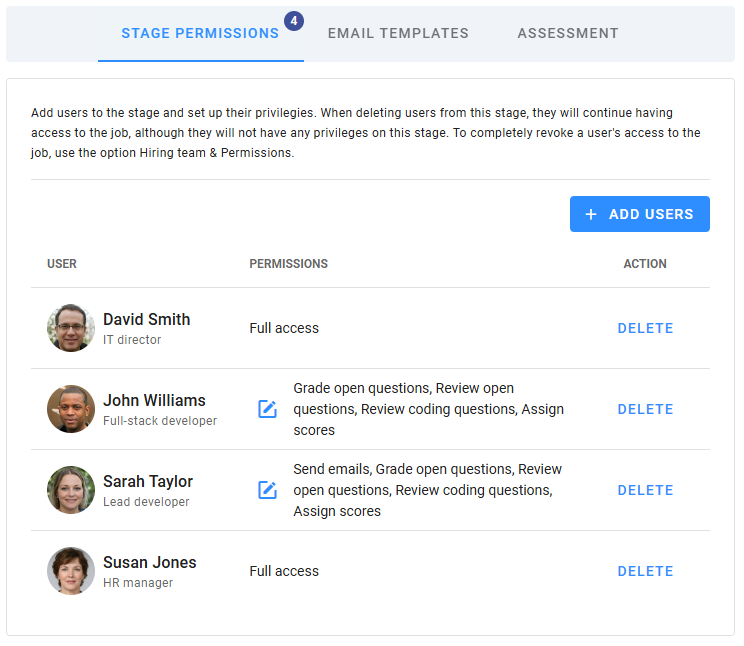
The Stage Permissions section displays all hiring team members with access to the stage and their specific permissions. Note that Read-Only members are not displayed here, as they cannot perform actions on stages. From this section, you can add or remove users from the stage and customize permissions for Stage-Specific Members. To remove users entirely from the hiring team, use the options in Hiring Team & Permissions.
The number of members with access to the stage is shown in a badge on the tab.
Adding and removing users
While it is recommended to manage hiring team members in Hiring Team & Permissions, you can add or remove users for a specific stage here. Note that these changes only apply to the selected stage.
- Adding Users: Adds the user as a Stage-Specific Member for the selected stage only, with default permissions for that stage. You can modify these permissions as needed.
- Removing Users: Removes the user from the selected stage. If the user previously had Full Access for all stages, their category will be downgraded to Stage-Specific Member for all remaining stages, with default permissions applied to each.
⚠️ Note
Removing users from a stage occurs without a confirmation step. Proceed carefully.
Editing permissions
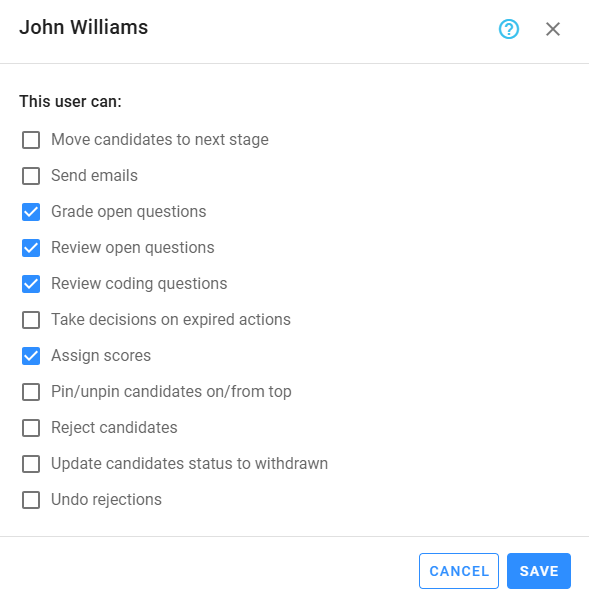
Permissions for Stage-Specific Members are tied to the actions available within the stage. To modify permissions:
- Click on the Edit icon next to the user's name.
- A list of stage-specific actions will appear as checkboxes.
- Select or deselect the permissions you wish to grant or revoke.
- Click Save to apply your changes.
This flexibility allows you to ensure that each member has precisely the level of access required for their role.