
Your Company Details
This page contains the company details form, the view for editing default and additional languages, and the option to turn off "Test Data" mode if it is still active.
All users can view this page, but only users with the "Admin" role can edit the company details.
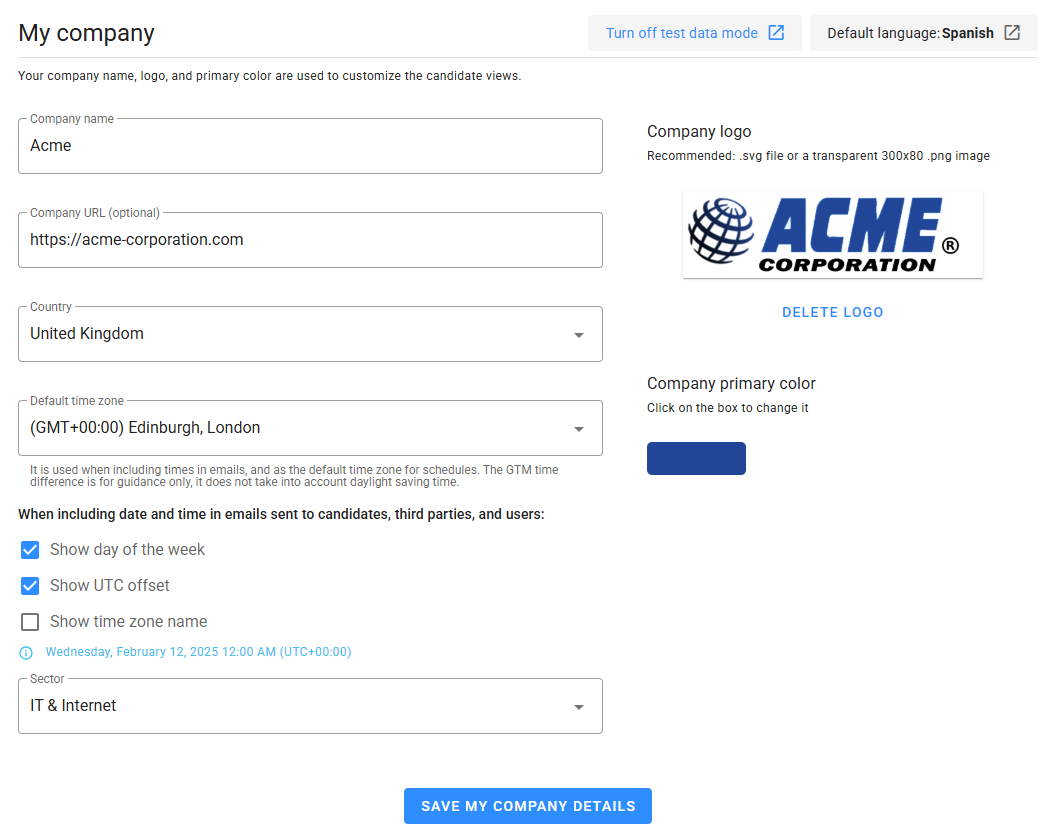
Company details form
Most of the form fields are similar to those shown during account creation, but a few are exclusive to this form. Some of these fields affect what candidates see when completing forms or tests, or when they receive emails.
The Company Logo and Company Primary Color customize the views presented to candidates and third parties. If no logo is uploaded, the Company Name will be displayed instead. Action buttons in those views use the specified primary color as their background, though if the color is too light, a darker shade is automatically applied to ensure adequate contrast for readability.
The logo's background is always white. We recommend using a Scalable Vector Graphic (SVG) or transparent Portable Network Graphic (PNG) file. The maximum height for the logo container is 50px.
The Default Time Zone is applied when sending emails that include date and time, and it also serves as the default when creating Schedules.
Manage languages
At the top-right of the view, you will find a button displaying the current default language. By clicking on it, a popup window will appear where you can manage languages.
The Default Language determines the language used for notifications, transactional emails to users, and system templates. When adding new languages, the system templates for those languages will be generated. If you remove an additional language, the associated system templates will be deleted, though custom templates created by users must be removed manually.
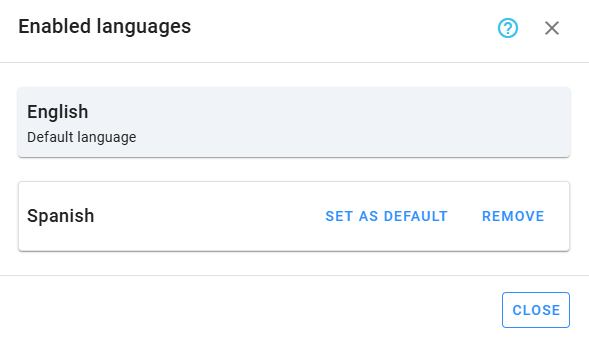
You can make an additional language the default by clicking the Set As Default button next to the desired language.
Turn off Test Data mode
If Test Data mode is still active, a button will appear at the top-right of the view, allowing you to disable this mode. You will first see a confirmation message.
The Test Data mode must be disabled before using the platform with real data. Turning off this mode will delete not only the test data but also any new users, external recruiters, departments, recruitment sources, candidate tags, tests, jobs, and candidates that have been created.
Once the Test Data mode is turned off, it cannot be re-enabled.