
Progress Board - Pipeline
The Pipeline is the default view when accessing the Progress Board. It offers a Cards View organized into columns, where each column represents a stage in the hiring process, and each card represents a candidate. From the Pipeline, you can advance candidates through stages and perform individual actions.
Overview
The image below highlights the key elements of the Pipeline. Some features, such as Candidate Totals and certain Toolbar buttons, are accessible across all Progress Board sections.
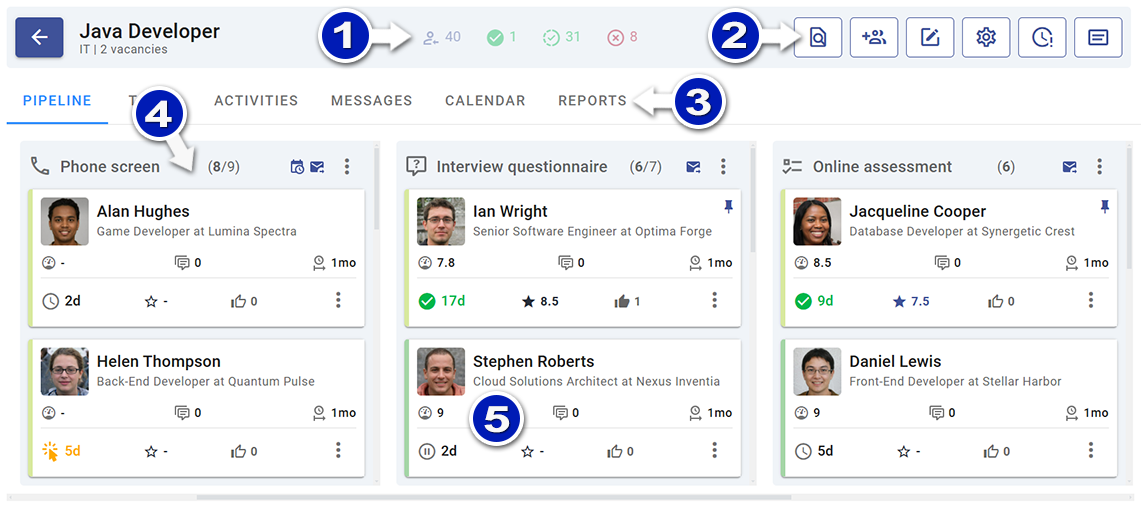
- Candidate Totals: Displays the number of candidates in various statuses:
- Hired
- Active
- Rejected or Withdrawn
- Toolbar: Provides access to job-related actions and settings (permissions-dependent):
- View the job description.
- Invite candidates to apply.
- Edit the job.
- Customize the information displayed on cards.
- View stats on invited or requested candidates who haven’t applied yet.
- Access a legend for colors and icons used throughout the Progress Board.
- Sections: Tabs to navigate the Progress Board sections.
- Columns: Represent hiring stages for the job.
- Cards: Represent individual candidates and their available actions.
Stages
Each column corresponds to a stage in the hiring process and includes:
- An icon representing the stage type
- The stage name
- The number of active candidates in the stage (with total candidates displayed if there are any rejected or withdrawn)
- Icons indicating settings or automation configured for the stage
Hover over any icon for additional details. Use the Three-Dot Menu to access column-specific actions.

Stage Menu Options
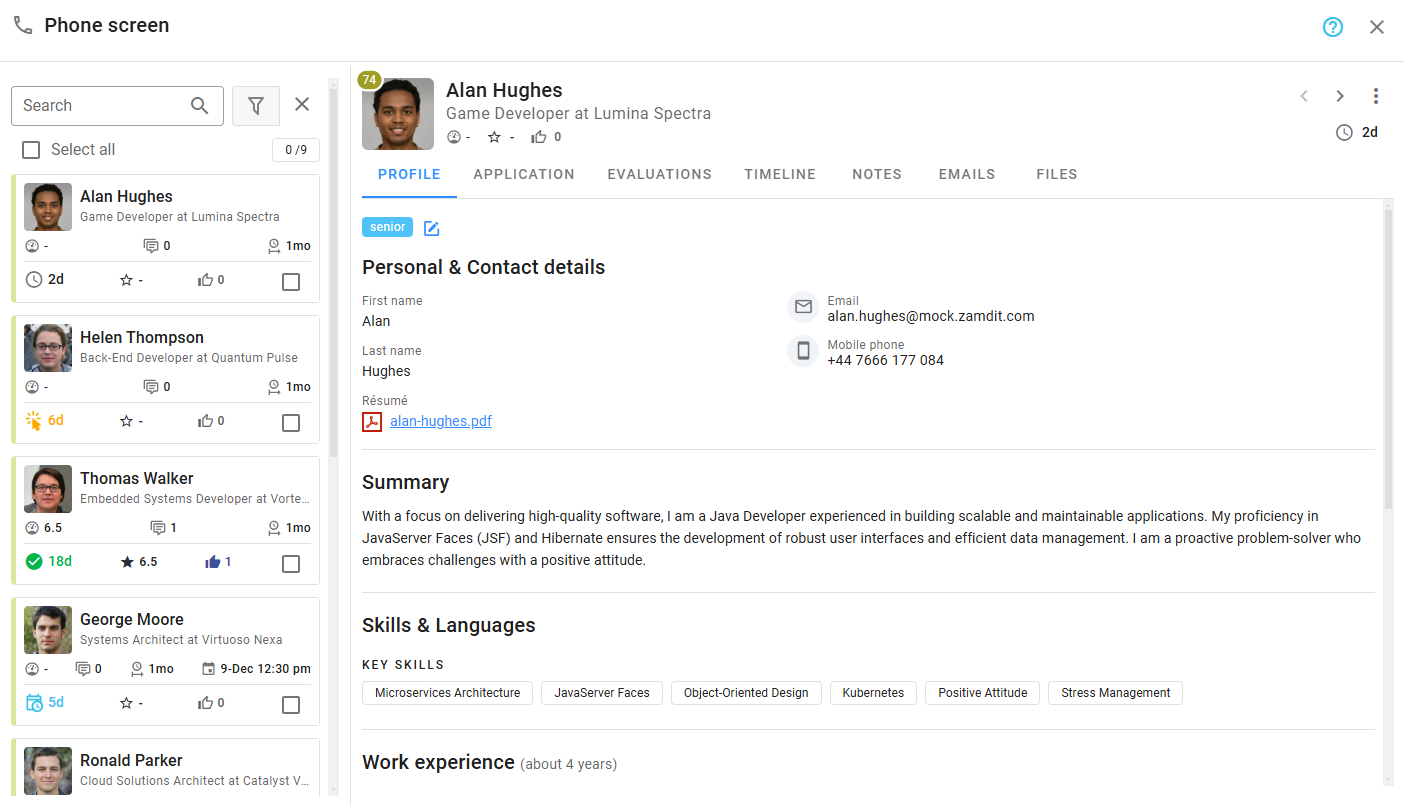
Candidate Details View
Opening this view from the column menu automatically displays the Candidates List Panel, which shows all candidates in the stage by default. This allows you to review details and navigate between candidates without closing the view, as well as execute bulk actions when available. The Candidates List Panel can be toggled on or off in the Candidate Details view. You can also open this view by clicking the stage name. Learn more in Candidate Details View.
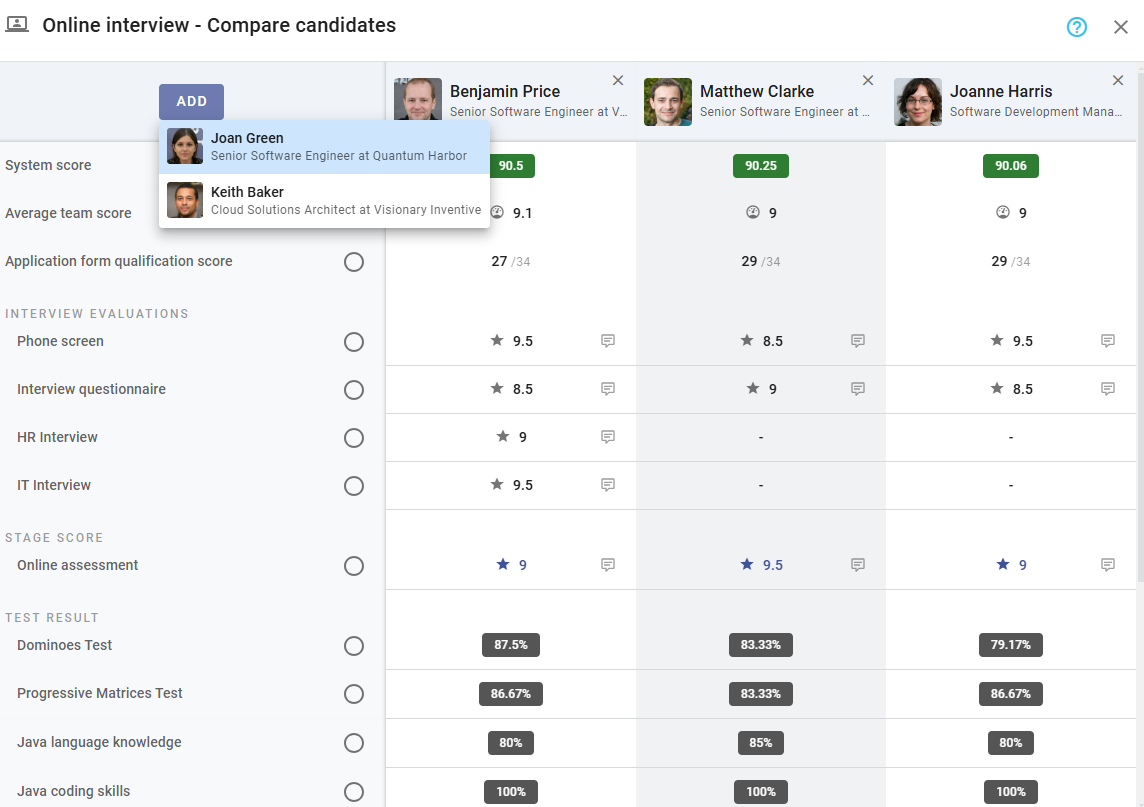
Compare Candidates
Easily compare candidates side-by-side to make faster, informed decisions. By default, the top candidate in the column is added to the comparison tool, but you can add or remove candidates as needed. Learn more in Compare Candidates.
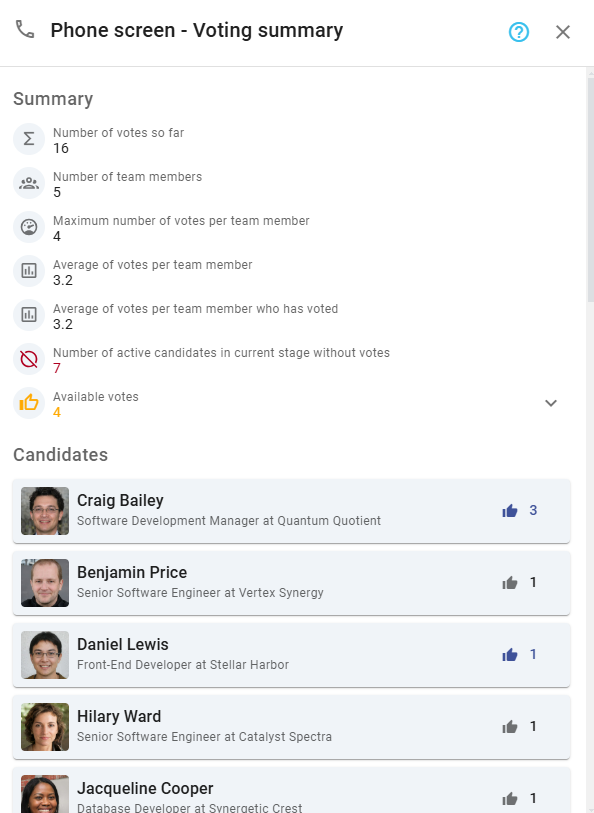
Voting Summary
Available only if voting is active for the stage. The summary includes:
- Statistics about voting results
- A list of all candidates who reached the stage, along with their total votes
Collapse Columns
If a stage is empty or not of interest, you can collapse it by selecting the Collapse stage option from the menu. To expand a collapsed column, simply click on it.
Cards
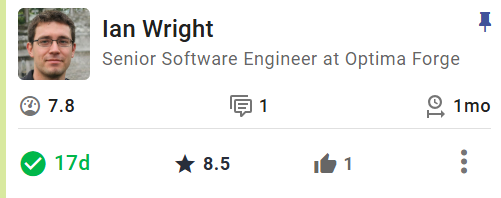
Cards display essential candidate information and include icons for quick insights. Hover over any icon for details. The Candidate Status Icon provides information on pending and upcoming actions, readiness for progression, or inactivity. For more details about icons and colors, click the Legend button on the Toolbar.
Key Features
- Non-Draggable Cards: Cards can only be moved to the next stage if the candidate is ready.
- Order Defined by Sort Criteria: The order of cards follows the selected sorting preferences.
- Action Menu: Use the Three-Dot Menu on each card to perform actions such as progressing the candidate or opening the Candidate Details view.
Rejected or withdrawn candidates appear faded and are listed at the bottom of the column. If you have the necessary permissions, you can revert rejections.
Customization
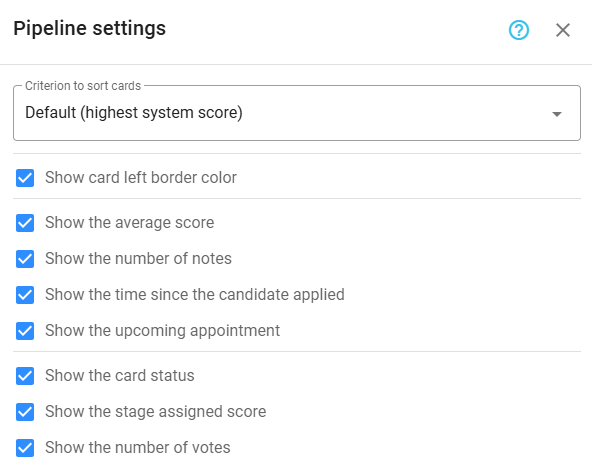
You can customize the information displayed on cards by selecting Pipeline Card Customization in the Toolbar. These customizations apply only to your current device and won’t affect other jobs or users.
Actions
The actions available for a candidate depend on the stage, their status, and your permissions. Below are summaries of possible actions in the candidate menu:
⚠️ Immediate Actions
Menu labels with three dots (ellipsis) indicate actions that will lead to a subsequent confirmation dialog or another popup window. Please be cautious with actions that do not have ellipses (immediate actions), as they cannot be reverted.
Sending Emails
- Send assessment invitation: Send the default email inviting the candidate to complete an assessment.
- Send questionnaire invitation: Send the default email inviting the candidate to complete a questionnaire.
- Send appointment invitation: Send the default email inviting the candidate to schedule an appointment.
- Send activity invitation: Send an invitation for a scheduled activity (phone call, online meeting, or onsite meeting).
- Send offer letter: Send the default email with the offer letter. For personalized emails, use the Candidate Details view.
- Send personalized offer letter: Shortcut that opens the Candidate Details view with the email form ready to compose and send a personalized offer letter. This option is only visible when offer letter emails must be sent manually.
ℹ️ Note
To send custom emails instead of the default predefined options, go to the Emails section in the Candidate Details view. Select the type of email you want to send to use any of the available templates as a starting point for the subject and body of your message.
Arranging Appointments
- Schedule appointment...: Arrange an appointment for the stage’s activity.
- Reschedule appointment...: Rearrange an appointment if the previous one was canceled.
- Confirm or decline appointment...: Respond to an appointment scheduled by a candidate.
Expired Actions
- Extend 24 hours: Grant the candidate an extra 24 hours to complete an action.
- Bypass and continue to next action: Allow the candidate to proceed without completing the action. In cases where the candidate's scheduling time has expired, bypassing this action allows you to manually arrange an appointment.
- Continue to next action: Allow the candidate to proceed without a reference to complete their questionnaire.
Evaluations, Scoring, and Voting
- Complete evaluation...: Fill out an evaluation form for the candidate.
- Complete overdue evaluation...: Fill out an overdue evaluation form for the candidate, that was assigned to an external recruiter.
- Grade open questions...: Grade open questions from assessments. You can request reviews before grading.
- Assign score...: Assign a score if required for the stage.
- Vote: Cast your vote for the candidate in this stage.
Moving Candidates
- Move to next stage: Move the candidate to the next stage. Ensure all necessary actions are completed beforehand.
Pin/Unpin
- Pin on top: Pin the candidate at the top of the stage; multiple pinned candidates will be sorted by criteria.
- Unpin from top: Unpin the candidate, returning them to their original position.
Rejections and Withdrawals
- Reject candidate...: Provide a reason and confirm the rejection.
- Change status to withdrawn...: Open a popup to enter a reason and confirm withdrawal.
- Undo rejection: Revert the rejection (no confirmation required).
Candidate Details View
- View details...: Open the Candidate Details view.