Progress Board - Tasks
Zamdit includes a task management tool for each hiring process. This tool is vital for streamlining the hiring process, as it provides a centralized platform for tracking tasks, deadlines, and responsibilities among team members. By organizing hiring-related activities, such as reviewing applications, scheduling interviews, and evaluating candidates, it enhances collaboration and communication within the hiring team. This leads to improved efficiency, minimizes the risk of missed deadlines, and ensures that all stakeholders are aligned on their responsibilities. Additionally, the tool helps identify bottlenecks in the hiring process, enabling teams to address issues proactively and ultimately leading to faster and more effective hiring decisions.
Overview
The task management tool features a user-friendly interface divided into two sections:
- Tasks List: Users can filter and sort tasks using the available options.
- Task Details: Displays information about the selected task, with buttons to edit or delete it, and a tab to manage notes.
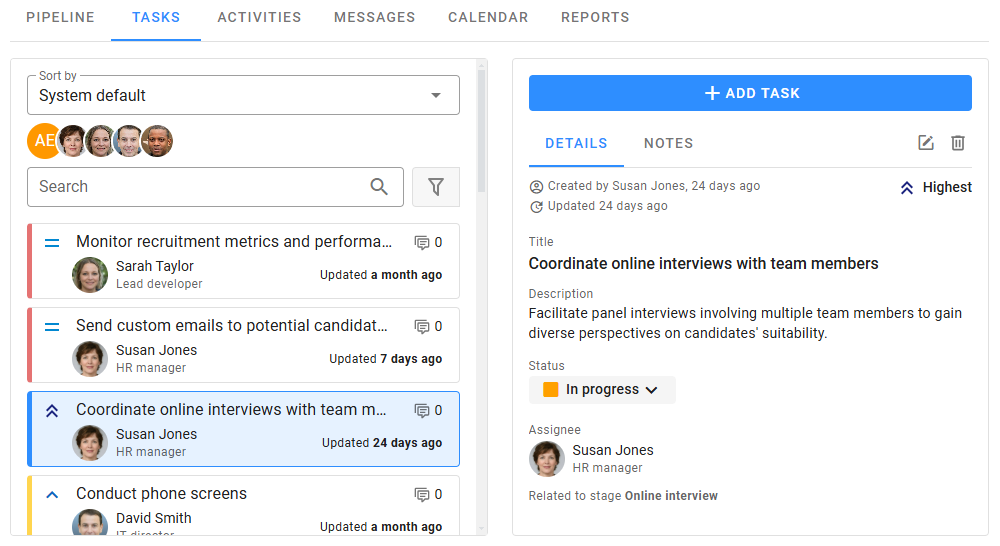
Tasks are displayed as cards with a left border color-coded to indicate their status (Not started: red, In progress: yellow, Complete: green). Each card includes a priority-related icon, the task title, the number of notes, the assignee, and the last updated timestamp. The details view contains all task-related information.
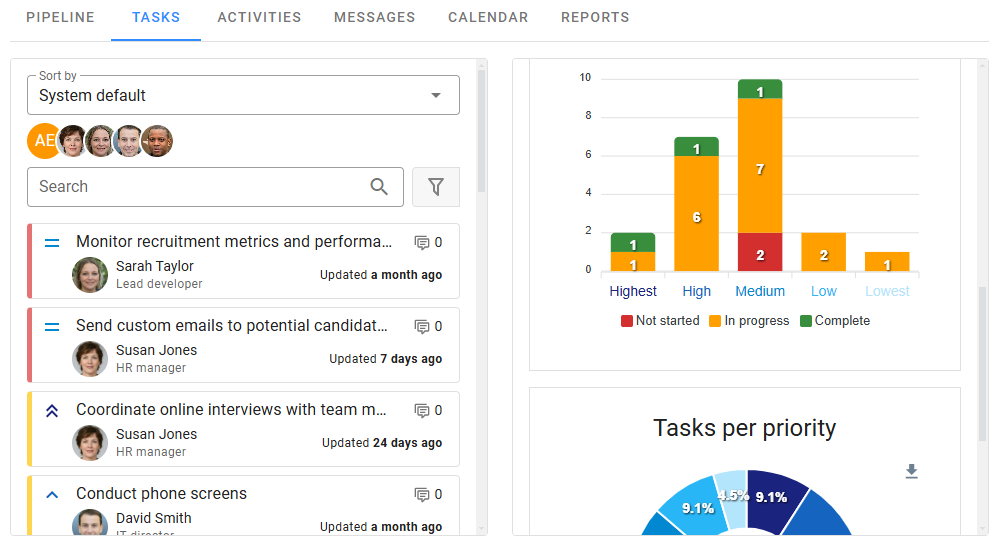
When no task is selected, the second section shows three charts with task statistics. These charts can consider all tasks or only those displayed based on applied filters. To select or deselect tasks, simply click on them.
Adding and Updating Tasks
Any team member can add a task, but only an admin or the task creator can update or delete it. The assignee can only update the task's Status.
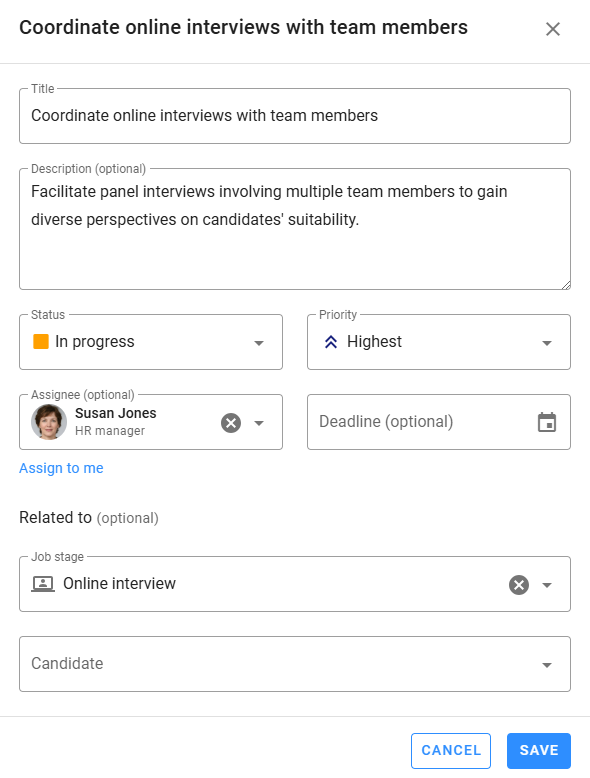
To create a task, click the Add Task button at the top of the right section. The form includes the following fields:
- Title: A concise title identifying the task.
- Description: Details about the task and any relevant context.
- Status: Choose from:
- Not started
- In progress
- Complete
- Priority: Choose from:
- Highest
- High
- Medium
- Low
- Lowest
- Assignee: The team member responsible for completing the task.
- Deadline: The due date for task completion.
- Related to: The stage or candidate associated with the task.
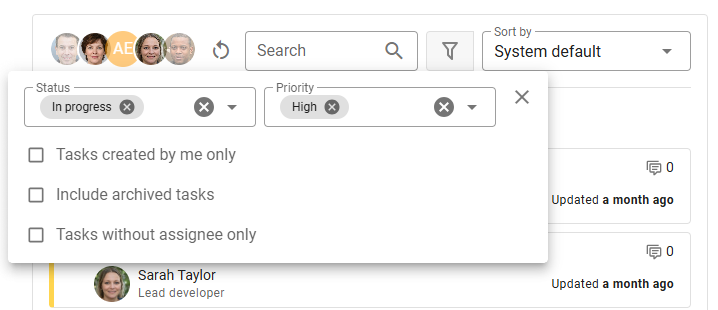
Completed tasks are automatically archived after seven days and hidden from the list. To view archived tasks, check the corresponding option in the filter panel.
Adding Notes
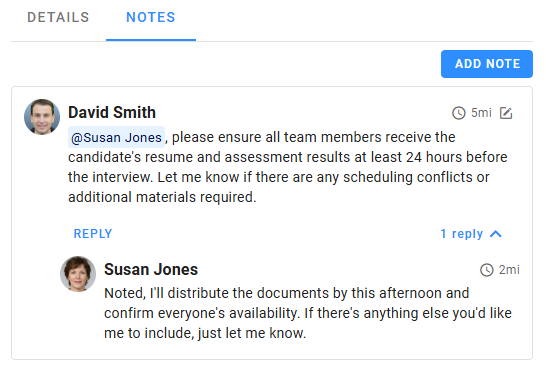
Team members can add notes or reply to existing ones using the Notes tab in the task details view. To mention team members in a note, type the at symbol (@) followed by their name. A dropdown list will appear to select the intended member. To notify the entire team, use @everyone.
Filters
Use filters to find specific tasks. Selected filters persist when reopening the Progress Board. The Assignees filter displays avatars—click them to select or deselect individuals. To reset the filter, click the Reset icon. You can also customize the sorting order of the task list.
Charts
When no task is selected, the right section displays three charts with key task metrics. You can choose to include all tasks or only those currently displayed.
- Tasks per Status: A pie chart showing the number of tasks in each status.
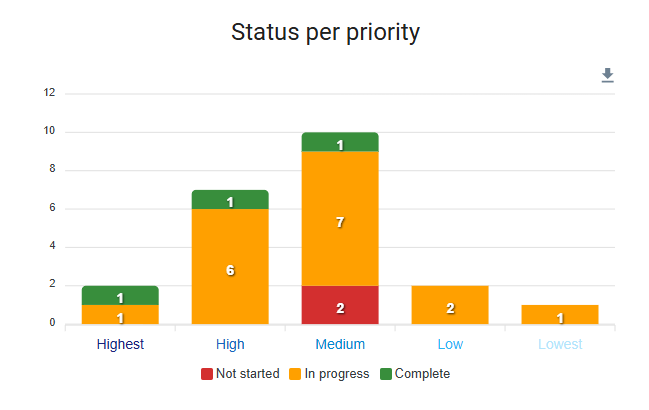
- Status per Priority: A stacked column chart illustrating the distribution of task statuses across priorities.
- Tasks per Priority: A pie chart showing the number of tasks for each priority level.