
Progress Board - Messages
The Messages section in the Progress Board serves as a centralized hub for managing all emails sent and received throughout the job hiring process. Designed with a user interface similar to popular email applications, this section includes folders to categorize emails, making it easy to navigate and locate important correspondence. When opening emails, users have the options to resend, reply, or compose new messages, streamlining communication within the hiring team. Additionally, candidate-related emails can be efficiently managed from the candidate details view, ensuring that all communication is organized and easily accessible.
Overview
Similar to standard email applications, emails are grouped into folders to simplify navigation and facilitate the location of messages. Click on a folder to view all related messages, with the most recent displayed first.
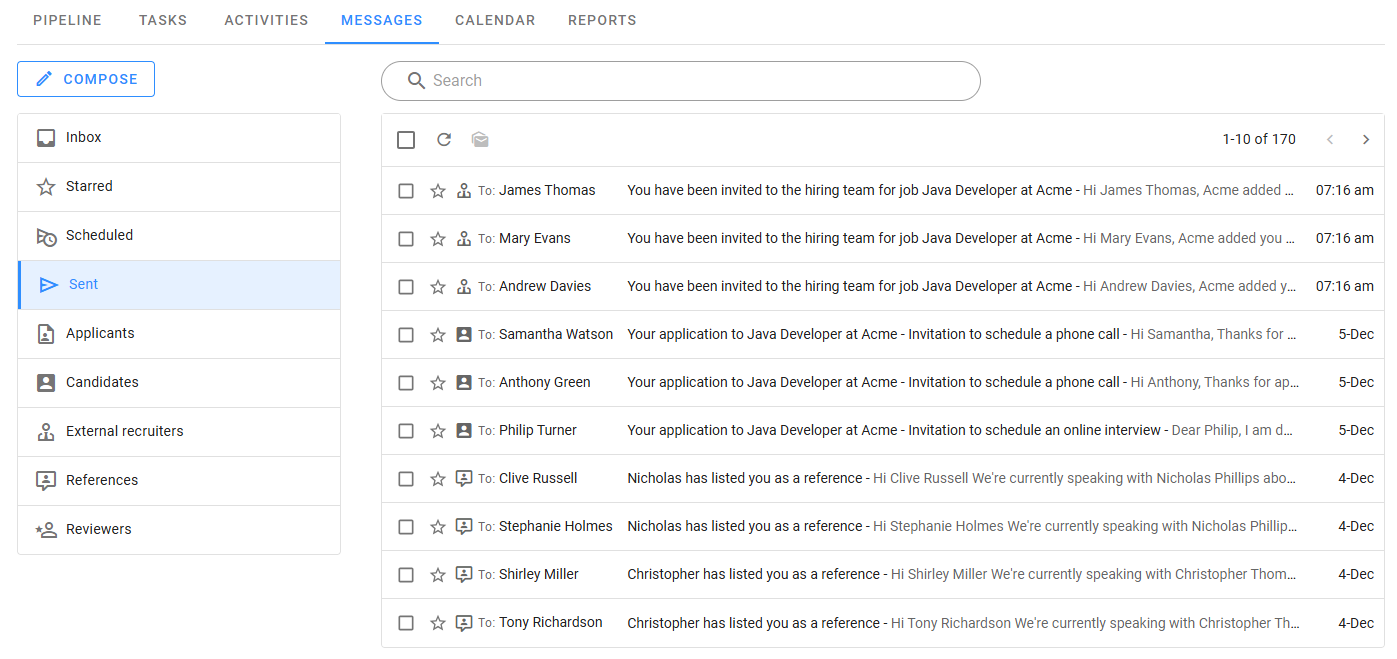
There are four common folders: Inbox, Starred, Scheduled, and Sent, as well as five additional folders for recipient types, where all related sent and incoming emails are displayed:
- Applicants: Correspondence with potential candidates, such as "Invitation to Apply."
- Candidates: Emails sent and received from candidates in the hiring process. All emails for a specific candidate can also be found in their Candidate Details View.
- External Recruiters: Emails to/from external recruiters.
- References: Emails sent to references, usually requesting them to complete a reference questionnaire.
- Reviewers: Emails sent to external reviewers for reviewing open or coding questions.
Listed emails include an icon that identifies the recipient type, the name or address of the recipient (or sender for incoming emails), a single line with the subject and the first few characters of the body, and the date.
ℹ️ Note
Incoming emails can only be received when recipients reply to emails sent using Zamdit.
Viewing Emails
To view a message, click on it, and its details will open in the same section, hiding the list. Note that Zamdit will remove email headers and footers when possible before displaying the emails.
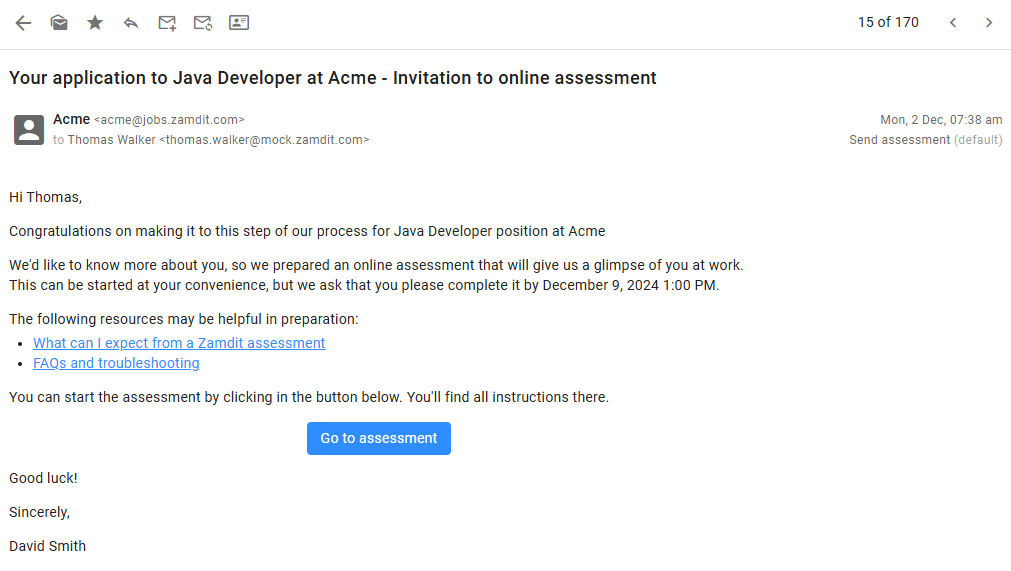
You can navigate to the previous or next email using the arrows at the top right side. Use the icons on the toolbar for other actions. Scheduled emails have additional options to delete the email, change the schedule, or send it immediately.
To return to the list of messages, click the Back icon. When emails are related to a specific candidate, an icon to access the candidate details view for that candidate will also be available on the email toolbar.
All team members have access to emails, which can make it difficult to identify which messages have already been read. A good practice is to mark an incoming email as unread if you are not the right person to process it. You can also subscribe to notifications related to emails to receive alerts when a new email is received, helping you track which emails you have read and which you have not. Additionally, you can star emails to prioritize them for later review.
Composing Emails
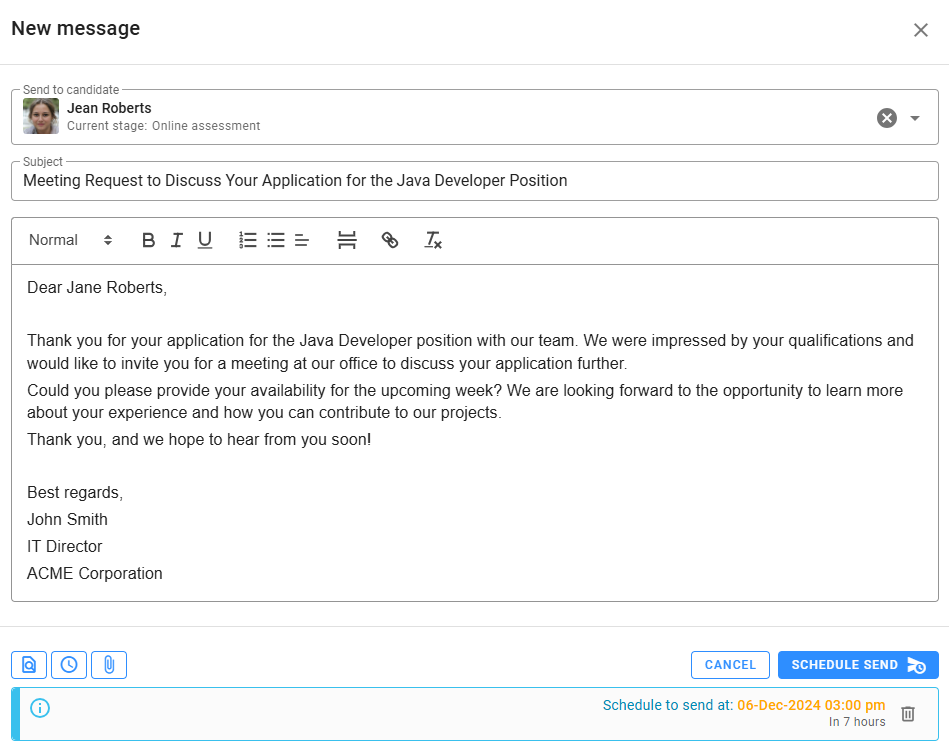
To send a new email to candidates, click the Compose button. Select the candidate and write the subject and body. You can add attachments (up to 10MB), schedule the email to send later, and preview it before sending. You can also send emails to candidates from the Candidate Details View, which offers the ability to choose from available templates based on the candidate's current stage.
To send emails to other recipient types, you will need to open one of the existing emails and use one of the following options on the email toolbar:
- Reply: Reply to the email.
- Send a New Email: Compose a new email to this recipient.
- Resend: Resend the email.