
Progress Board - Activities
The Activities section in the Progress Board provides a centralized view of all scheduled activities, both upcoming and past, enabling users to manage them efficiently in one place. Activities are displayed as cards, grouped by day, week, or month, depending on the selected view option. This design makes it easy to edit or cancel activities and respond to activities scheduled by candidates, such as confirming or declining their proposed times. By offering a streamlined and organized approach, the Activities section ensures smooth coordination and better time management throughout the hiring process.
Overview
The Activities view is divided into two panels: one for filters and grouping options, and the other for displaying activities as cards. Users can switch between Upcoming and Past activities, which are always displayed separately to avoid confusion. Activities are ordered closest to the current date, arranged from left to right and top to bottom.
You can group activities by day, week, or month by selecting the corresponding option. This flexibility helps users organize activities in a way that best supports their workflow, enhancing efficiency and reducing the likelihood of overlooked tasks.
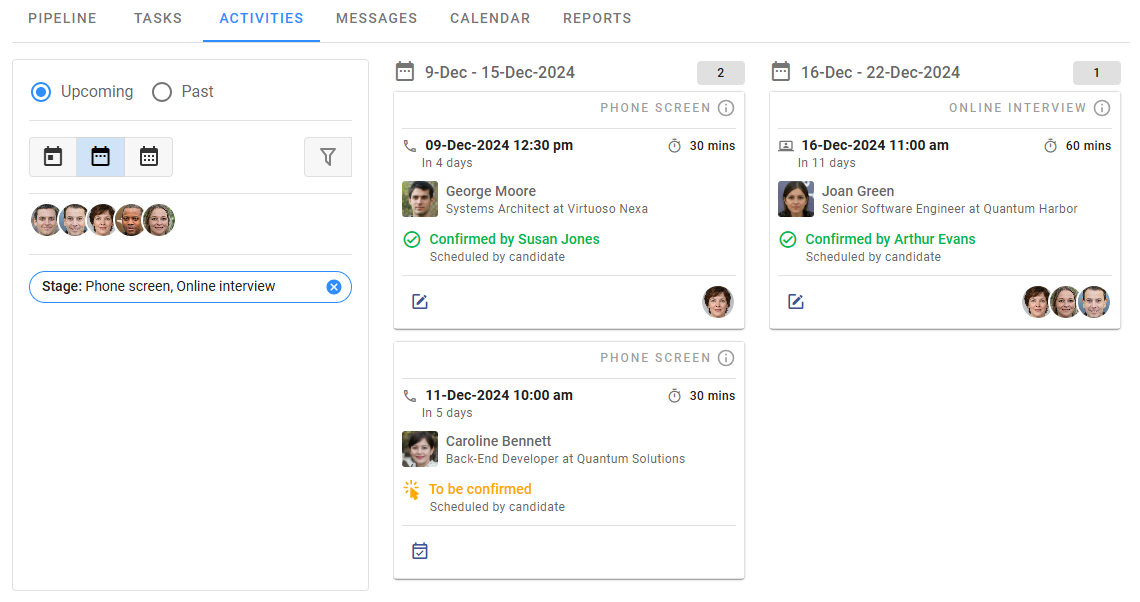
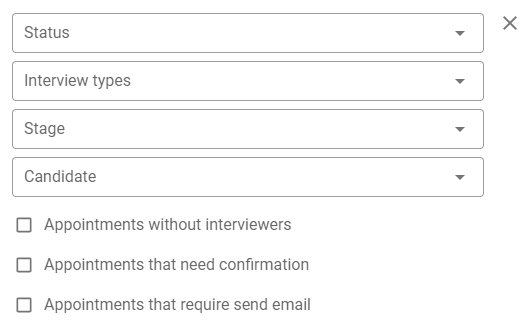
Filters are available through the Filter button, allowing users to search for activities by status, interview type, stage, candidate, and more. The Interviewers filter displays avatars—click on an avatar to select or deselect individuals. To reset the filter, click the Reset icon.
Cards
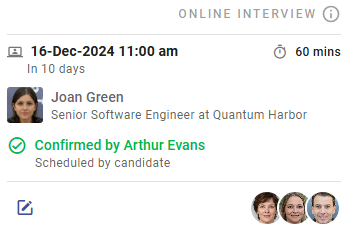
Activity cards provide key details, and additional information can be accessed by hovering over the info icon at the top-right corner. Clicking a candidate's name on the card opens the Candidate Details View. Use the actionable icons at the bottom-left corner to edit or change the status of an activity. Hover over an icon to view a hint about the action.
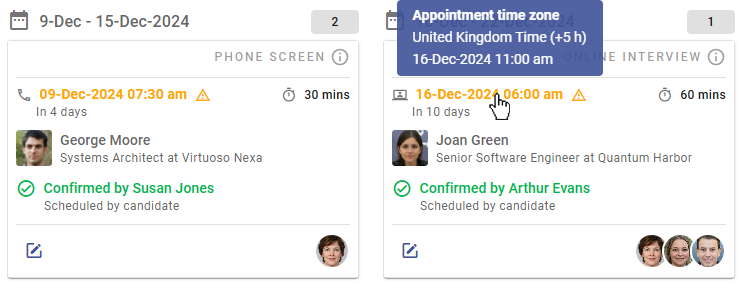
If the time zone of an appointment does not match your settings time zone, the appointment’s date and time will be highlighted in amber with a warning icon. Hover over the warning to view the appointment's time zone and the time in that zone.
Working with Appointments
Upcoming activities can be updated or canceled, but note that for Confirmed activities, the date and time cannot be changed without canceling the appointment first. Past activities can also be canceled, but only within seven days of the appointment date and if no other actions have been taken. Canceled activities can be rearranged as needed.
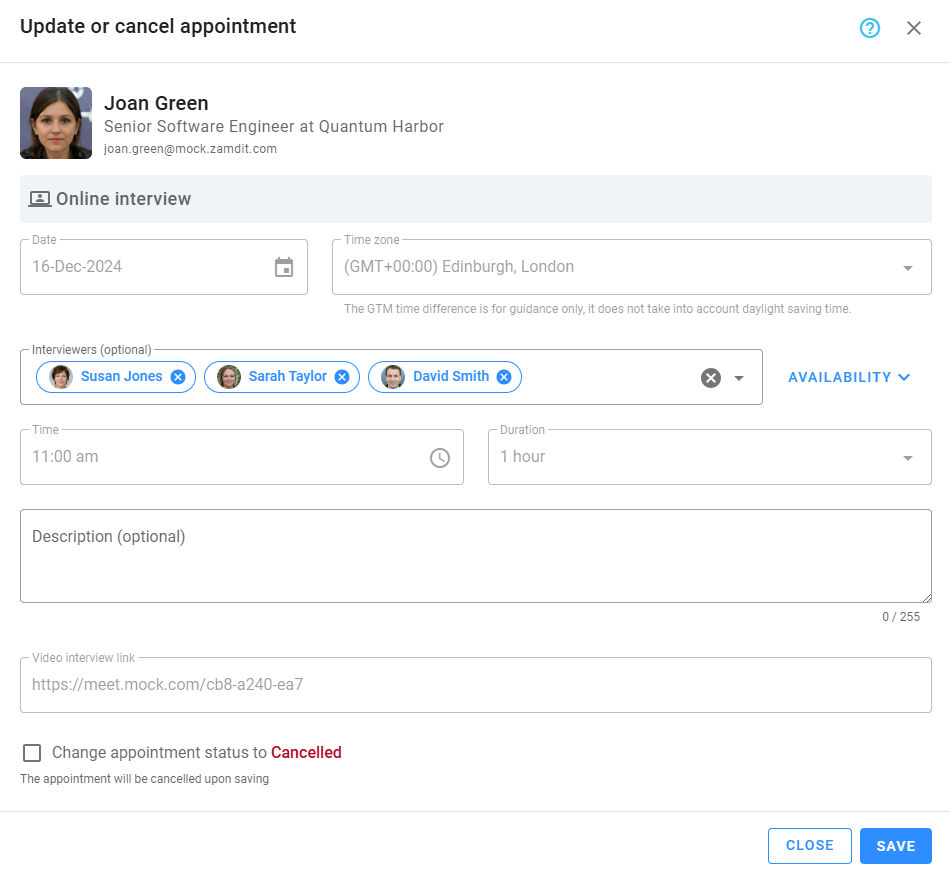
If an activity has not yet been notified to the candidate, you can send the notification email from the pipeline cards or use the actionable icon on the activity card. Be cautious, as clicking the icon may not display a confirmation message.
Activities scheduled by candidates must be confirmed or declined. These actions can be performed from the pipeline cards or directly from the activity cards.
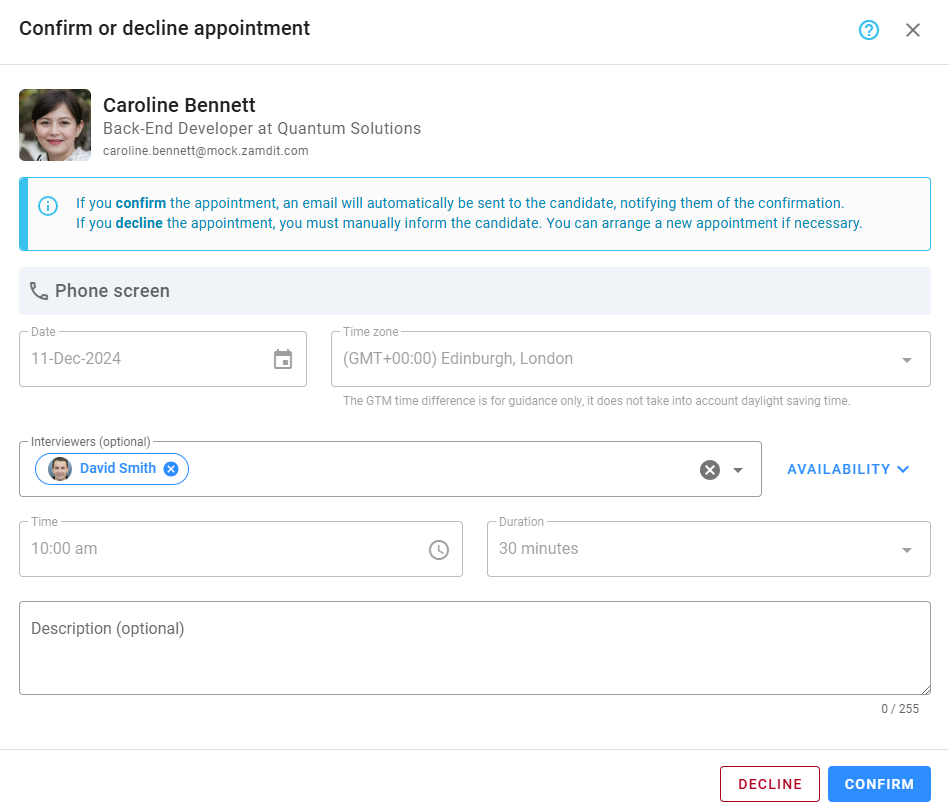
The system does not allow confirming appointments less than 6 hours before the scheduled time. It is recommended to confirm appointments a few days in advance to give candidates enough time to prepare.