Assessment Setup Templates
Online assessments are essential in the hiring process, enabling hiring teams to evaluate candidates' skills and knowledge objectively and efficiently. They offer standardized, measurable insights into a candidate’s abilities, ensuring that evaluations are based on job-specific criteria. By focusing on relevant skills, cognitive abilities, and personality traits, assessments help identify top candidates early in the process, saving time and supporting informed, data-driven hiring decisions.
These assessments also streamline recruitment by automating early-stage screening, reducing recruiters' workloads and enhancing the candidate experience. By applying consistent evaluation parameters across candidates, assessments help create a fair, bias-minimized approach. Furthermore, online assessments centralize results, improving team collaboration and allowing multiple team members to review and compare candidate performance.
In Zamdit, assessments are natively supported, and although tests are selected and finalized during individual job setups, templates allow you to define reusable texts and key settings. Each language includes a default template with basic configurations for convenience.
Creating and editing assessment setup templates
When adding or editing an assessment setup template, details are organized within a popup window divided into two sections. Changes are only saved upon clicking Save.
Template details
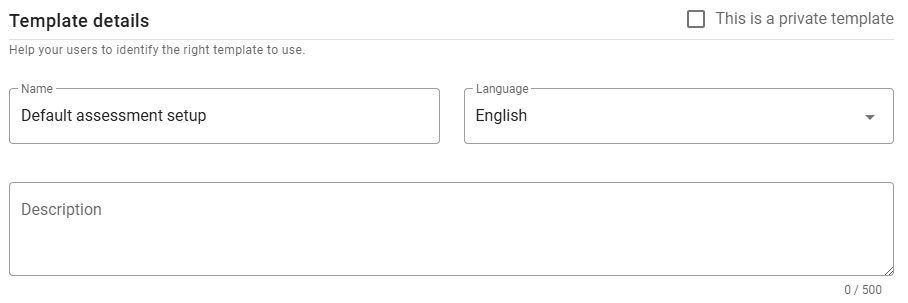
In this section, specify the template's Name, Language, and Description.
⚠️ Note for Admin users
When creating a new template, you can mark it as private by selecting the checkbox in the top-right corner. Once saved, this option cannot be changed.
Assessment setup
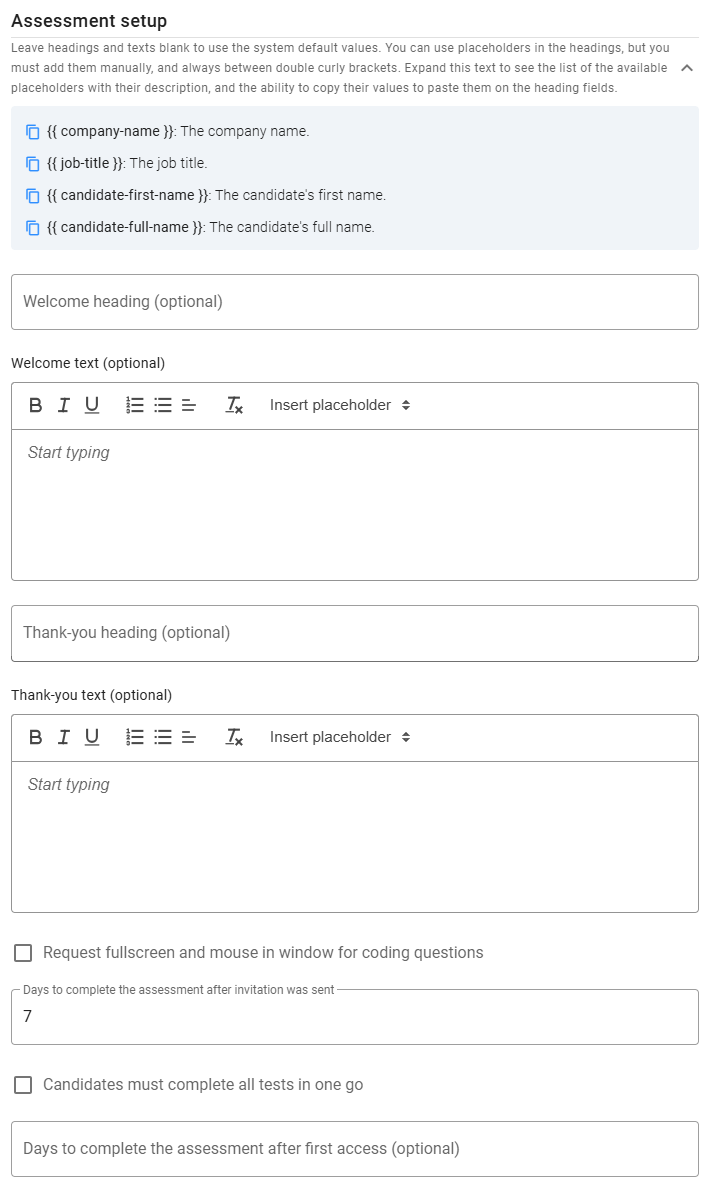
This section allows customization of the Welcome and Thank-you messages displayed to candidates at the beginning and end of assessments. Default messages are provided, but you can tailor headings and texts as needed. Use placeholders, listed at the top of this section (click the expand icon), for dynamic content. To copy a placeholder, click the icon next to it.
Behavior Settings
- Request Fullscreen and Mouse in Window for Coding Questions: Enforces fullscreen mode and mouse-in-window for coding questions when enabled. Otherwise, these settings are only enforced for other question types.
- Require Continuous Completion of All Tests: Forces candidates to complete all tests in one session with short breaks allowed between tests. If unchecked, candidates may pause the assessment and return later to complete pending tests.
- Days to Complete the Assessment After Invitation was Sent: Sets the deadline for assessment completion based on the number of days after the invitation is sent.
- Days to Complete the Assessment After First Access: Optionally, sets a secondary expiration date based on the candidate’s first access to the assessment.
- Maximum Rest Time Between Tests: Limits the time candidates can rest between tests when continuous completion is required.
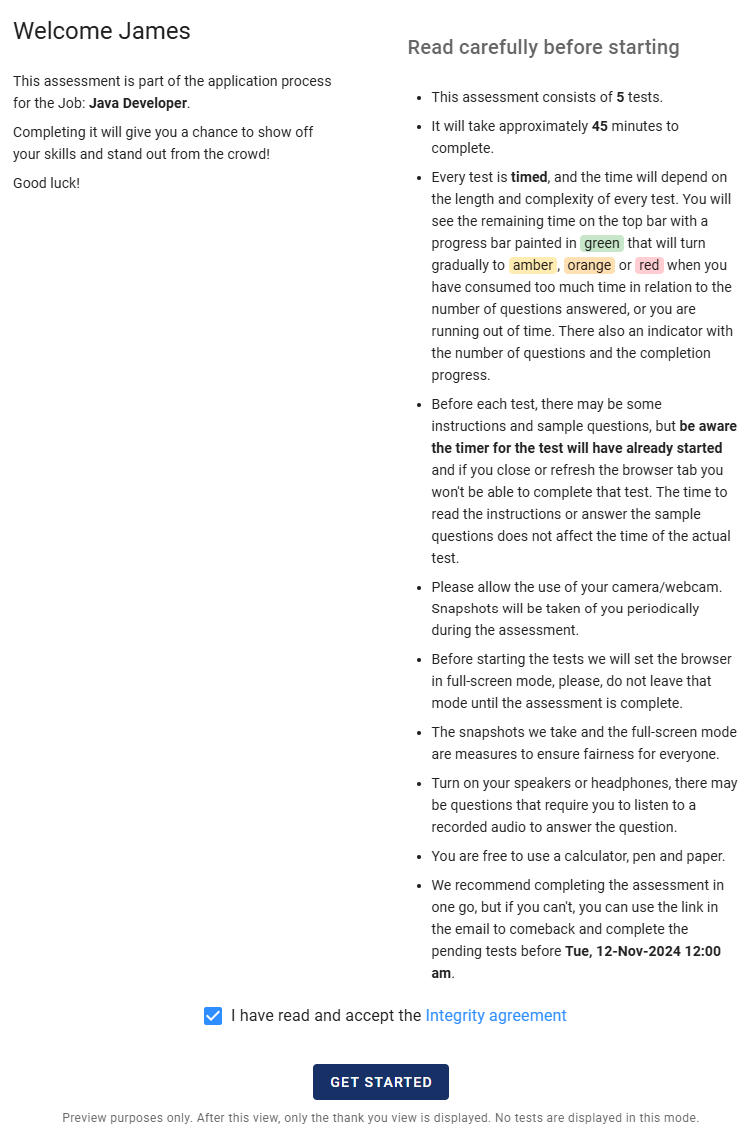
When candidates access an assessment, they will see a set of rules, some predefined and others based on the assessment settings. These rules may vary depending on whether it’s the candidate’s first time accessing the assessment or if they have already completed some tests.
Preview
To see how the Welcome and Thank-you views will appear to candidates, click the Preview button at the bottom left of the form. The Welcome view is divided into two sections: the welcome message and the assessment rules. You can adjust some settings to observe how changes affect the displayed rules.