Publishing Your Portal
After designing your Career Portal and ensuring its responsiveness and the proper display of open positions, the next step is to configure the page metadata. This will optimize your portal’s visibility for Search Engine Optimization (SEO) and enhance how the page appears when shared on social media. Additionally, you can strengthen your brand identity and boost credibility by using a custom domain.
SEO and Metadata
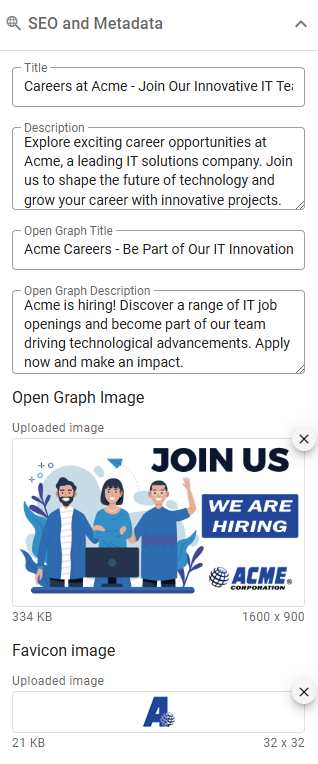
Open the SEO and Metadata panel within the Portal Settings and Preferences section of the Design Tool. This panel includes inputs for key HTML page metadata, including Open Graph metadata, which defines how your page looks when shared. While optional, providing complete metadata is highly recommended to improve your portal’s SEO and visibility. Additionally, adding a favicon helps reinforce your company’s branding.
Preview
Before publishing your changes, it’s essential to preview the portal to ensure everything appears as expected. The preview uses the same URL as the live portal, but with a unique query string to load the draft version instead of the live one. Check the page title, favicon, and all design elements in the preview to confirm everything is ready before going live.
Go live
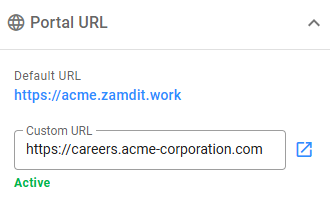
To publish the changes, click the Publish button located on the Action Bar. A confirmation message will appear to prevent accidental publication. Once confirmed, the changes are applied, but you won’t be redirected to the live portal. To view the live page, navigate to the Portal URL panel in the Portal Settings and Preferences section of the Design Tool and click on the displayed URL.
Custom domain
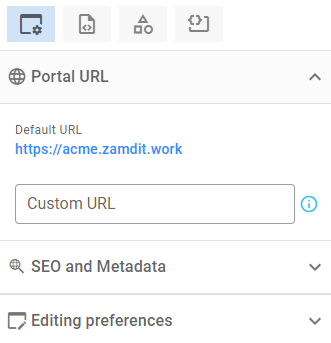
Using a custom domain for your Career Portal enhances your brand’s identity and professionalism. A custom domain ensures that the portal’s URL aligns with your organization’s branding, creating a seamless and trustworthy experience for candidates. Custom domains are available for organizations subscribed to the Standard plan or higher.
To use a custom domain:
- Create a CNAME in your website’s DNS.
- In the Name or Host field, enter the subdomain you want to use for your careers page.
- In the Value or Points To field, enter the default domain for your careers page, excluding the protocol (
https://). This value is provided under Default URL.
- Enter the full URL in the Custom URL input. Include the protocol (
https://).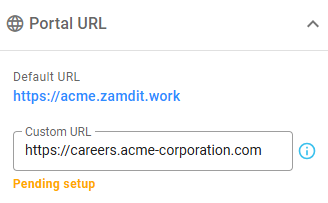
- After you enter and save your custom URL, we will update our records within 24 business hours.
You will receive a notification once the domain is active. The Custom URL status will update to Active, and you’ll be able to access your portal using the custom domain by clicking the icon next to the input field.