Working with Jobs
To access jobs, select Jobs from the top menu. This page displays all jobs created by your company, filtered by the settings on your device. By default, all jobs are displayed in order of most recent updates, excluding archived jobs. To include archived jobs, adjust the Status filter to display the appropriate entries. For more on using lists, viewing modes, appearance settings, and favorite filters, see Working with Lists.
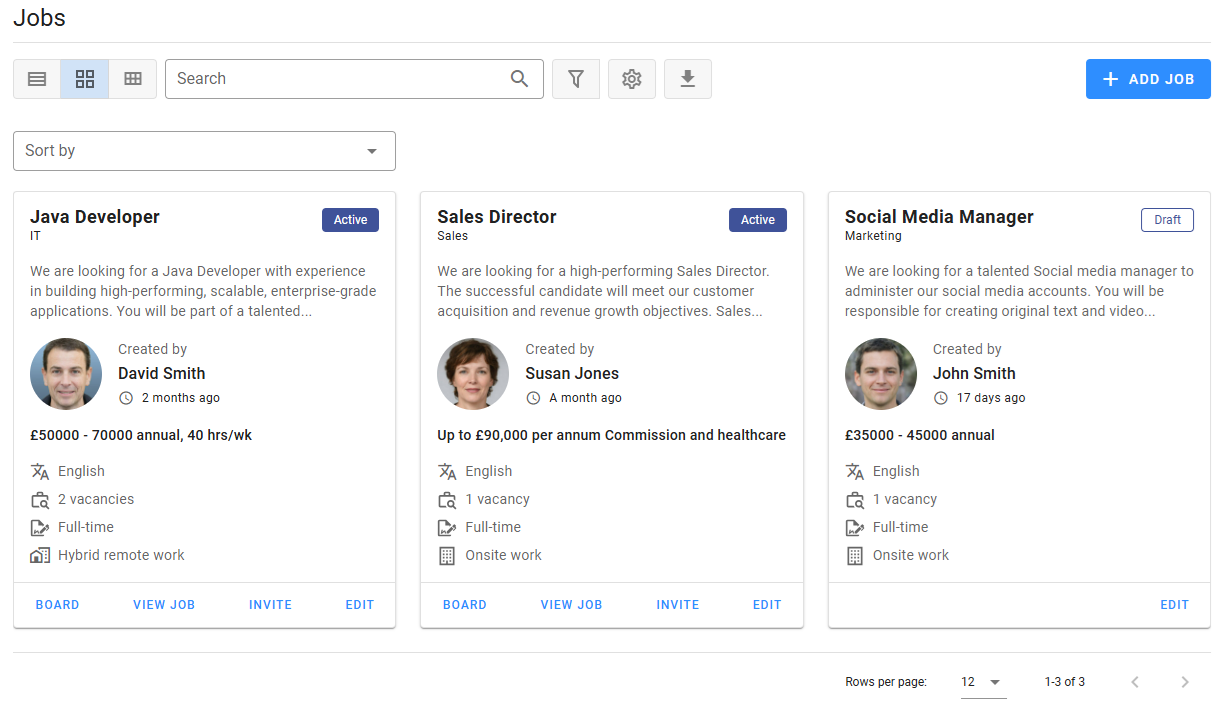
Each job card shows the job’s title, department, owner, and an excerpt of the description, along with icons for key features such as salary, language, vacancies, contract type, and work style. From either card view or list view (depending on your selected mode), you can access all available actions for each job.
Adding and editing jobs
Only Advanced and Admin users can create jobs. However, the job owner or Admin users can grant permissions to any user to access and edit any of the job sections. During the job setup process, not only are the job details and hiring stages defined, but also the hiring team, external recruiters, and sources for promoting the job opening.
Viewing job details
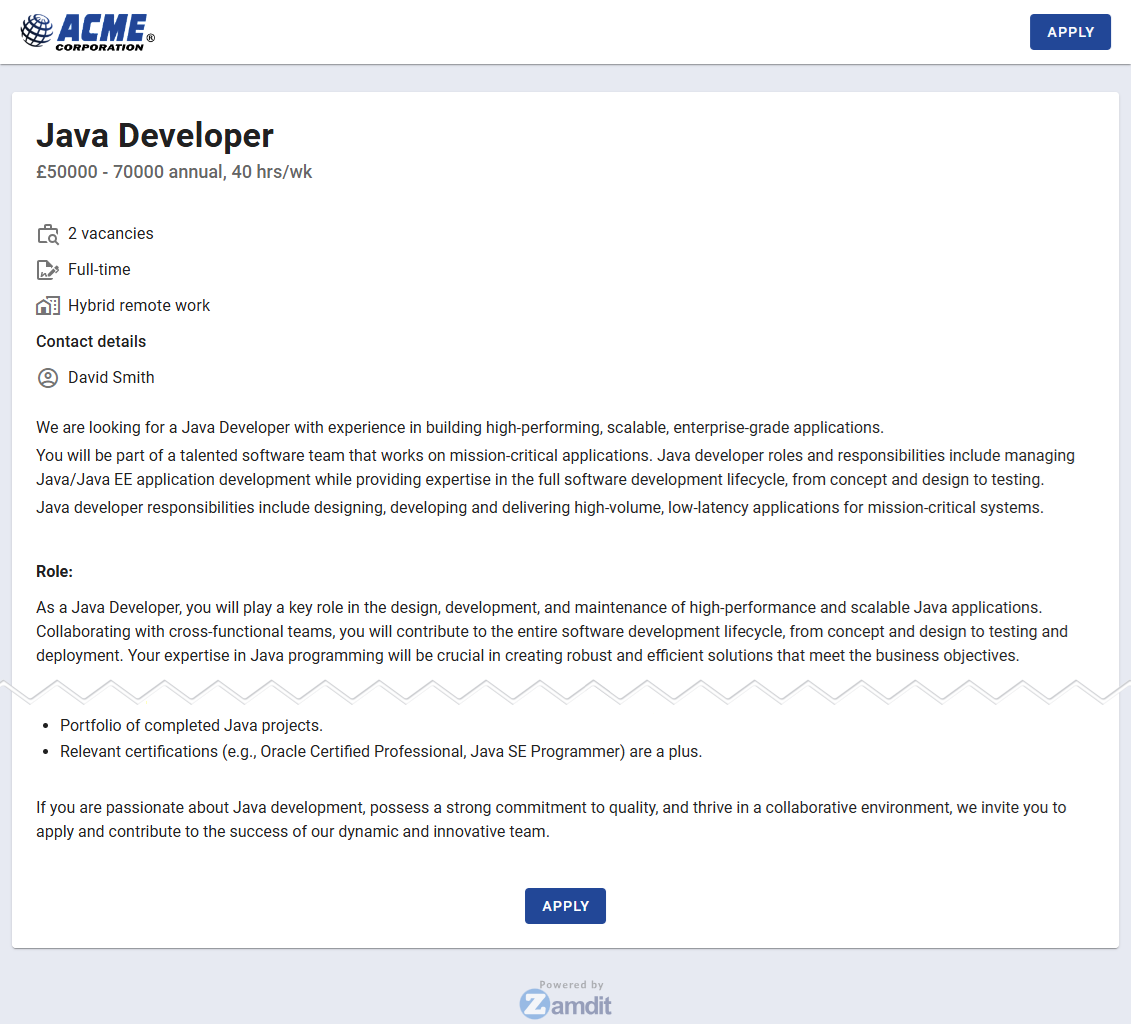
Once a job is published, users can access the job details by clicking on View Job. This is the page shown to job seekers from the Career portal or when they are invited to apply. As with all Zamdit pages displayed to job seekers, third parties, and candidates, this page features your company logo (or name) at the top, and the primary action buttons use your company’s primary color. Job seekers can view all job details here and apply directly to the job.
Inviting to apply to jobs
When setting up a job, you can specify who can invite potential candidates to apply. Users with invite permissions will see an Invite button. A pop-up window allows you to add potential candidates in three ways:
- Manually entering information
- Pasting data from a spreadsheet or text file (the fields must include email, first name, and last name in that order)
- Adding candidates from the company's candidate pool
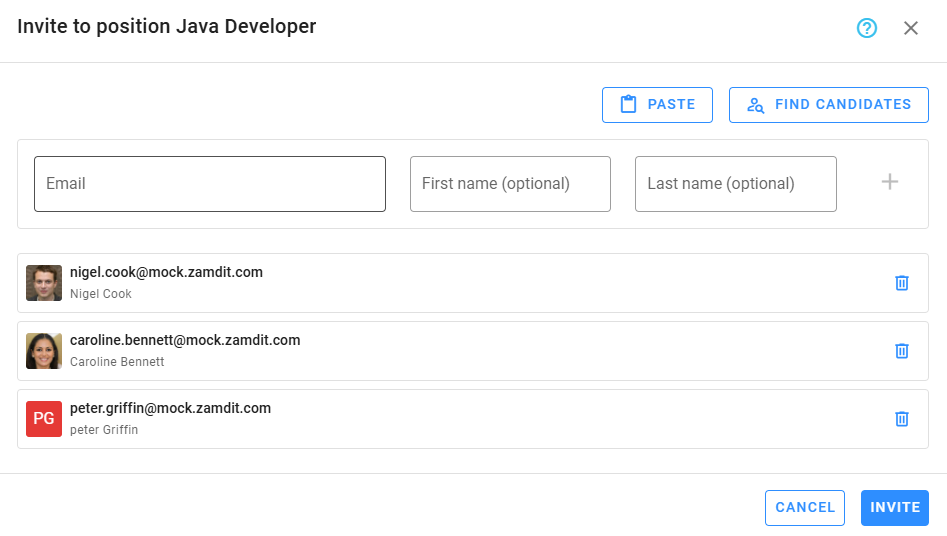
In all cases, only the email address is mandatory. Once the list is ready, click on Invite. Any entries that fail, due to the candidate already applying or being invited, will be ignored and listed after processing. Candidates you invite are attributed to you and included in the Referrals report.
Accessing job progress boards
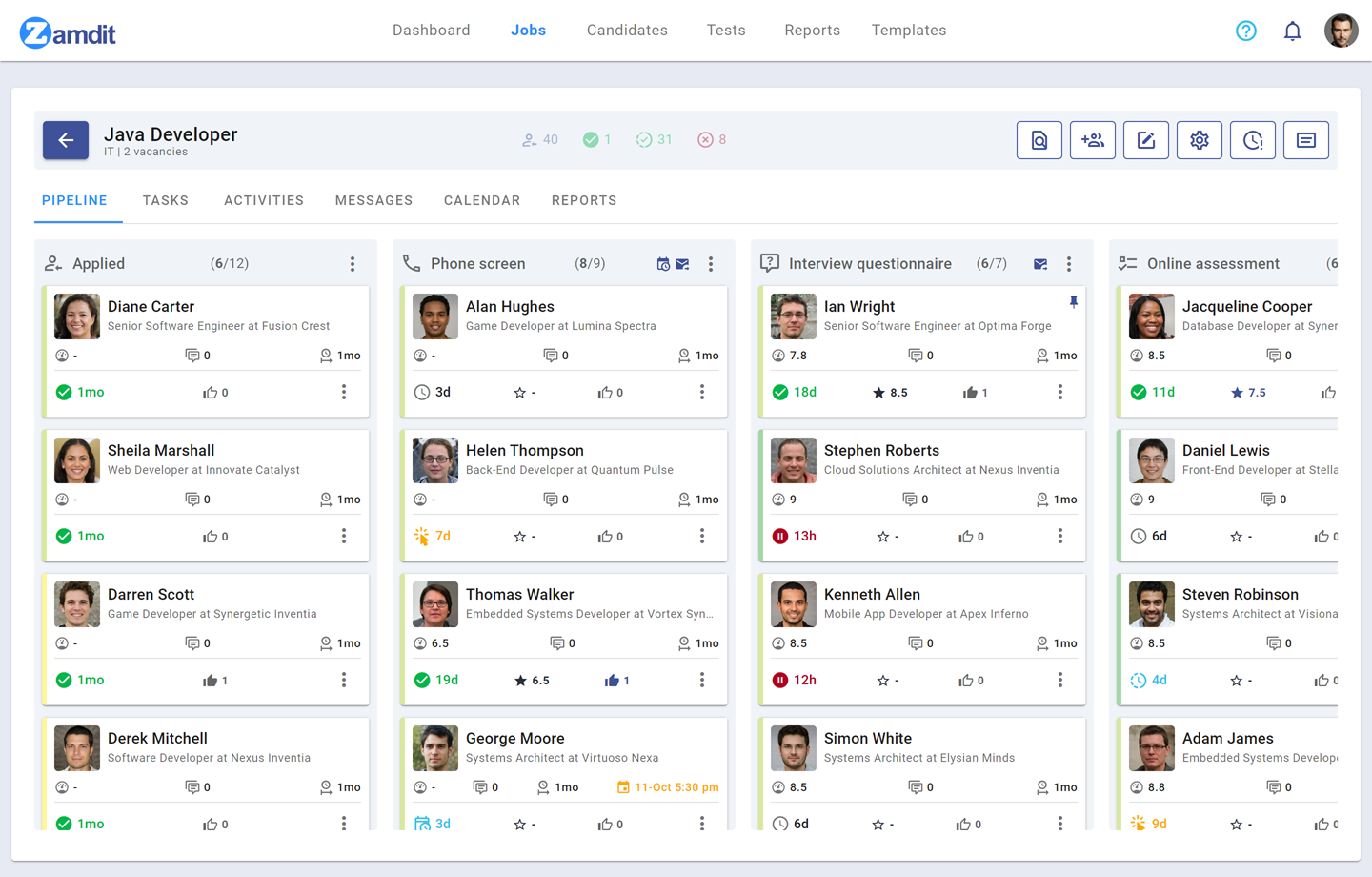
The Job Progress Board is a tool for tracking candidates’ progress through each stage of the hiring process for a job. It visually organizes candidates into columns representing each stage, allowing hiring teams to see where each candidate is in the recruitment pipeline. Progress boards also include a task management tool, a section for handling appointments, a calendar, and useful reports.
Only the job owner, Admin users, and the hiring team can access the Job Progress Board, where the Board button will be available. The actions allowed within the Progress Board depend on each hiring team member's permissions.