
Manage Your Team
When creating a hiring team for a job, they are added from the list of existing users. The Maximum Number of Enabled Users depends on your subscription plan. Once this limit is reached, new users can only be added by upgrading the plan or by disabling or removing existing users.
The user who created the account is designated as the Account Owner, holding unique responsibilities within Zamdit. If needed, the account ownership can be transferred. Users are assigned one of three roles: Admin, Advanced, or Standard, which define the actions they can perform within the platform.
Roles
The user with the highest privileges is the Account Owner, who also holds the Admin role. The Account Owner is the only user who can manage the Subscription plan and payments and configure Email settings. They are also the only person who can assign the Admin role to others, edit or delete Admin users, and transfer account ownership.
Admin users have access to all features of the App, except those reserved for the Account Owner. They can edit any job or custom test (regardless of who created it) and can also change the owner of a test. Admins can manage other users, with the exception of fellow Admins. They are responsible for maintaining key sections of the platform, including Career Portal Settings, Company Details, General Settings, and Templates for public use.
The difference between Advanced and Standard users lies mainly in creation and import capabilities. Advanced users can create Jobs, manage External Recruiters and Candidate Tags, and Import Candidates from spreadsheets. Neither role has access to Admin-only options, but in some cases they may be able to view (not edit) settings such as Company Details or General Settings. An exception is that Advanced users can manage External Recruiters.
Roles Overview
| Feature / Permission | Account Owner | Admin | Advanced | Standard |
|---|---|---|---|---|
| Manage subscription & payments | ✅ | ❌ | ❌ | ❌ |
| Configure email settings | ✅ | ❌ | ❌ | ❌ |
| Assign / edit / delete Admins | ✅ | ❌ | ❌ | ❌ |
| Transfer account ownership | ✅ | ❌ | ❌ | ❌ |
| Manage users | ✅ | ✅ (except Admins) | ❌ | ❌ |
| Edit jobs & custom tests (any owner) | ✅ | ✅ | ❌ | ❌ |
| Change test ownership | ✅ | ✅ | ❌ | ❌ |
| Edit Career Portal Settings | ✅ | ✅ | ❌ | ❌ |
| Edit Company Details | ✅ | ✅ | View only | View only |
| Edit General Settings | ✅ | ✅ | View only (can manage External Recruiters and Candidate Tags) | View only |
| Edit public Templates | ✅ | ✅ | View and use in jobs only | View only |
| Manage private Templates | ✅ | ✅ | ✅ | ❌ |
| Create jobs | ✅ | ✅ | ✅ | ❌ |
| Add external recruiters | ✅ | ✅ | ✅ | ❌ |
| Import candidates from spreadsheet | ✅ | ✅ | ✅ | ❌ |
✅ = Allowed
❌ = Not allowed
View only = Can see the section but not edit it
Invite a user
Admin users can invite new team members by clicking the Invite User button and completing the invitation form. While some fields are optional, users can update these later from their profiles. Only business email addresses are accepted; personal email addresses are not permitted.
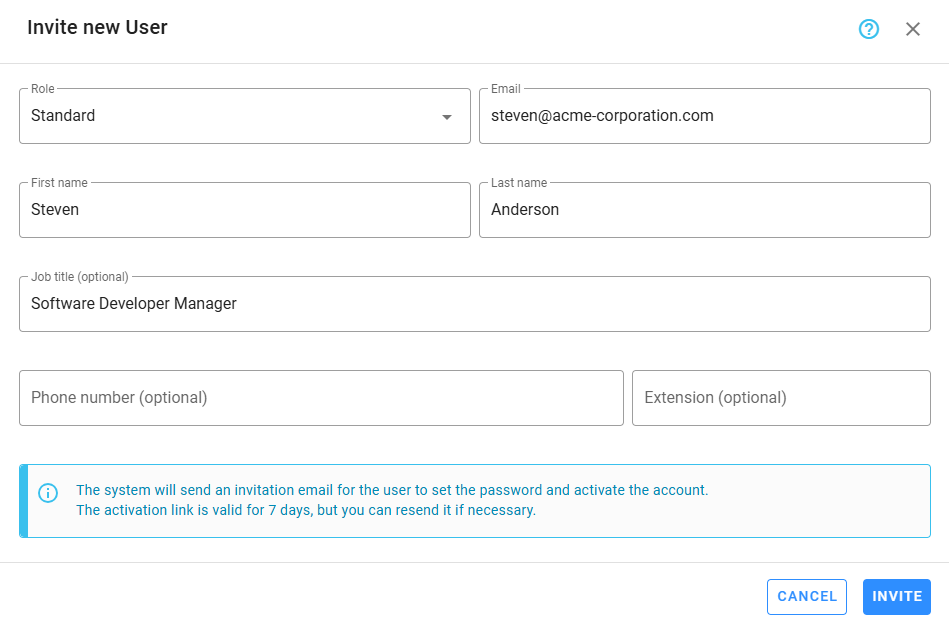
After filling in the required fields, click Invite to send an email invitation, allowing the new user to set a password and activate their account. The activation link is valid for 7 days, but you can resend the invitation by clicking Resend Invitation Email on the user card or from the toolbar button.
Activate the account
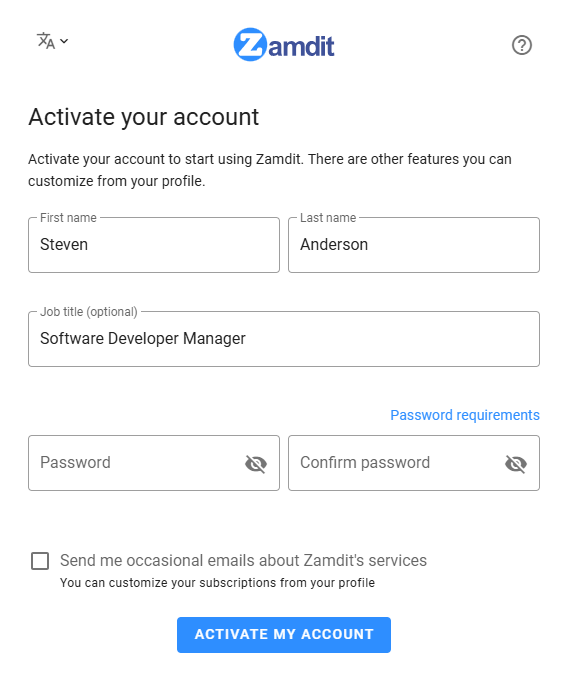
When the invited user clicks the activation link in the email, they will be directed to a form to set their password. Once the account is activated, they will be redirected to the Login page to access Zamdit.
Edit a user
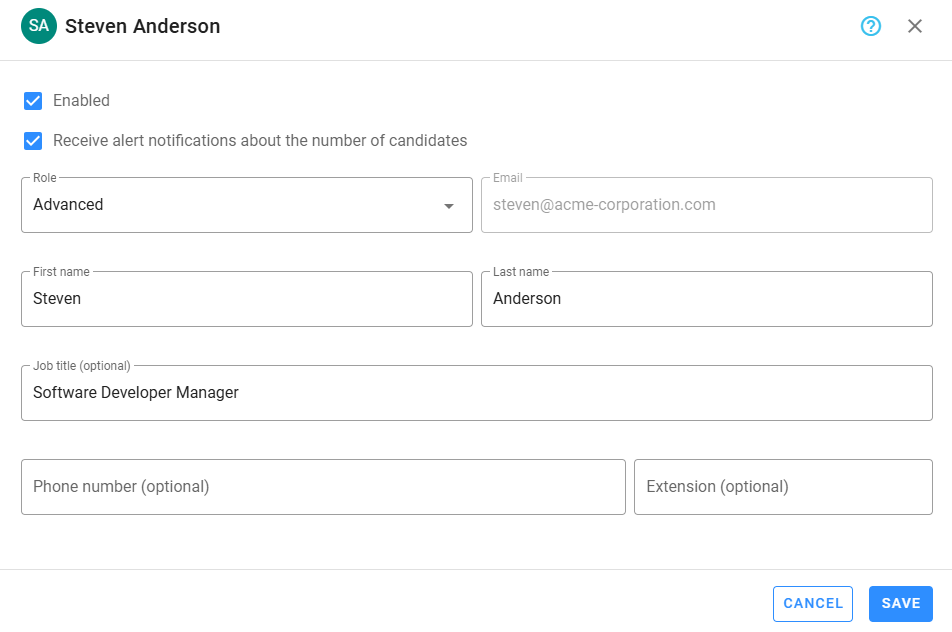
Users can update their own information in their Profile section. However, Admin users may need to edit user roles or disable accounts. Additionally, Admin users have a setting to "Receive alert notifications about the number of candidates", which is disabled by default, but can be enabled by the Account Owner.
Disabling users
To disable a user, uncheck the Enabled checkbox. This will prevent the user from accessing the App, but they can be re-enabled at any time if needed.
Disabled users do not count against the maximum number of users allowed under the subscription plan, but they cannot be re-enabled if the company has reached its user limit.
Delete a user
You can delete a user if they are no longer part of the team. However, deleting a user will permanently remove their templates, notes, and history. Their evaluations, assigned tasks, emails, and interviews will remain, but the user’s name will be anonymized.
If the user owns any jobs or tasks, these must be transferred to another user before deletion.
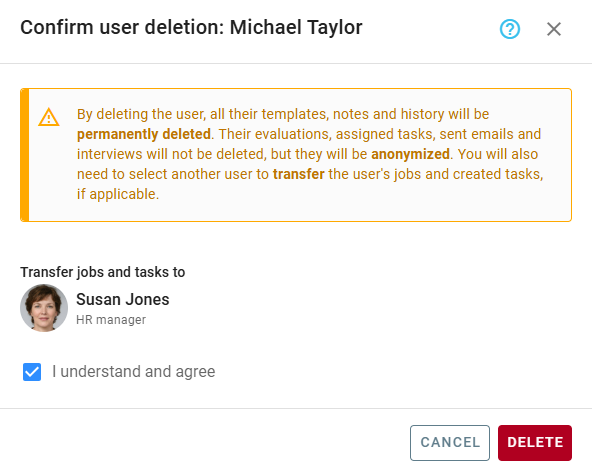
Please note that once a user is deleted, their data cannot be recovered.
Transfer account ownership
If account ownership needs to be transferred to another user, the current Account Owner can perform this action. The recipient must have the Admin role.
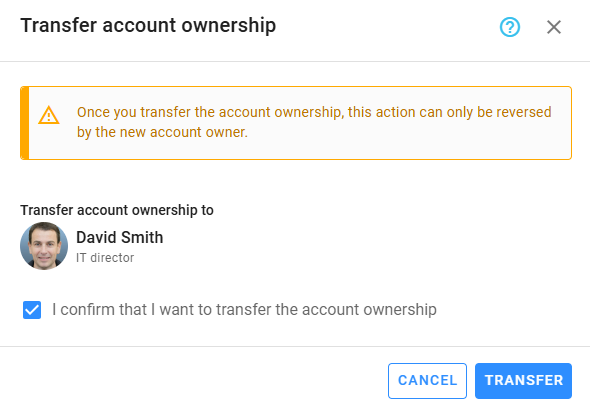
Once the ownership transfer is complete, only the New Account Owner can reverse it.
If the current Account Owner is no longer with your company and account ownership needs to be transferred, please contact us for assistance.