
Pipeline - Email Templates
Email templates in Zamdit streamline communication with candidates at various stages of the hiring process. These pre-designed templates save time and ensure consistency by providing standardized messages aligned with your organization's tone and hiring objectives.
Templates are used for common actions, such as sending links for online questionnaires or scheduling interviews. Many of these emails can be automated, improving efficiency and ensuring timely communication. Even when automation is disabled for certain triggers, hiring team members can manually send emails with a single click using predefined templates.
Overview of templates
All stage types, except Hired, include email templates for candidate actions. Below is a summary of stage types and the associated actions that can trigger candidate emails. Note that available actions depend on stage settings, for example, if an Online interview stage does not enable candidates to self-schedule, the Schedule online interview email template will not be available.
- Applied: Request to apply, Invite to apply, Auto disqualified, and Rejected.
- Phone screen: Schedule phone call, Appointment confirmed, Appointment scheduled, and Rejected.
- Interview questionnaire: Send questionnaire and Rejected.
- Online assessment: Send assessment and Rejected.
- Onsite assessment: Schedule onsite assessment, Appointment confirmed, Appointment scheduled, and Rejected.
- Online interview: Schedule online interview, Appointment confirmed, Appointment scheduled, and Rejected.
- Onsite interview: Schedule onsite interviews, Appointment confirmed, Appointment scheduled, and Rejected.
- Offer: Send offer letter.
For each stage, you must specify the default hiring team member responsible for signing automated emails, which is set to the job’s owner by default. This section provides a preview of all available email templates. Note that placeholders in the templates are replaced with default system values in the preview, offering a clearer representation of the final emails sent to candidates.
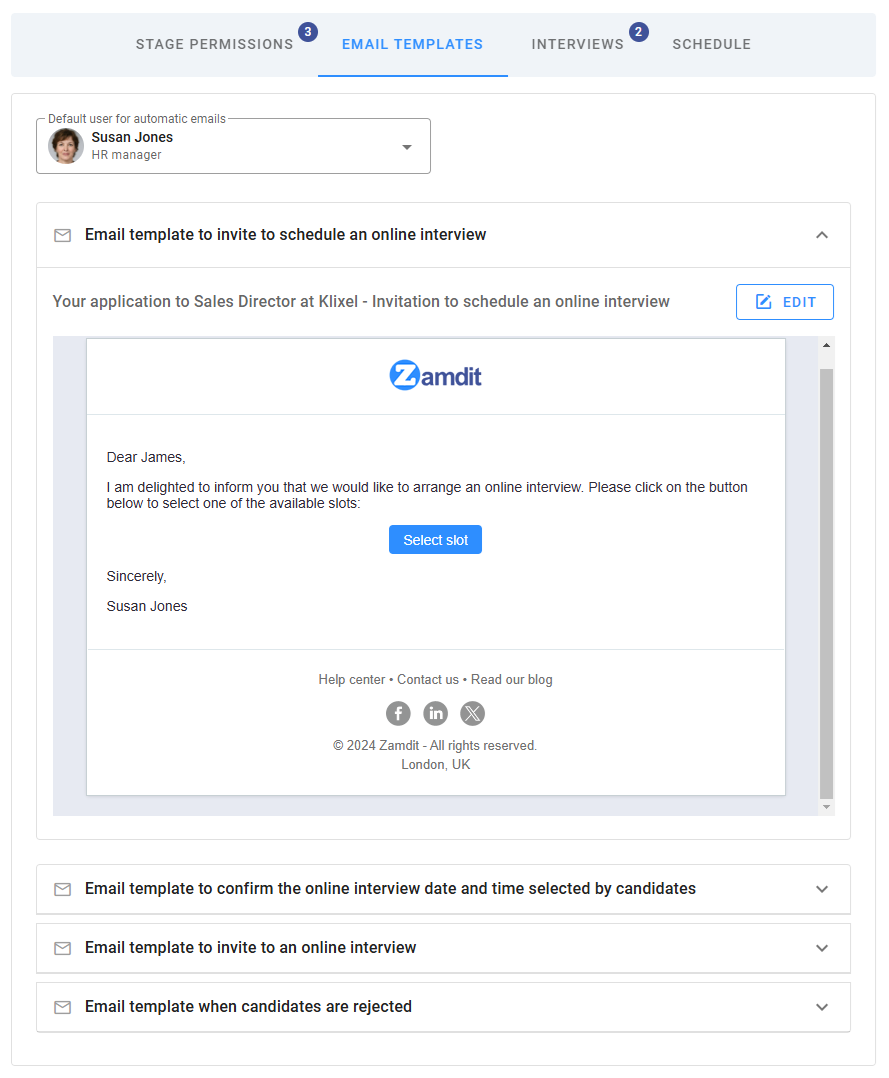
Customizing templates
When you create a pipeline or add new stages, the email templates are auto-populated using the pipeline template or system default settings. You can customize the Subject and Body of emails to match your organization's tone or requirements. Alternatively, you can select another template from the available options.
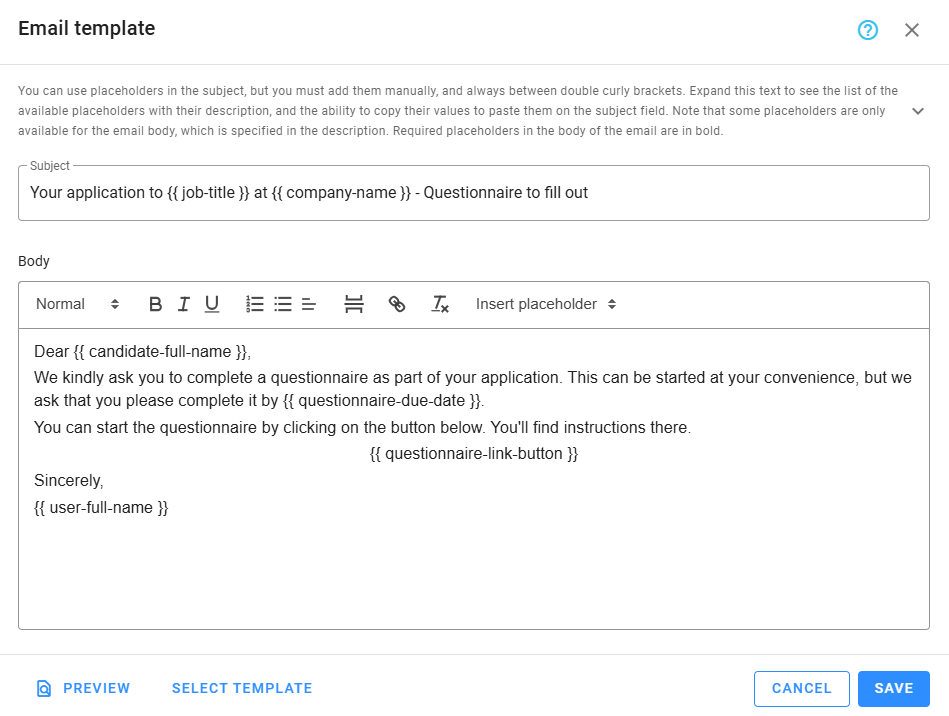
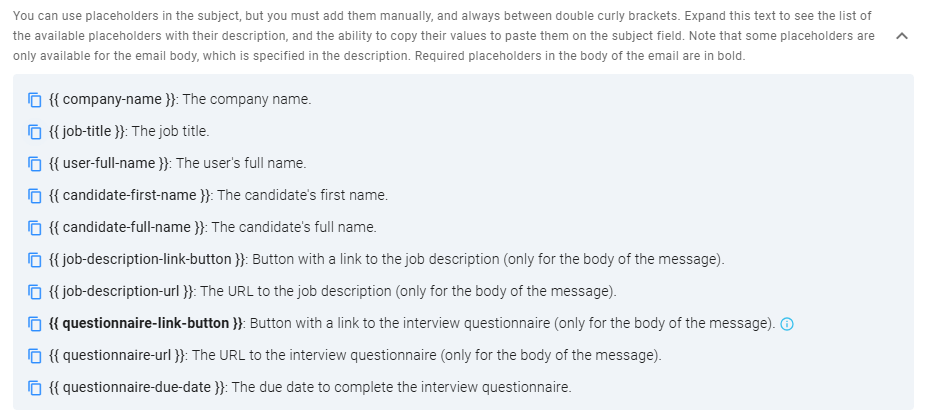
To include dynamic content, use placeholders. Placeholders can be manually added to the subject line or copied from the list by clicking the corresponding icon. Required placeholders, marked in bold, must be included in the body for specific email actions.
After making changes, use the Preview option to verify the email's appearance before saving.
Automated emails
Automated emails are triggered by specific actions based on the stage settings. Most stages support two automation options: one email when candidates move into the stage and another when they are rejected. Pipeline cards provide quick visual feedback with the following icons:
- Email is sent automatically when candidates are moved into the stage. Hover to display more information.
- Auto-notification is sent when candidates are rejected.
Other emails, such as Request to apply, Invite to apply, Appointment confirmed, and Appointment scheduled, are event-driven. If the Send offer letter email is not automated, you can select the option The offer letter email must be sent manually only, to ensure it can only be sent by composing a custom email.