
Import Candidates
The bulk import feature is ideal for onboarding large candidate datasets or integrating data from external sources, such as spreadsheets. You can import candidate profiles, work histories, or education histories using Excel or CSV files—one file at a time.
Preparing Your Files
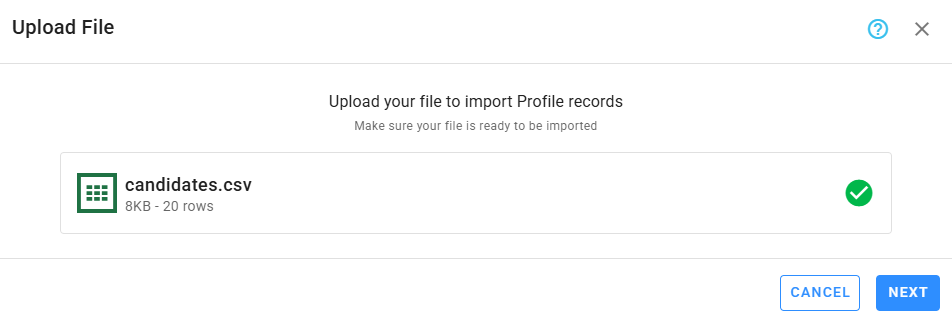
All files imported into Zamdit must meet the following requirements:
- Be a
.csv,.xls,.xlsx, or.odsfile. - Contain only one sheet.
- Include a header row where each column header corresponds to a field in Zamdit. Column headers can be in any order, and they don't have to match field names. You can map these headers to Zamdit fields before importing.
- Include columns for all required fields and ensure the values are valid. Refer to the next section for available fields and rules.
- Be UTF-8 encoded if the file includes non-English characters.
- Have a file size of 5MB or less.
File Types and Available Fields
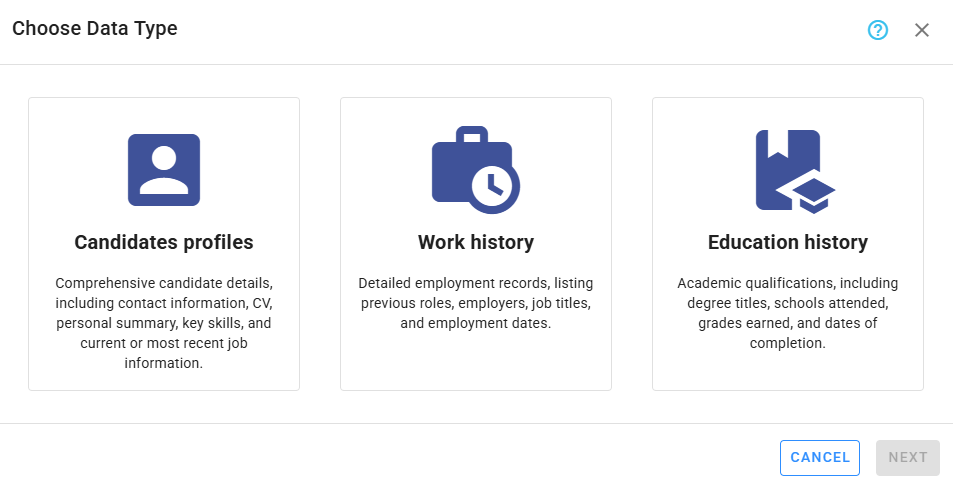
You can import data using three types of files: Profile Information, Work History, and Education History. Each file must include a column for the candidate’s email address, which serves as the unique identifier. For work and education history files, the email address links the records to the corresponding candidate. Import candidate profile information first, followed by work and education history files.
The system supports adding or updating candidates based on their email address. However, for history data, the system always adds imported rows. There are three options for handling candidates with existing records:
- Always add new rows: Adds all imported rows, regardless of existing records.
- Add rows only if the candidate has no related records: Adds rows only if no related records exist.
- Replace existing records with new rows: Removes existing records before adding new rows.
Profile Information File
Includes general candidate details. Available fields:
- Email: A valid email address to identify the candidate in Zamdit (required, max 255 characters).
- First Name: Candidate's first name (required, max 100 characters).
- Last Name: Candidate's last name (required, max 100 characters).
- Personal Summary: Candidate's summary in plain text.
- Mobile Phone: Mobile phone number (max 20 characters; valid characters:
+(only at the start),0-9,(),-, andspace). - Home Phone: Home phone number (same format as Mobile Phone).
- CV: URL of the CV in PDF format (max 1024 characters, max PDF size: 4MB).
- LinkedIn Link: LinkedIn profile URL (max 255 characters).
- X Link: X (Twitter) profile URL (max 255 characters).
- Facebook Link: Facebook profile URL (max 255 characters).
- Personal Website Link: Personal website URL (max 255 characters).
- Address Line 1: First line of the address (max 255 characters).
- Address Line 2: Second line of the address (max 255 characters).
- City: City or town (max 255 characters).
- State: State, province, or county (max 255 characters).
- Postcode: ZIP/postal code (max 255 characters).
- Country: ISO 3166-1 alpha-3 country code (e.g.,
USA,CAN,GBR). - Min Years of Experience: Minimum years of experience (0–50).
- Currently Employed: Whether the candidate is currently employed (
1for Yes,0for No). - Current Job Title: Current or most recent job title (max 255 characters).
- Key Skills: Candidate's skills (separated by
;). - Over 18: Whether the candidate is over 18 years old (
1for Yes,0for No). - First Language: ISO 639 language code (e.g.,
en,es,fr). - Additional Languages: Additional languages (separated by
;). - Driving License: Whether the candidate has a driving license (
1for Yes,0for No). - Education Level: One of:
primary: Primary Educationsecondary: Secondary Educationhigh: High School Diploma or Equivalentvocational: Vocational or Technical Trainingassociate: Associate's Degreebachelor: Bachelor's Degreemaster: Master's Degreephd: Doctorate (Ph.D.)other: None of the above
- Graduation Year: Graduation year (4 digits, no earlier than 75 years ago).
💡 Info
Email, First Name, and Last Name are mandatory to add a new candidate. Rows with errors in these fields will be ignored. To update existing candidates, only Email is required.
Work History File
Includes candidates' professional experience. Available fields:
- Email: Valid email to identify an existing candidate in Zamdit (required, max 255 characters).
- Employer: Employer name (required, max 255 characters).
- Country: ISO 3166-1 alpha-3 code. If omitted or empty, your company’s country will be assigned.
- Job Title: Job title (required, max 255 characters).
- Duties: Job duties in plain text.
- From Year: Start year (required, 4 digits, no earlier than 75 years ago).
- To Year: End year (4 digits; blank if still employed).
Education History File
Includes candidates' academic background. Available fields:
- Email: Valid email to identify an existing candidate in Zamdit (required, max 255 characters).
- Qualification: (required) One of:
high: High School Diplomabachelor: Bachelor’s Degreemaster: Master’s Degreephd: Doctorate (Ph.D.)associate: Associate’s Degreeprofessional: Professional Certificationlicense: Licensecompletion: Diploma / Certificate of Completionvocational: Vocational Qualificationlanguage: Language Proficiency Certificateother: Other
- Country: ISO 3166-1 alpha-3 code.
- School Name: School name (max 255 characters).
- Course Title: Course title (max 255 characters).
- Year Attained: Year qualification was attained (required, 4 digits, no earlier than 75 years ago).
- Degree: Additional degree if applicable (max 255 characters).
Steps to Import
- Click Imports in the Candidates section (top right) to open the Candidate Import page.
- Click Add Import.
- Select the file type (Profile Information, Work History, or Education History) and click Next.
- Upload your file and click Next.
- Map columns to Zamdit fields.
- Columns matching Zamdit field names are mapped automatically.
- To skip a column, leave it unassigned.
- The system will analyze the first 500 rows, displaying the number of errors and a preview of column values.
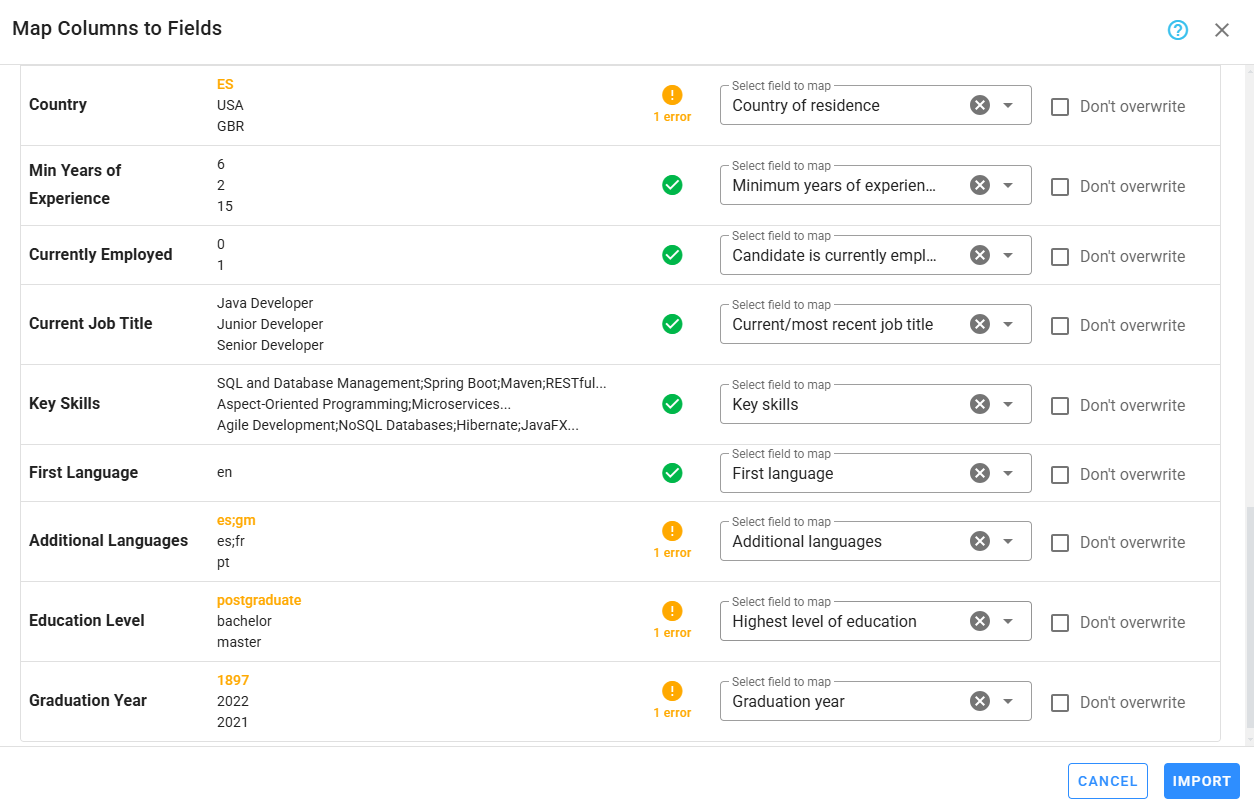
- For profile data, configure Handle Existing Values settings for each column to decide how to update existing records.
- For history data, choose how to handle existing records:
- Always add new rows.
- Add rows only if the candidate has no related records.
- Replace existing records with new rows.
- Click Import.
The import runs in the background, and you’ll receive a confirmation email once it’s complete. The import record will appear at the top of the imports list.
Reviewing and Managing Imported Data
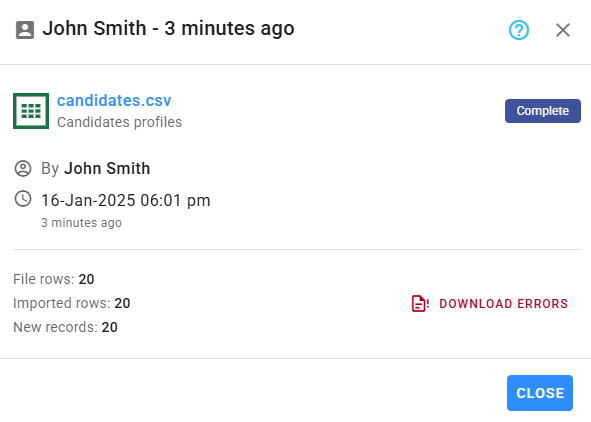
View import details to see the number of records added or updated. For history files, you can also view the number of deleted records if the Replace option was used. Progress updates are displayed during the import process.
If errors occur, you can download a CSV file detailing the issues.
Error files
Error files list all problematic rows, including the mapped columns and their values. The first three columns provide:
- Row Index: The row number in the original file.
- Row was ignored: Indicates whether the row was excluded from the import.
- Errors: Descriptions of errors in invalid fields. Multiple issues are separated by new lines. Wrap column cells to view all error details.
⚠️ Important
Import detail records are automatically deleted after six months.