
Working with Lists
Lists are essential for managing large datasets efficiently. Zamdit makes extensive use of lists to display templates, jobs, tests, candidates, and more. These lists offer features such as sorting, filtering, and customizable views to enhance productivity.
List Overview
Lists in Zamdit are highly customizable, allowing users to work in their preferred style. Since lists are used frequently, even small adjustments can significantly impact team efficiency. Key features include multiple display modes, sorting options, and personalized settings.
Modes
Most lists in Zamdit support three display modes:
- Tabular: Displays items in a table format with columns representing attributes. Ideal for data-heavy views.
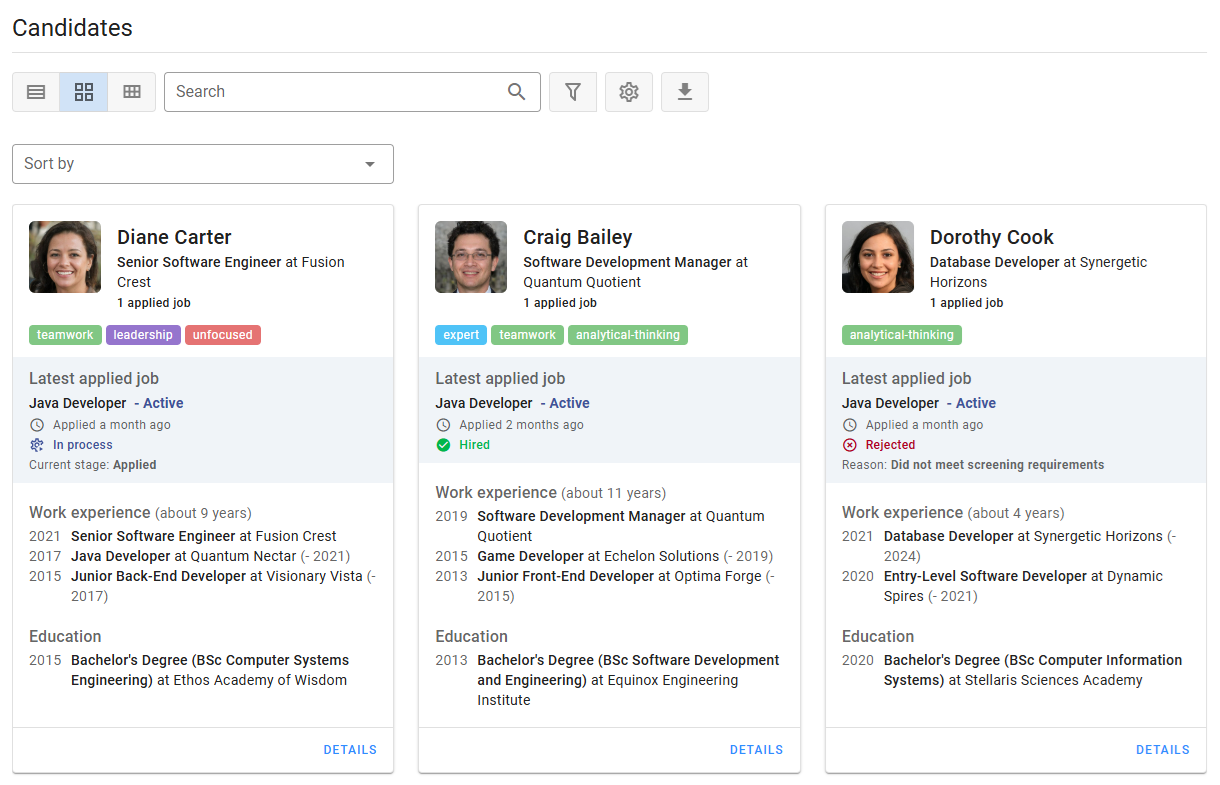
- Cards: Shows items as cards for a visually appealing presentation. Useful when fewer details are needed.
- Small Cards: Similar to Cards but smaller, allowing more items to fit on the screen. Displays only essential information.
Users can select their preferred mode and configure behavior settings to ensure lists display consistently with their needs.
Sorting
Lists can be sorted by a single column. To sort:
- In Tabular mode, click a column header to toggle between ascending, descending, and default sorting.
- In Cards and Small Cards modes, use the Sort by dropdown to select a column. Click the sorting chip to toggle ascending/descending or clear the sort criteria.
Some columns may not support sorting.
Settings
Lists can be personalized using the settings menu, accessed via the Gear icon. Settings apply to the current device and are not automatically transferred to new devices.
Appearance Settings
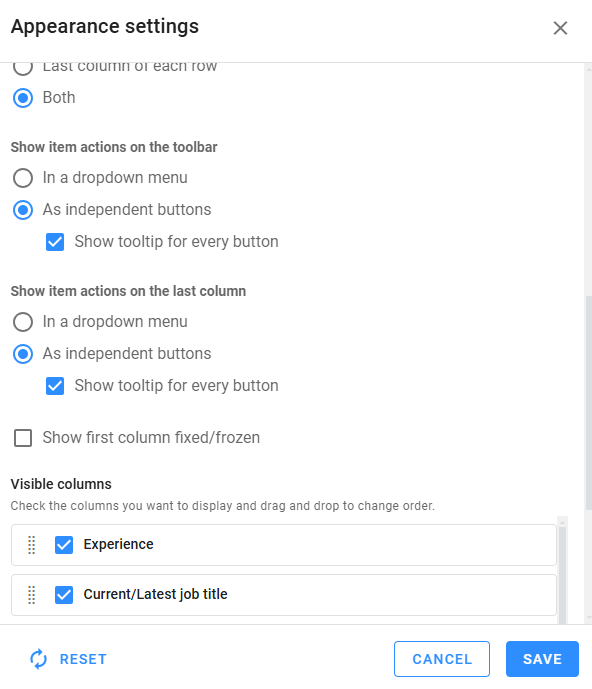
These settings apply only to Tabular mode. To access them, click Appearance Settings in the settings menu. Customization options include:
- Date field format.
- Action to select rows.
- Default item action.
- Placement of item actions.
- Columns to display and their order.
Behavior Settings
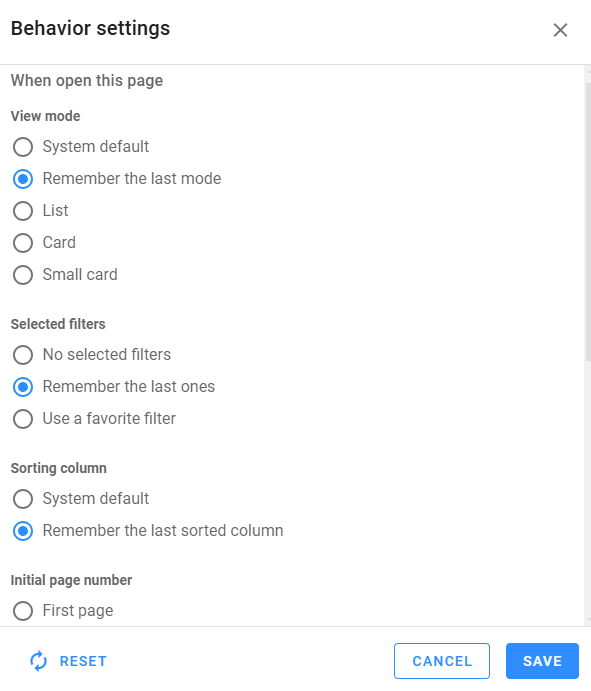
Behavior settings apply to all display modes and control how lists behave when a page is opened. Options include:
- Default view mode.
- Active filters.
- Sorting column.
- Starting page number.
- Items per page for each mode.
Filters
Filters make it easy to narrow down results. All lists include a search box for text-based filtering and additional filters accessible via the Funnel icon. Filters can be applied to specific columns, supporting single or multiple selections depending on the data type.
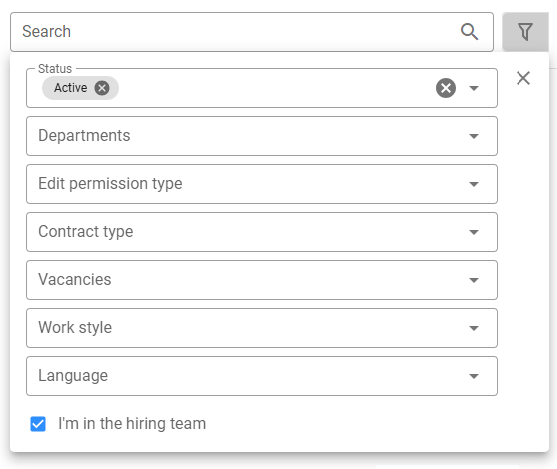
Applied filters are displayed as chips. Click the Close icon on a chip to remove a filter or use the Clear All button to reset all filters.

Favorite Filters
Favorite Filters allow you to save and reuse filter configurations. To create Favorite Filters:
- Apply the desired filters.
- Click the Gear icon and select Save as Favorite Filters.
- Provide a name or overwrite an existing favorite.
Favorite Filters are displayed as tabs at the top of the list. Click a tab to apply its filters. To return to default behavior, click the Default tab.
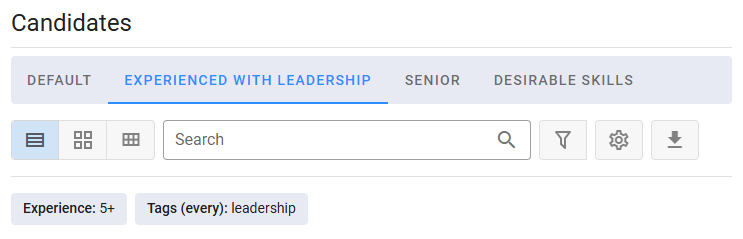
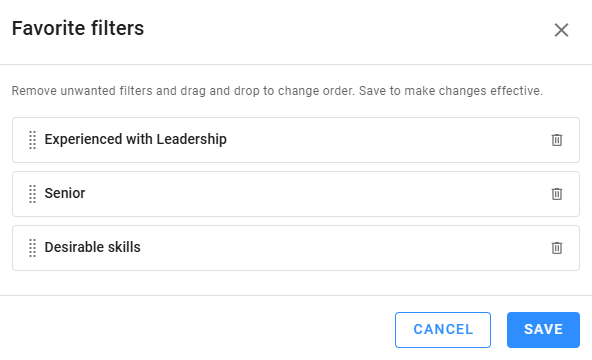
You can create multiple Favorite Filters, manage their order, or remove unnecessary ones using the Favorite Filters option in the settings menu. To set a default filter for when the page opens, configure it in the Behavior Settings.
Export as CSV
When available, lists include a Download button to export filtered results as a CSV file. The export includes all filtered items, not just those visible on the current page. For jobs and candidates, exports are capped at 5,000 items. The process may take a few seconds, depending on the dataset size.