
Search Candidates
The Candidate Pool stores all candidates who have applied for jobs in your organization or have been imported from other sources. You can tag candidates, invite them to apply for future positions, or search for specific profiles using a variety of filters. This page outlines how to effectively search, manage, and, if necessary, remove candidates, while adhering to data protection regulations.
Candidate List
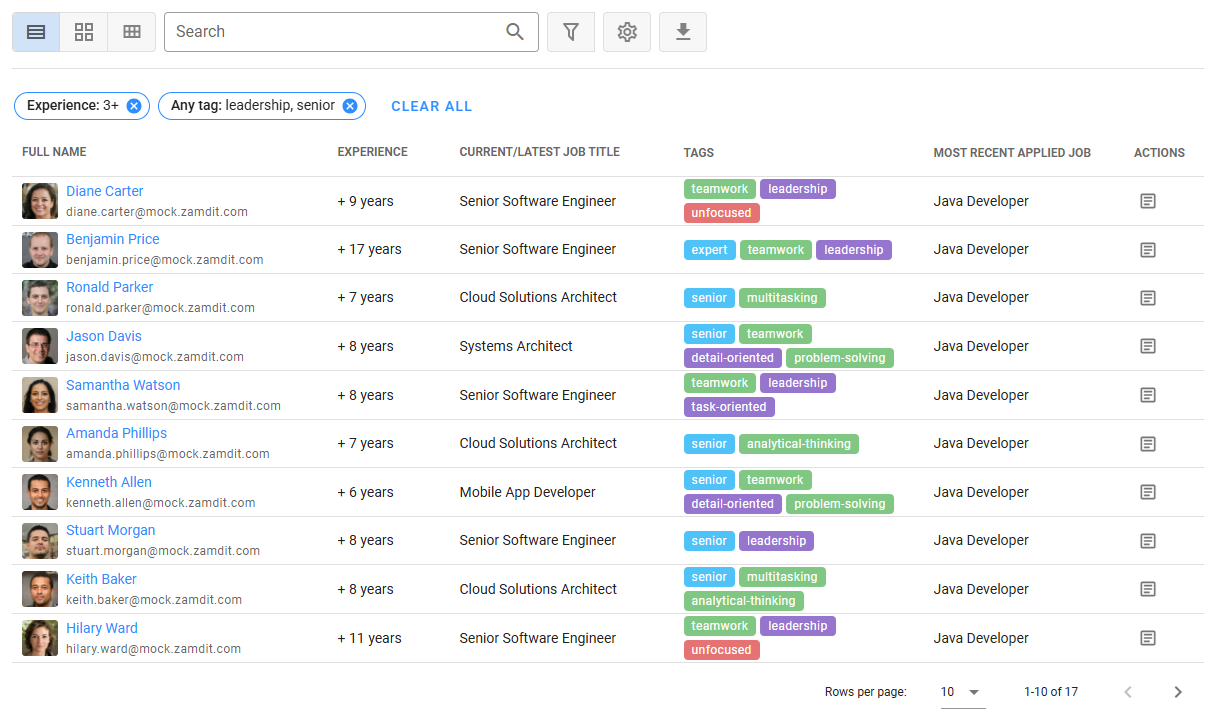
Access the Candidate List from the top menu option Candidates. This list enables you to perform various actions on your stored candidates, including searching, editing, deleting, or exporting their data. For details on customizing list settings, such as viewing modes or default filters, see Working with Lists.
Available Filters
In addition to the text-based search box, several powerful filters are available to help you narrow down candidates:
- Experience: Specify the minimum years of experience required. If the Years of Experience field is unavailable for a candidate, their experience may be estimated based on their work history.
- All tags: Filters candidates who have been assigned all selected tags.
- Any tag: Filters candidates who have been assigned at least one of the selected tags.
- Language: Filters candidates based on selected languages.
- Country: Filters candidates based on selected countries.
Save frequently used filter configurations as Favorite Filters for quick access in the future. For details, see Favorite Filters.
Export Filtered Candidates
Click the Download button to export filtered candidates as a CSV file. The export includes all filtered items, not just those visible on the current page. Exports are capped at 5,000 items for optimal performance.
Adding and Editing Candidates
While job application forms, where candidates provide their own details, are the primary method for adding candidates to Zamdit, there may be situations where you need to manually create a new candidate or update an existing candidate's record.
The Candidate Form allows you to add a single candidate or update details for existing candidates. This form includes all the predefined fields available in job application forms, enabling comprehensive data entry. Only Advanced and Admin users have access to the Add and Edit options.
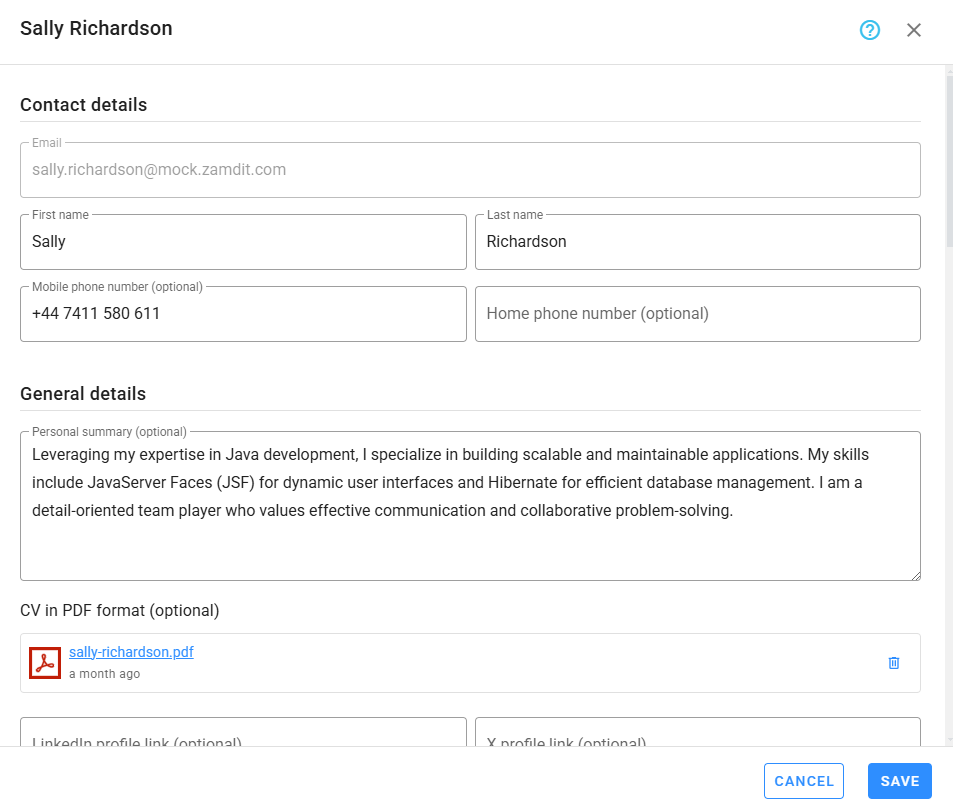
Steps to Add or Edit a Candidate:
- Go to the Candidates section and click the Add or Edit button.
- Complete or update the required fields in the form.
- Click Save to confirm your changes.
💡 Note
All actions performed through the Candidate Form, including additions and edits, are logged. This ensures transparency, accountability, and compliance with organizational policies.
Remove Candidates
Only users with Admin privileges can permanently remove candidates from the system. This action deletes the candidate record and all associated data, including:
- Application history
- Communication messages
- Questionnaires and assessments
- Evaluations and team feedback
- Uploaded files
⚠️ Important
Candidate removal is irreversible. Once a candidate is deleted, their data cannot be recovered.
How to Remove a Candidate
To ensure accuracy, candidates can only be removed from their Detail View. This process provides an additional safeguard against accidental deletion.