Offer Decision Form Templates
When a candidate reaches the final stage and is offered a job, Zamdit allows you to send them an email with a link to an offer decision form. This form enables candidates to formally accept or decline the job offer within the system, helping hiring teams receive timely, clear responses while reducing the need for administrative follow-up. Offer decision forms make the decision process straightforward and professional, giving candidates a structured way to communicate their choice and any related comments, which can enhance the overall candidate experience.
While it’s often beneficial to customize the messaging in Offer Decision Forms for each role, Zamdit provides a default template in each language with basic configurations to help you get started quickly.
Creating and editing offer decision form templates
When creating or editing an Offer Decision Form template, the setup is organized in a popup window divided into two main sections. Changes will only be saved after you click Save.
Template details
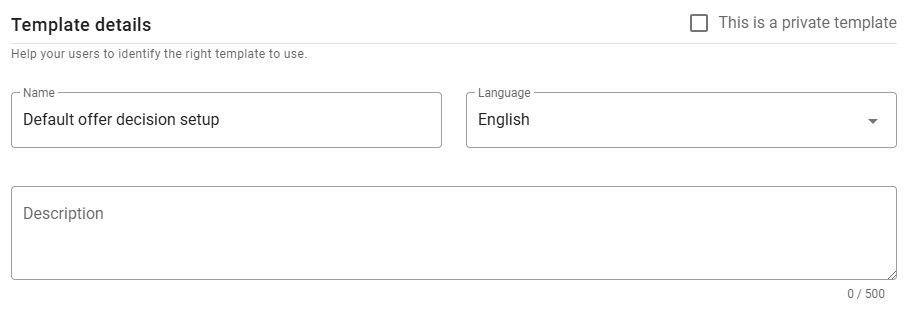
n this section, you can define the template's Name, Language, and Description.
⚠️ Note for Admin users
When creating a new template, you can mark it as private by selecting the checkbox in the top-right corner. Once saved, this option cannot be changed.
Headings and texts of the form
This section lets you customize the Welcome, Accepted and Declined messages displayed to candidates as they complete the form. While default messages are available, it’s recommended to tailor these headings and texts to align with the role and your company’s tone. Use placeholders (listed at the top of this section — click the expand icon to view them) for dynamic content. To copy a placeholder, simply click the icon next to it.
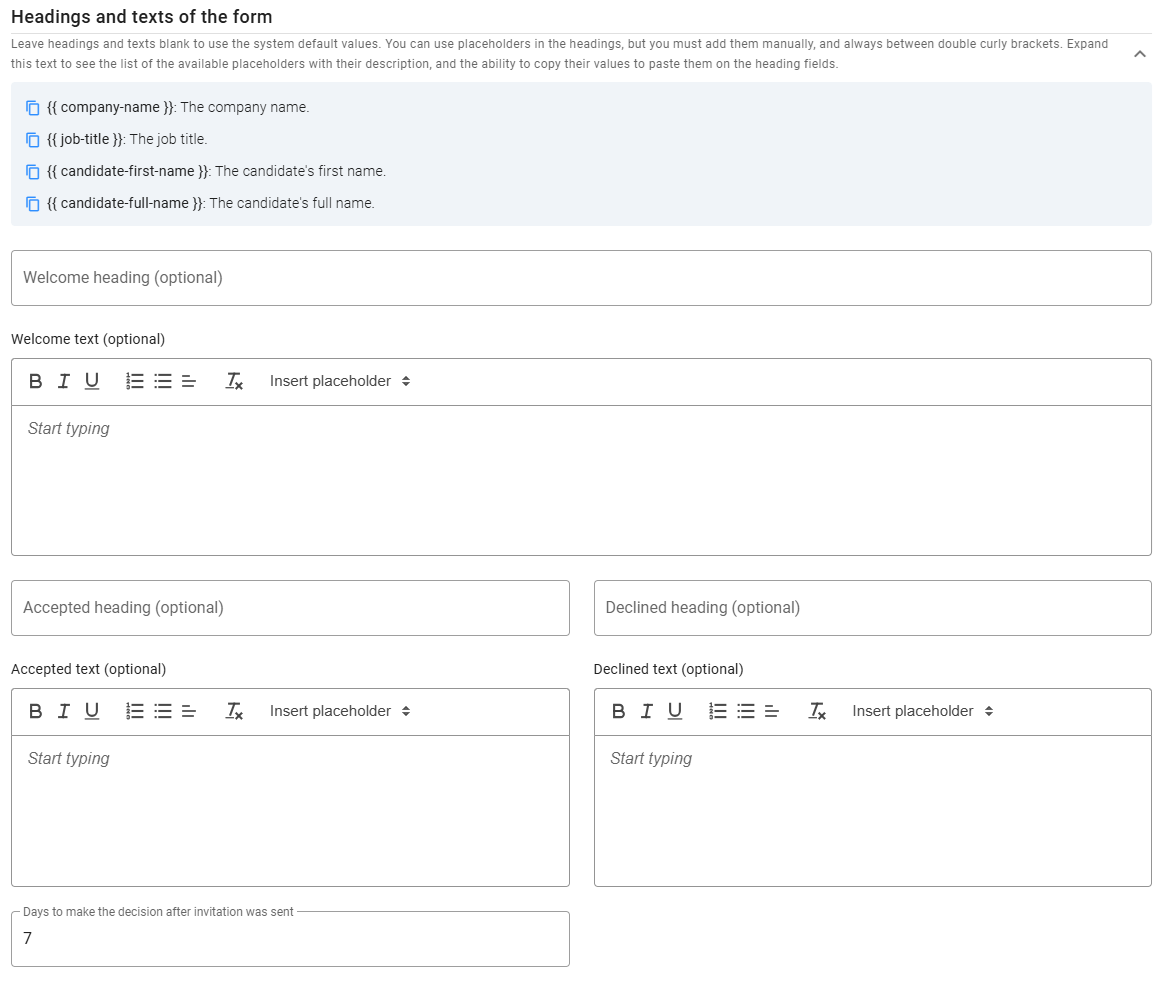
You can also set a completion deadline by specifying the number of days candidates have to respond after the invitation is sent.
Preview
To preview how the form will appear to candidates, click the Preview button at the bottom left of the form. This feature allows you to review the layout, flow, and clarity of the form before making it available.
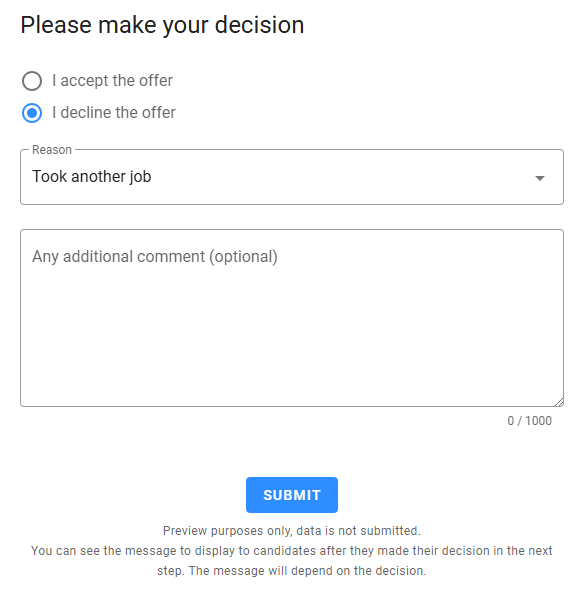
The preview begins with the Welcome heading and message, followed by the main decision fields where candidates can choose to accept or decline the offer. If they decline, they’ll be prompted to provide a reason and in both cases, they may add optional comments. After submitting, the final view displays a customized message based on the candidate’s decision, confirming their response.