General Settings
This page contains multiple tabs to manage general lists that are used when creating jobs and throughout the hiring process. These lists include: Departments, Bank Holidays, Locations, Recruitment Sources, External Recruiters, and Candidate Tags.
All users can view this page, but only users with the Admin role can edit. External Recruiters and Candidate Tags can also be edited by Advanced users.
Departments
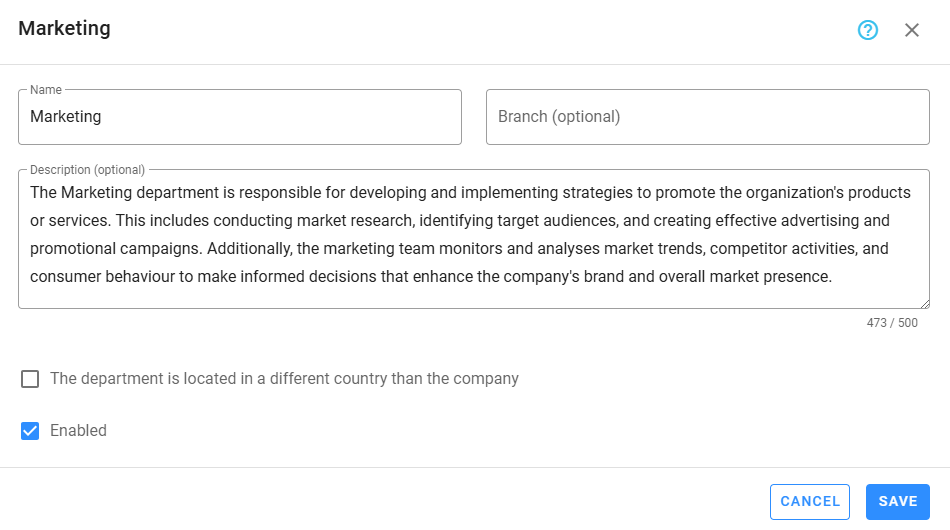
Departments can be assigned to jobs, which provides additional context and is useful for gathering departmental statistics. All reports either allow filtering by departments or are broken down by departments. It is not mandatory to create departments or assign them to jobs. Jobs without an assigned department can be filtered in reports using the category No department assigned, which is also used for departmental breakdowns in reports.
When creating departments, you can specify their country and branch (if applicable).
In "Test Data" mode, the system will automatically add 3 departments, but these will be removed once the mode is turned off.
Bank holidays
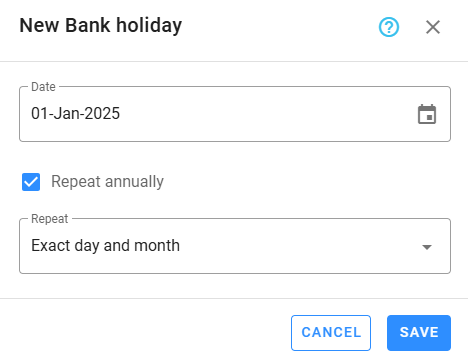
Bank holidays prevent candidates from scheduling phone calls or interviews on those dates, and they are also excluded when the system calculates date ranges based on working days.
The client is responsible for maintaining the list of bank holidays each year. The UI allows you to define recurring holidays and provides options for handling holidays that fall on weekends, including:
- Exact day and month
- Next Monday if it falls on a weekend
- Next Monday if it falls on Sunday
- Previous Friday if it falls on a weekend
- Previous Friday if it falls
If none of these rules apply, you will need to manually add the holiday each year.
Locations
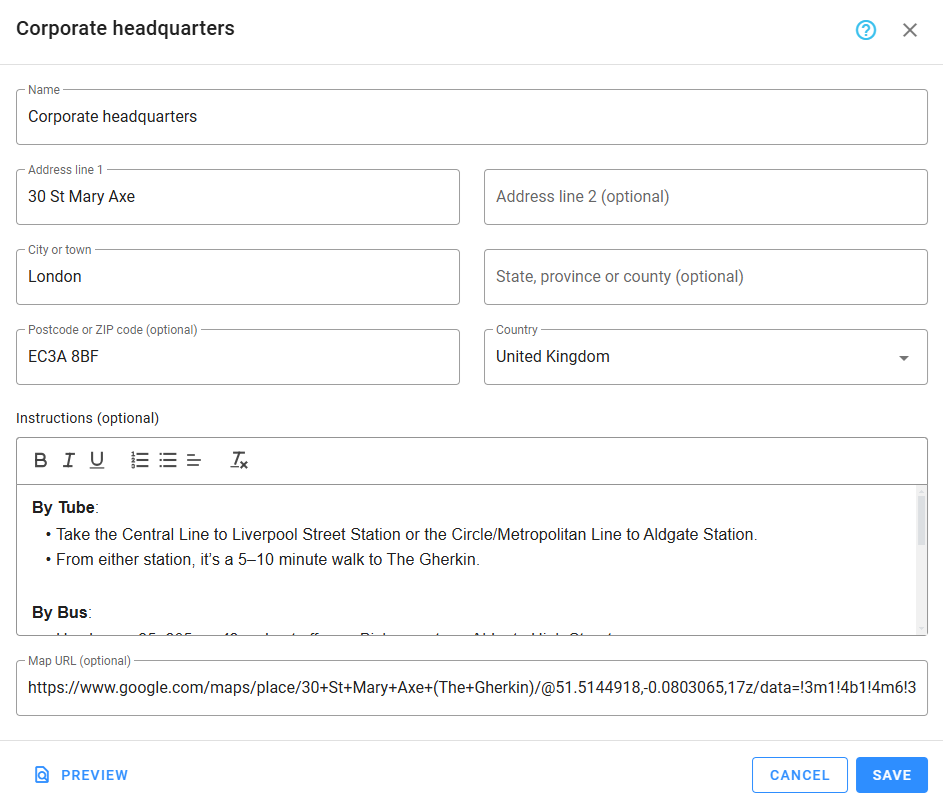
When setting up on-site interviews, specifying the interview location is mandatory. In this section, Admin users can add and manage all potential locations for selection.
Upon account creation, the system automatically adds a default location, which cannot be deleted. Ensure all required fields (e.g., address, city) are completed. Initially, these fields are populated with placeholders like Address and City that must be updated with the correct information.
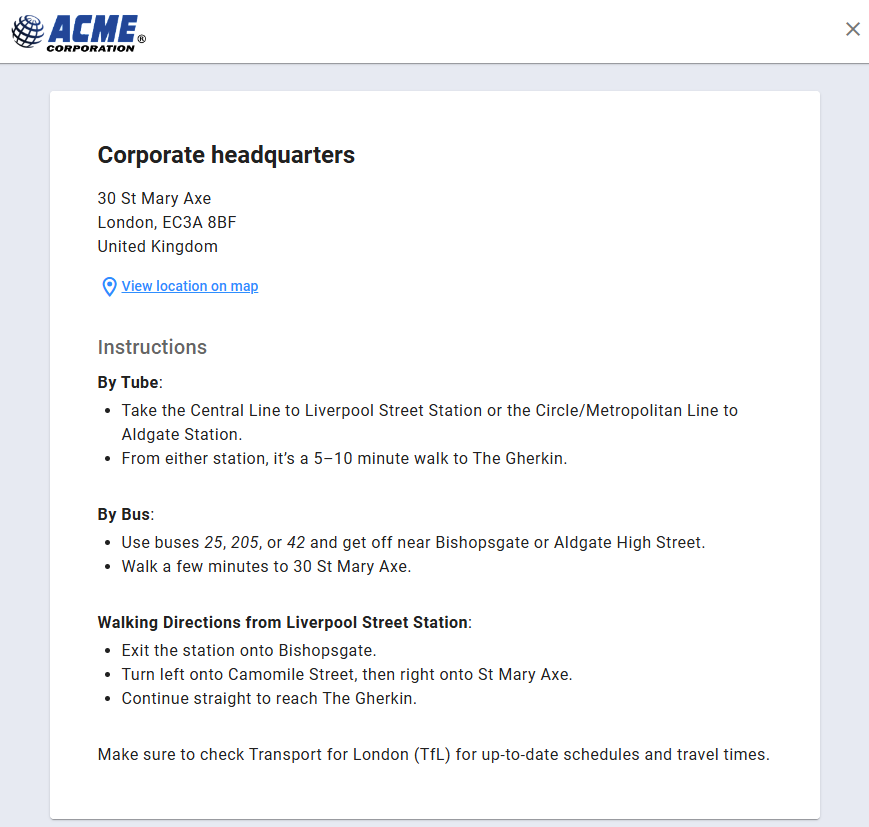
Each location allows you to include Instructions and a Map URL. These details, along with the address, are visible to candidates when they click the location link included in the email sent to confirm their on-site interview appointment.
Preview
Click Preview to see the view candidates will see when they click the location link in their confirmation email.
Recruitment sources
When creating jobs, users can add multiple recruitment sources, each with a unique link. Candidates will be attributed to the source based on the link they use to apply.
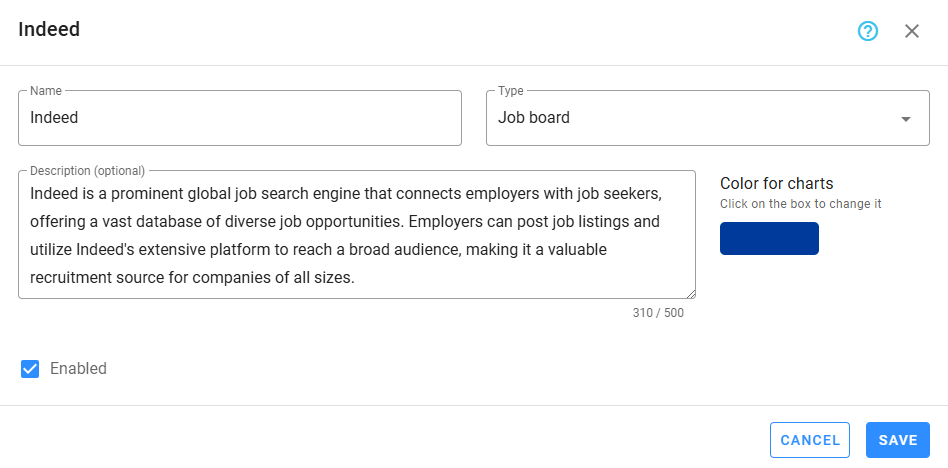
Admin users can manage all external recruitment sources here, such as LinkedIn. When "Test Data" mode is activated, the system will add 5 sample recruitment sources, which will be removed once the mode is turned off.
Be sure to specify the correct source type, as this information is used for reports and statistics. Additionally, assign a color to each source to aid in quick identification, as this color will be used in pie charts.
External recruiters
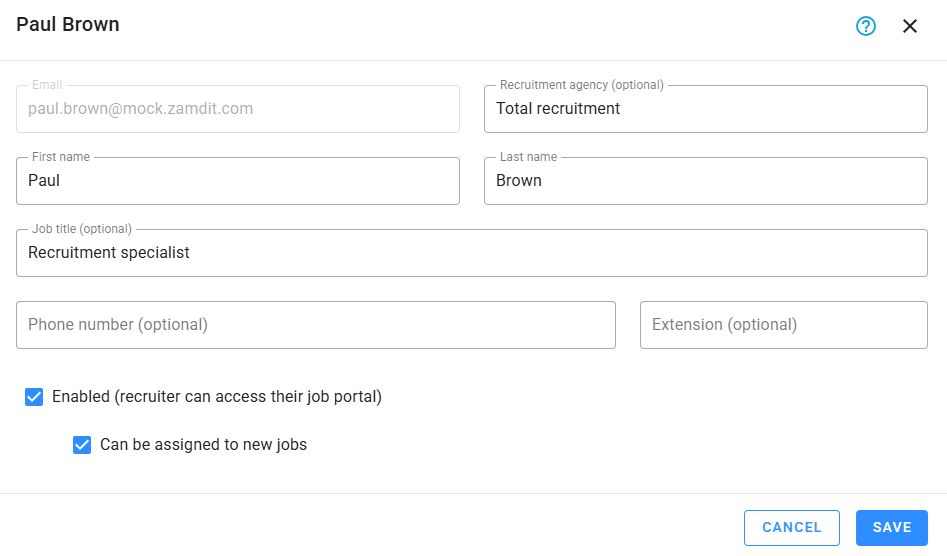
Zamdit allows hiring teams to collaborate with External Recruiters and even assign them tasks such as conducting phone screen evaluations. External recruiters assigned to a job will have access to a Portal where they can view job details, share application links with candidates, and track the candidates they’ve brought in.
External recruiters can be added either from this section or directly within jobs. However, only this section provides access to all registered external recruiters. In "Test Data" mode, the system adds 4 external recruiters, but they are removed once the mode is turned off.
External recruiters have form fields similar to internal users, though they cannot access the app directly and are not counted as users. Their interaction is limited to their portals, where they can access the jobs they are assigned to, each with a unique link sent when the job becomes active.
External recruiters assigned to existing jobs cannot be deleted. However, you can update their settings to prevent them from being added to new jobs, or completely revoke their assignment permissions and access to the recruiter portal.
By default, external recruiter avatars consist of their initials on a colored background, but they can upload a custom image via their portal.
Candidate tags
Rejected candidates may still be considered for future positions. Zamdit allows tagging candidates to facilitate searching the candidate pool. Tags can also highlight specific skills or qualifications during the hiring process. Candidates can be tagged from the Job Progress Board or the Candidate Pool.
Tags are customizable, helping refine the search process. You can assign a color to tags, which can be useful for categorization, such as grouping positive vs. negative traits or soft vs. hard skills. You can choose from 6 colors: red, purple, blue, green, orange, and grey. Tags are often assigned after reviewing profiles, resumes, or interview responses, or after candidate interviews.
In "Test Data" mode, the system will add 15 sample candidate tags, but they will be removed once the mode is turned off.
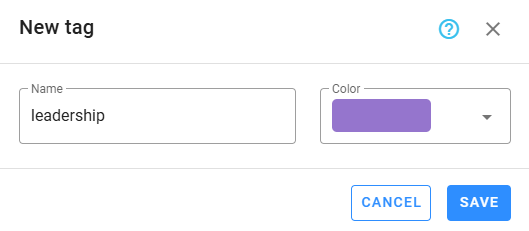
Candidate tags can also be created on-the-fly when tagging candidates.
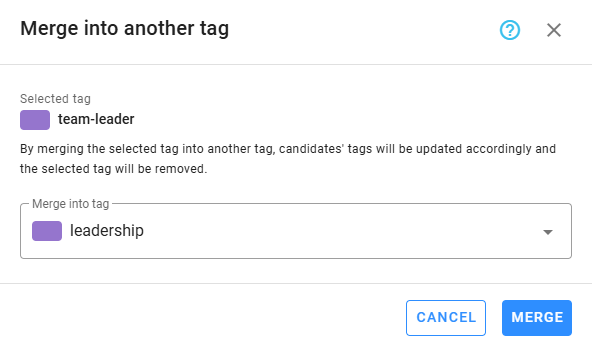
Merge tags
If multiple tags have the same meaning, they can be merged without manually editing each candidate. Select the tag to be merged, click Merge into another tag, and choose the target tag. All associated candidates will automatically be updated, and the merged tag will be removed.