Review Candidate Details
The Candidate Details view serves as the central hub for accessing and managing all information related to a candidate. It provides a comprehensive overview, including the candidate's profile, application details, evaluations, questionnaire responses, assessment results, offer decisions, timeline, notes, emails, and files. Beyond individual candidate information, this view enables hiring teams to display and filter all candidates within the current stage, making it easy to compare profiles, identify next steps, and apply bulk actions to streamline the hiring process.
Overview
The image below highlights the key elements of the Candidate Details view.
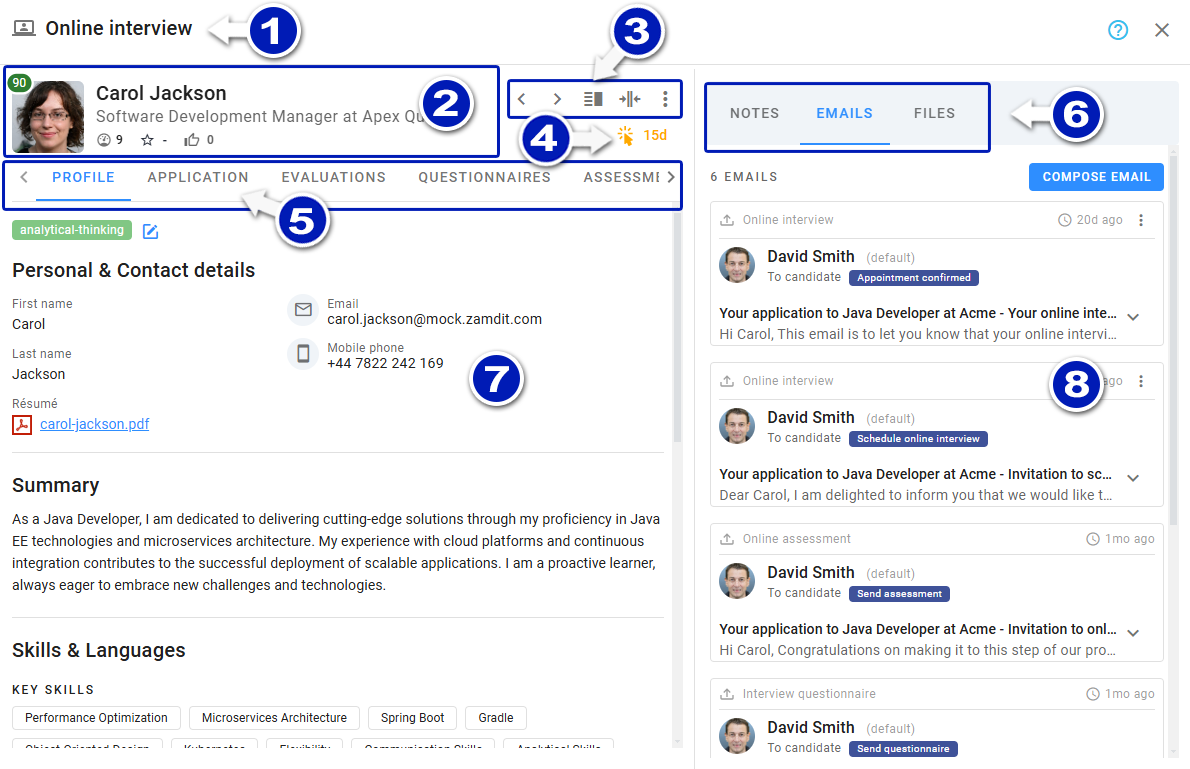
- Current stage
- Candidate details: Includes basic information and the system score.
- Toolbar:
- Open the previous candidate in the stage.
- Open the next candidate in the stage.
- Show the Candidates List panel.
- Toggle split tabs mode.
- Access candidate-specific actions.
- Status Icon: Indicates pending actions, progression readiness, or inactivity.
- Main section tabs
- Secondary section tabs (e.g., Notes, Emails, Files) when in Split Tabs Mode.
- Main View Panel: Displays the selected main section.
- Secondary View Panel: Displays the selected secondary section (if enabled).
By enabling Split Tabs Mode, two sections (main and secondary) can be viewed simultaneously. Note that if the Candidates List Panel is open, the Secondary View Panel becomes unavailable. In such cases, all sections appear in the Main View Panel.
Sections
Below is a detailed description of all sections in the Candidate Details view. While Profile, Application, Timeline, and secondary sections (Notes, Emails, Files) are always visible, other sections may appear based on job stages and the candidate's progress.
Profile
This section displays the candidate's details from the application form and other sources, including:
- Personal and contact information
- Résumé
- Work experience and education
- Skills
- Job preferences
The data includes inputs from the current and previous applications, as well as imported information.
Application
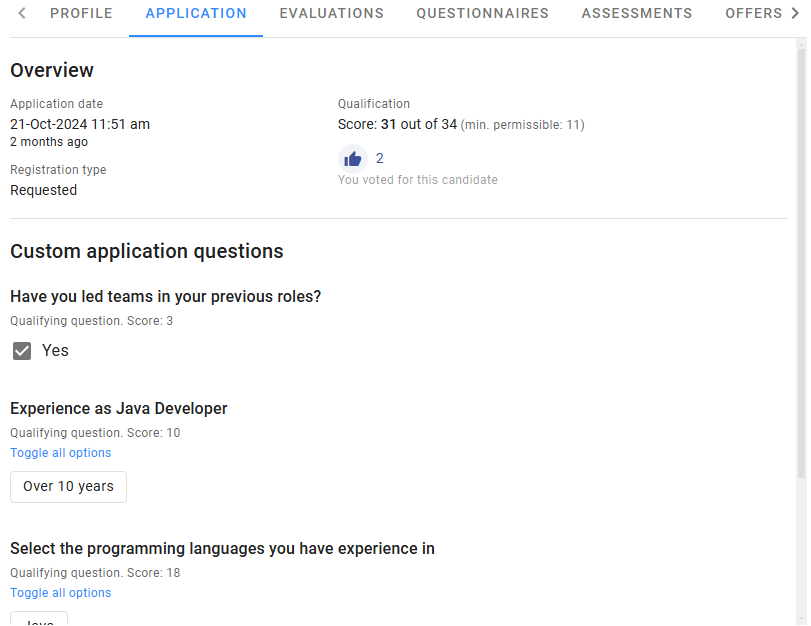
This section summarizes the candidate's application details, including:
- Source of application
- Qualification score (if applicable)
- Answers to custom questions
- Pre-qualification scores
- Applied stage details (e.g., votes, reviews, scores)
Evaluations
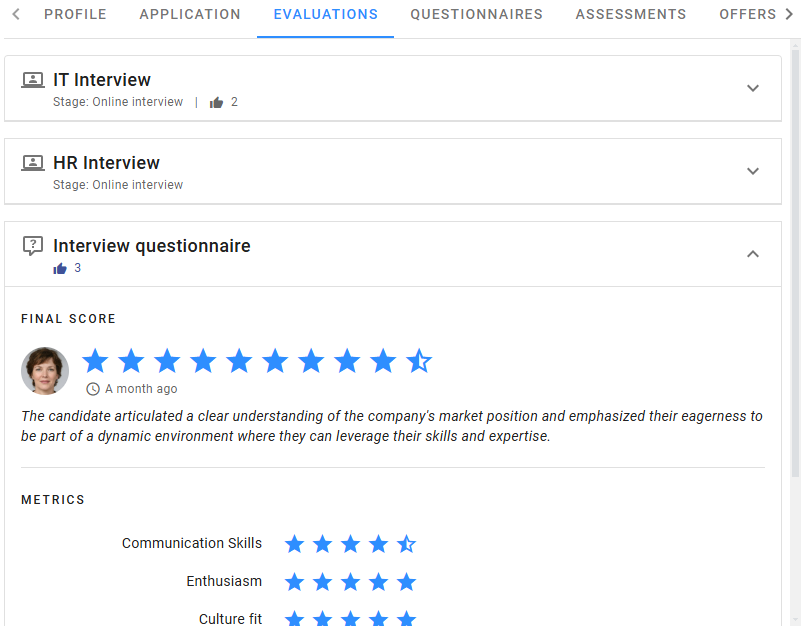
Displays evaluations completed by the hiring team for various stages (Phone Screen, Interview, Onsite Assessment). It includes:
- Evaluator's details
- Final score and additional reviews
- Scorecards
- Answers to evaluation questions
Votes received during evaluation stages are also displayed.
Questionnaires
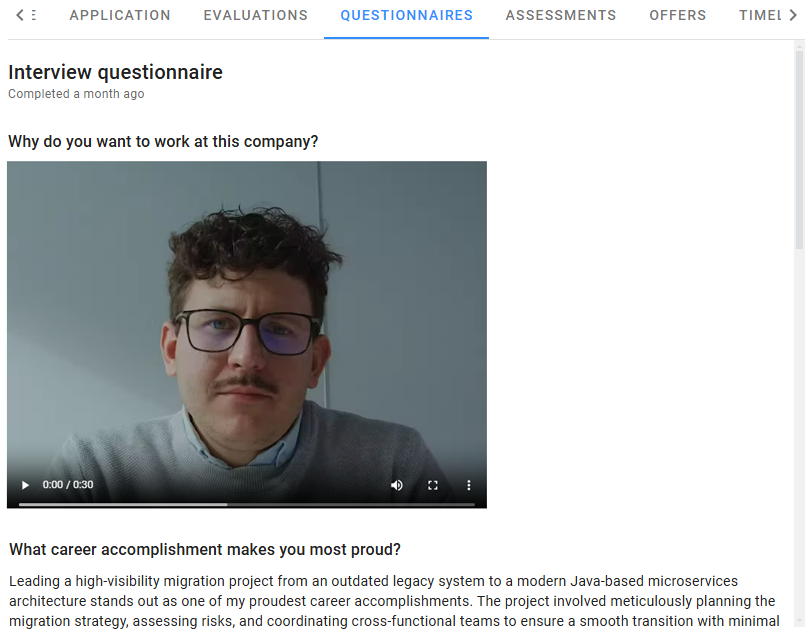
Lists questions and answers from Interview Questionnaire stages, including:
- Candidate's responses (text and video submissions)
- Reference questionnaire answers (if applicable)
Note: Evaluations for these stages are shown in the Evaluations section.
Assessments
The Assessments section provides a complete breakdown of all online assessments taken by the candidate during the hiring process. This section ensures the hiring team can evaluate a candidate's capabilities accurately and fairly. Each assessment is structured into three subsections:
Overview
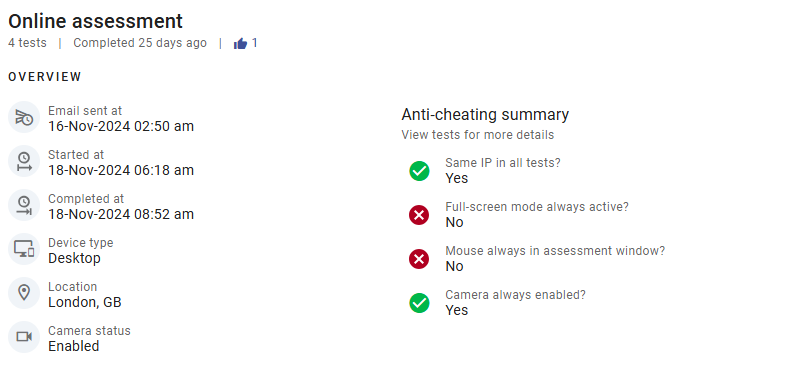
The Overview subsection summarizes key details about the assessment, such as when it was started and completed, the device type used, and the candidate's location during the test. It also includes a summary of anti-cheating measures, enhancing the reliability of the results.
Final Score and Review
If the assessment stage requires a final score, this subsection displays the overall assessment result and any additional review comments. Review comments provide context to the score and allow hiring teams to document subjective evaluations or flag specific areas of concern.

Tests
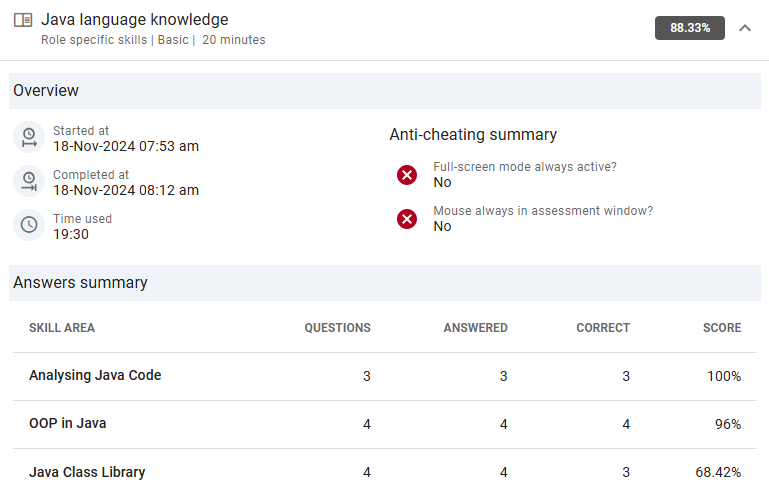
This subsection delves deeper into the details of each test within the assessment. Results are displayed per skill area, enabling the hiring team to understand the candidate's strengths and weaknesses. For each test, you'll find:
- Total Time Used: Duration the candidate took to complete the test.
- Skill Area Scores: Performance highlights in critical competencies.
- Open Questions: Status and grading (manual grading required before computing final scores).
- Anti-Cheating Measures: Snapshots, mouse events, and full-screen exits.
Open Questions
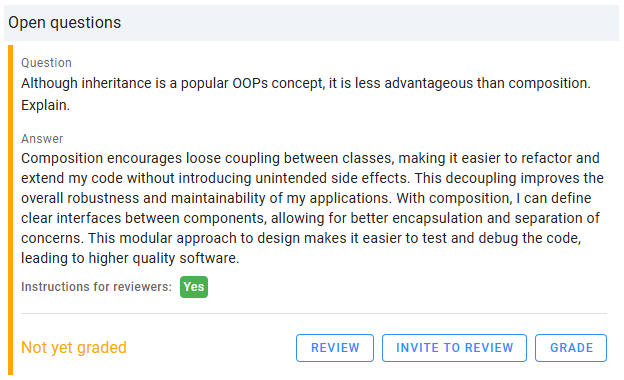
For assessments that include open questions, team members must manually grade these responses. Tests with pending questions are flagged for easy identification.

For each open question, Zamdit displays the question text, the candidate’s response, and if the question provides instructions for reviewers are provided. You can invite external reviewers to review open questions, fostering transparency and collaboration in the evaluation process.
Once the question has received enough reviews, it can be graded; however, reviews are not required to grade the question. When graded, the system calculates the final score. For more information on reviewing open questions, see the page Review an Open Question.
Note that open questions can also be graded using the option in the pipeline cards menu or the candidate menu at the top of this view.
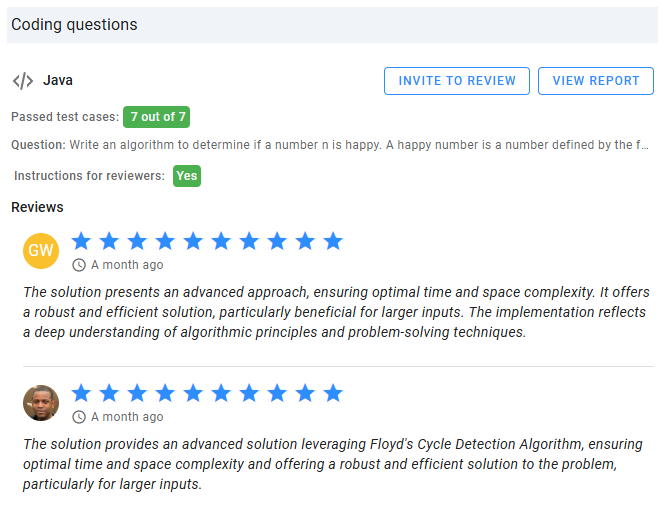
Coding Questions
Zamdit automatically grades coding questions using test cases, but it's essential to review the solutions for quality, efficiency, and adherence to best practices. Senior developers are encouraged to review coding challenges using the coding report and leave comments for a holistic evaluation of the candidate's technical ability.
Timeline and Events
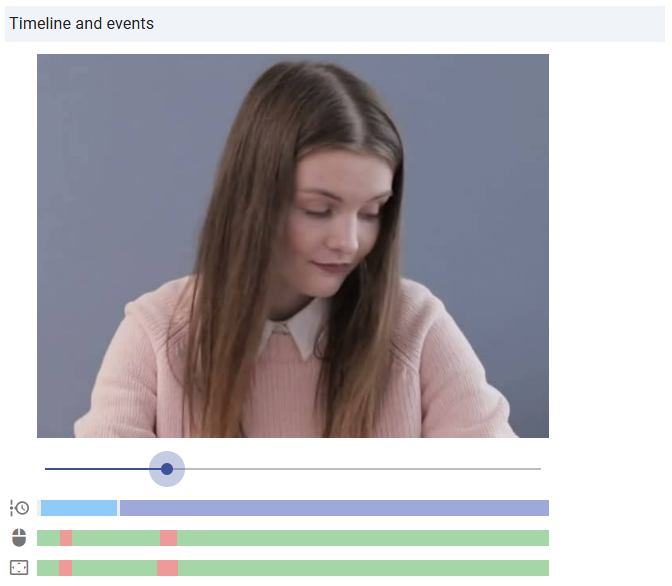
As part of the anti-cheating measures implemented by Zamdit, snapshots are periodically taken during tests (unless candidates opt out), and the browser is set to full-screen mode. These measures ensure fairness in the assessment process. Zamdit also monitors candidate activity, tracking instances when they exit full-screen mode or move the mouse out of the test window.
This panel displays the snapshots taken and the recorded events on a common timeline, allowing you to correlate the snapshots with the events. Use the slider to navigate through the screenshots across the timeline. Below the snapshots, charts provide additional insights:
- Timeline: Displays the different stages during the test (e.g., Instructions, Sample Questions, Test Questions). Hover over segments for more information.
- Mouse events: Red segments indicate when the candidate moved the mouse out of the test window.
- Fullscreen events: Red segments indicate when the candidate exited full-screen mode.
Offers
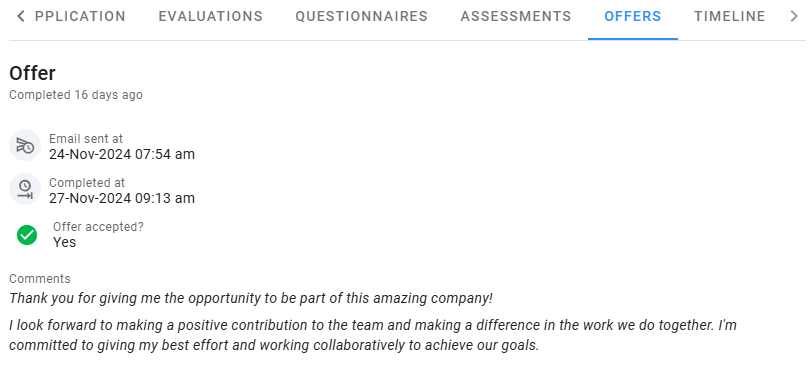
Displays the candidate's responses to Offer Decision Forms, including:
- Submission timestamp
- Details of the completed form
Timeline
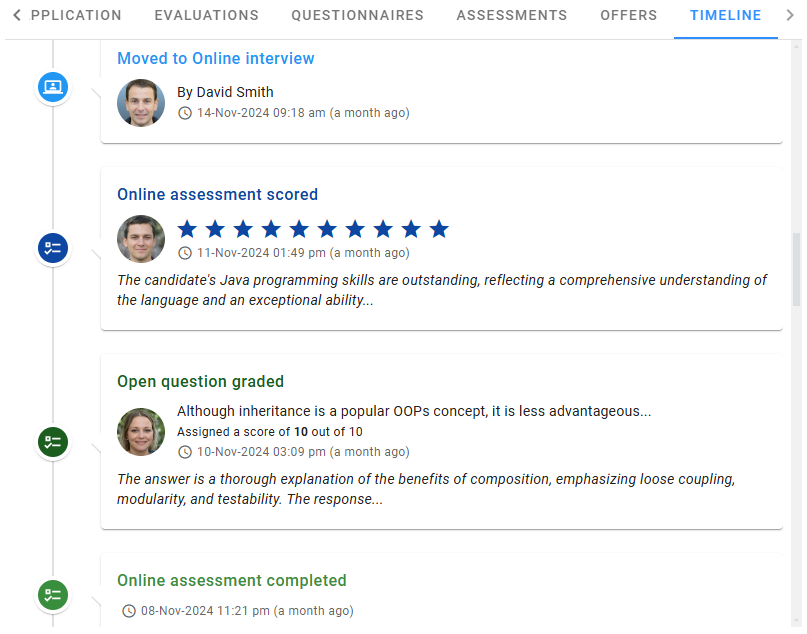
A reverse chronological view of all actions during the hiring process, including:
- Scores and reviews
- Actions by hiring team members
This section consolidates information from all stages, providing a clear overview of progression.
Notes
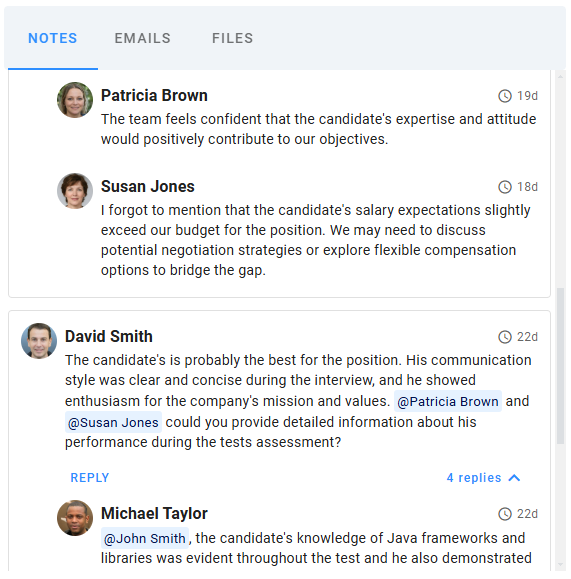
The Notes section acts as a shared workspace for team members to document observations, feedback, and important information about the candidate. Use this section to:
- Collaborate by tagging team members (type the at symbol (
@) followed by their name; a dropdown list will appear to select the intended member). - Notify all team members with
@everyone. - Reply to existing notes for threaded discussions.
This feature promotes teamwork and ensures that all candidate-related communication remains centralized, making it easier to make informed decisions.
Emails
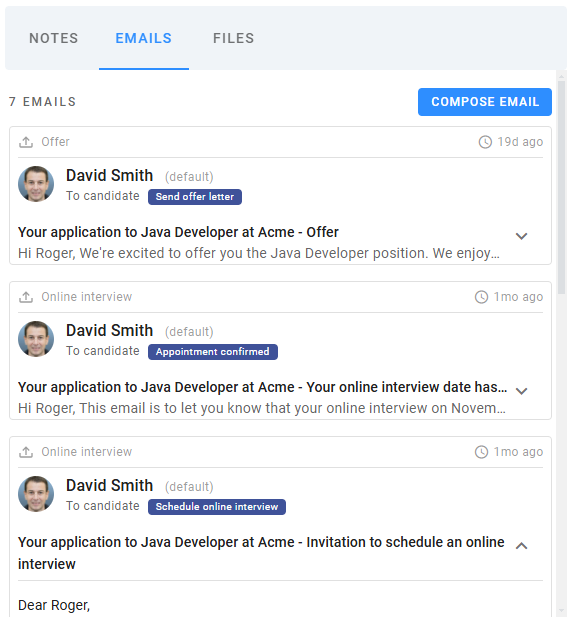
While email management can also be handled through the Messages tool, the Emails section focuses solely on correspondence related to this candidate. Features include:
- Reverse Chronological Display: Sent and received emails are displayed from most recent to oldest.
- Email Templates: Start composing emails using pre-existing templates tailored to the candidate's stage in the pipeline.
- Quick Email Composition: Write personalized emails directly from this section without leaving the Candidate Details view.
This section streamlines communication and ensures nothing is overlooked in your correspondence with the candidate.
Files
The Files section is a repository of all documents and attachments associated with the candidate. It includes:
- Candidate-Uploaded Files: Such as résumés or cover letters submitted during the application process.
- Email Attachments: Files sent or received via email.
- Team-Uploaded Files: Additional documents added by team members. When uploading files, you can add a descriptive title and a short (70-character) description.
Files can only be edited or deleted by the uploader or by users with administrative privileges. This ensures that important documents remain intact while allowing flexibility for necessary changes.
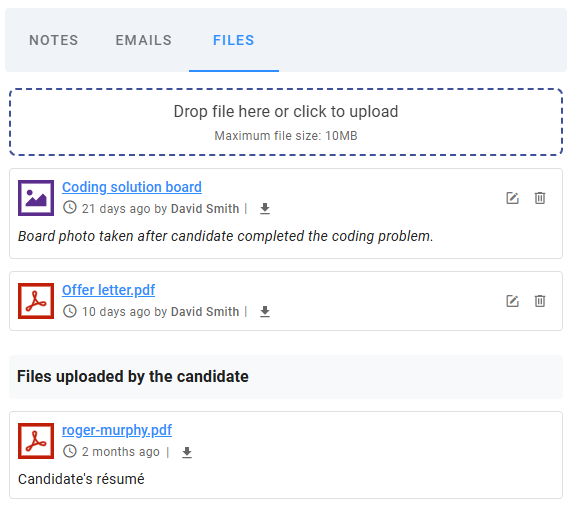
Click a file name to open it in a new browser tab. If the file cannot be opened, it will automatically download with the system-assigned internal name (a string of random letters and numbers). To download a file using its original name, click the download icon. For emails with multiple attachments, click the "Download All" icon on the right to download all attachments as a single ZIP file.
Candidates List Panel
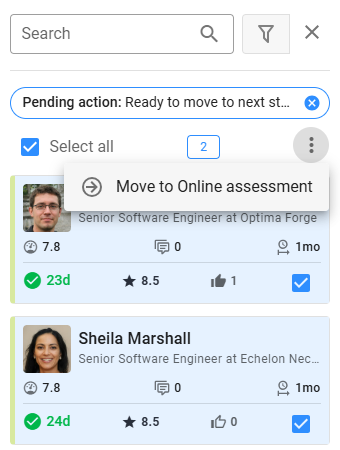
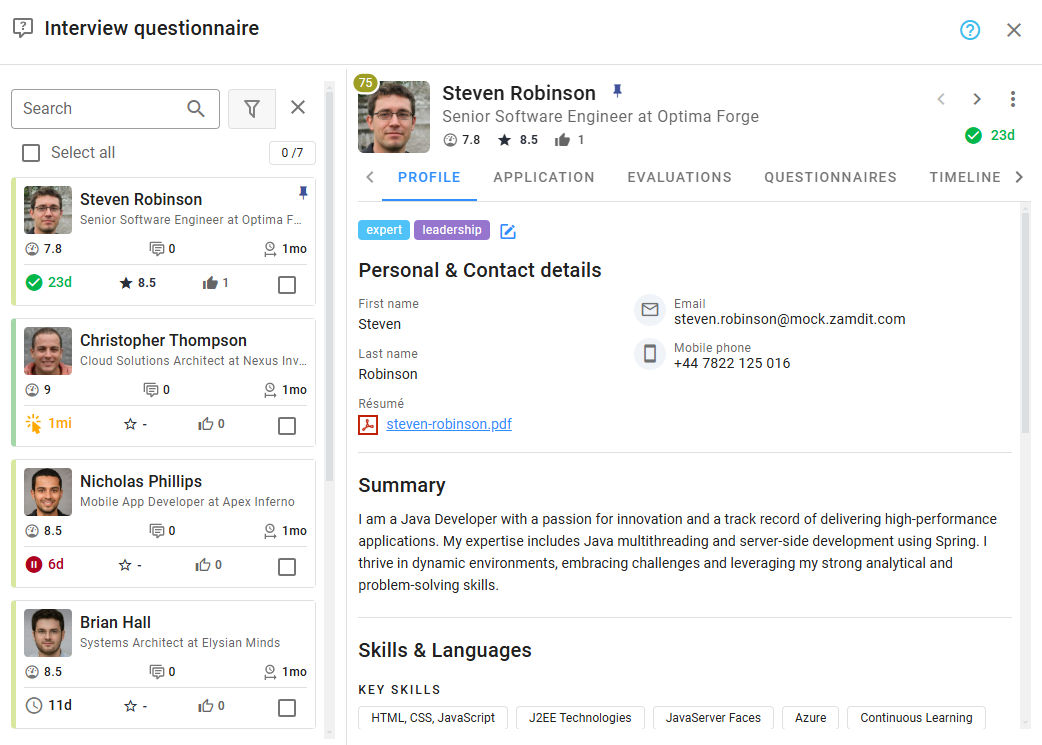
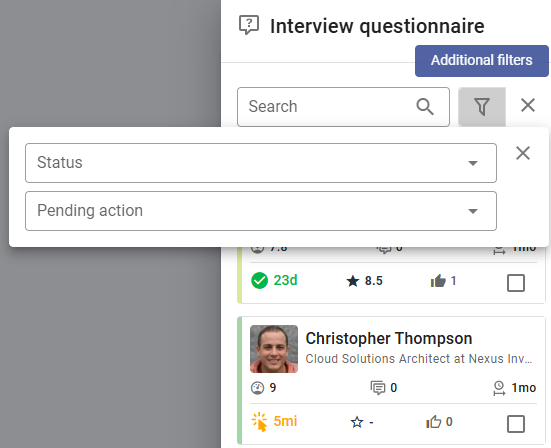
This panel lists all candidates in the stage and offers:
Features
- Select candidates to view their details
- Compare profiles
- Apply filters and execute bulk actions
Filtering Options
- Search: Locate candidates by name, job title, or company.
- Status: Filter by Active, Rejected, or Withdrawn.
- Pending Actions: Identify candidates requiring attention (e.g., "Pending evaluation").
Bulk actions
Perform bulk operations like:
- Sending default emails
- Addressing expired actions
- Advancing candidates to the next stage
Actions requiring manual interaction must be completed individually.