Interview Evaluation Templates
Incorporating scorecards and standardized interview questions for every candidate enables a fair, structured evaluation process that allows hiring teams to objectively compare skills, qualifications, and responses. This approach reduces biases, ensuring that each candidate is measured against consistent criteria and aiding in the selection of top talent based on specific job requirements. Scorecards provide clear, recorded insights that support collaborative review and decision-making among team members.
Interview evaluations are required for all stages involving interviews (phone, online, or in-person). Each evaluation includes a final score out of 10, and while it’s recommended to include scorecards (referred to as Metrics in Zamdit) and specific questions, they are not mandatory.
The system provides a default template with general metrics, but creating unique scorecards and questions for each role is ideal. Customized templates allow candidates to be assessed on the specific skills, competencies, and attributes relevant to the position, enhancing the accuracy and relevance of evaluations. This structure also ensures consistency, as interviewers have clear, role-specific standards, minimizing subjective judgments and supporting a fairer, more data-driven hiring process.
Creating and editing evaluation templates
When adding or editing an evaluation template, you’ll see a popup window with four sections. Changes are not saved until the Save button is clicked.
Template details
In this section, enter the template Name and Description. Unlike other templates, evaluation templates don’t require a language setting, as they are used internally by team members and not shared with candidates or third parties.
⚠️ Note for Admin users
When creating a new template, you can mark it as private by selecting the checkbox in the top-right corner. Once saved, this setting cannot be changed.
Evaluation
This section includes a field to provide a general overview of the evaluation. This information will be displayed to team members, helping establish a shared understanding of the evaluation's purpose, scope, and competencies to assess. A well-defined overview reduces ambiguity, promotes consistency in scoring, and supports clear communication among evaluators.
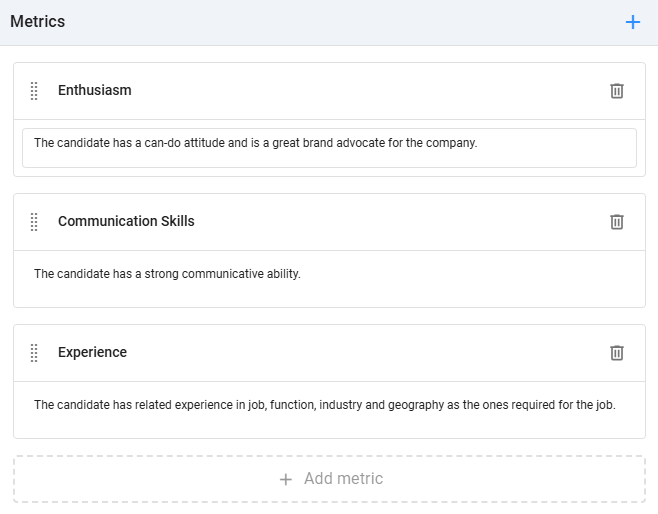
Metrics
Add all the metrics relevant to the evaluation. Each metric can have an optional description, which will appear below its name to provide additional context for evaluators. To remove a metric, click the Delete icon to the right. To reorder metrics, drag and drop them using the Dots icon.
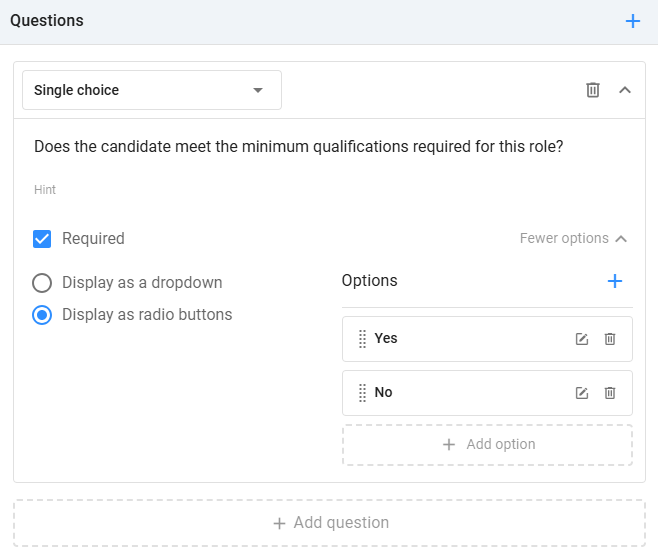
Questions
Zamdit supports various question types: Checkbox, Number, Date, Single choice, Multiple choice, Single-line text and Multiple-line text. For each question, you can also define an optional description to clarify its purpose and indicate if it’s mandatory. For choice questions, at least two options are required, and you can select the UI component type (dropdown, checkbox, or radio button). To remove a question, click the Delete icon to the right. To reorder questions, drag and drop them using the Dots icon.
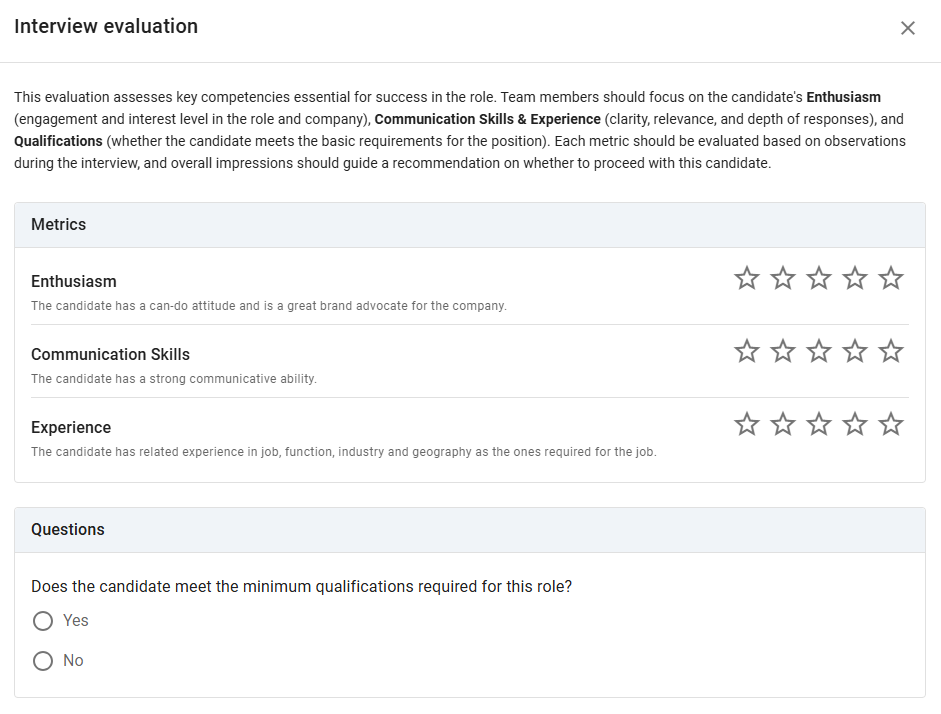
Preview
You can preview the evaluation as it will be displayed to team members by clicking the Preview button at the bottom left of the form. This feature allows you to see the layout and flow of the evaluation, ensuring it is clear and functional before it’s used.