
Hiring Pipeline Templates
Hiring pipelines are critical for structuring the hiring process, providing a consistent sequence of stages for candidates from initial screening through to hiring. With a well-defined pipeline, hiring teams can guide candidates smoothly through each step, ensuring all important stages are covered. This clarity not only enhances the candidate experience by creating a predictable, respectful journey, but also gives hiring teams a visual overview of each candidate’s status, helping them stay aligned and make well-informed decisions.
Customizable hiring pipelines provide essential flexibility, enabling hiring teams to adapt workflows based on specific roles, departments, or complexities. With Zamdit, teams can define unique stages, timelines, and requirements for each job, allowing the hiring process to be tailored to the role. Automated triggers further enhance efficiency by sending emails to candidates at predefined stages or notifying team members of pipeline changes, reducing manual effort and keeping the process moving forward.
Pre-configured hiring pipeline templates are a valuable tool for maintaining consistency while saving time. These templates offer a set of commonly used stages and automated actions that can be reused when setting up new roles, creating a streamlined process without sacrificing quality or personalization. With the flexibility to customize stages, automate communication, and leverage reusable templates, Zamdit enables teams to build an efficient, scalable, and candidate-friendly hiring process.
Creating and editing hiring pipeline templates
To create or edit a hiring pipeline template, follow the setup in the popup window, organized into two main sections. Changes are saved only upon clicking Save.
Template details
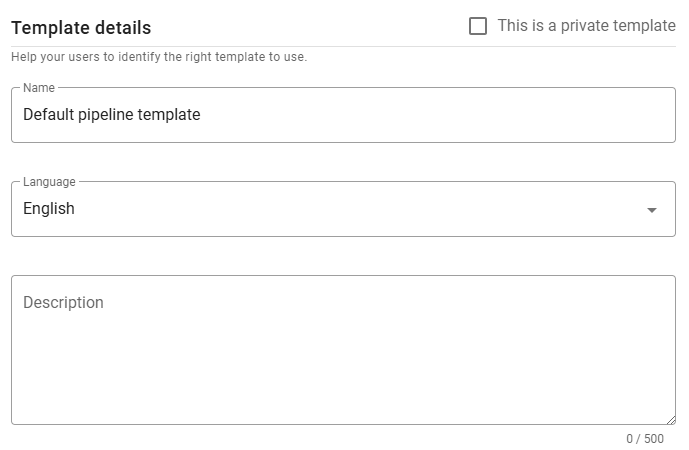
Define the template’s Name, Language, and Description. It’s recommended to set the language before adding stages to ensure compatibility.
⚠️ Note for Admin users
When creating a new template, you can mark it as private by selecting the checkbox in the top-right corner. Once saved, this option cannot be changed.
Stages
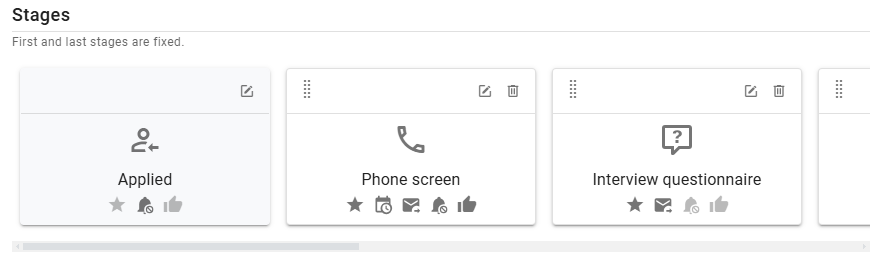
A hiring pipeline consists of stages, each with a specific function. The Applied and Hired stages are always the first and last in the pipeline, respectively, and cannot be added elsewhere. However, their names and settings can be customized. Other stages, such as Phone Screen, Online Interview, and Offer, can be added and configured as needed.
To add new stages, use the Add Stage panel before the Hired stage. To edit or delete a stage, use the Edit and Delete icons on the top right of each stage card. Stages can be reordered by dragging them using the Dots icon.
Each stage card displays an icon indicating the stage type, the stage name, and various icons representing key settings or triggers. Hover over icons to view details.
Depending on the stage type, you can assign related templates, such as interview schedules or evaluation forms. When used, these templates apply consistently within jobs that use the pipeline template.
Common settings
Two common settings apply to all stages, except Offer and Hired:
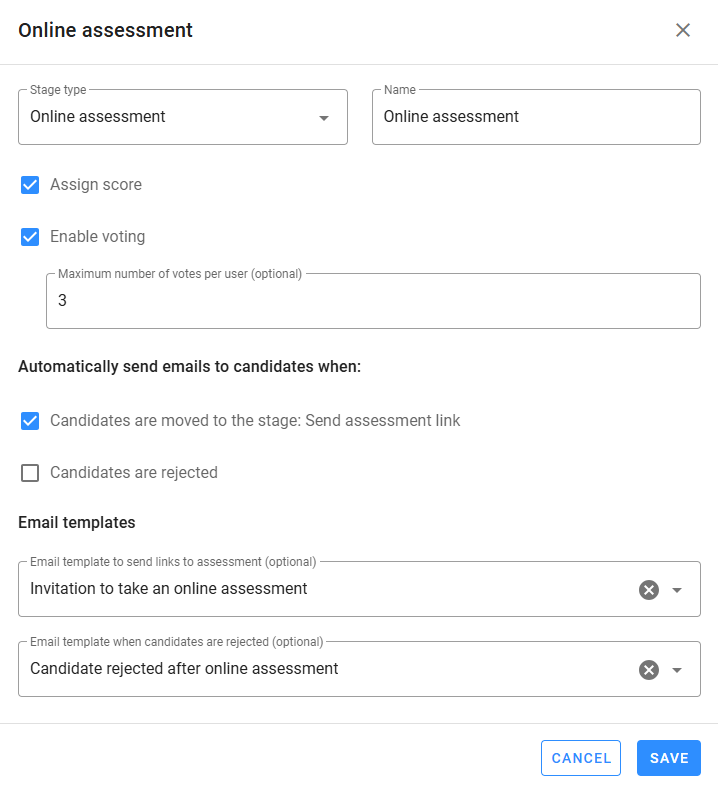
- Assign score: For interview-related stages, this is always enabled; for others, hiring managers can decide if scoring is necessary. Scoring helps quantify candidate performance and allows for objective comparison across candidates.
- Enable voting: This feature enables team collaboration and balanced decision-making. When enabled, managers can set the Maximum Number of Votes per Team Member.
Stage descriptions and settings
Applied: The default first stage where candidates begin. If pre-qualify questions are part of the application form, disqualified candidates can automatically receive a rejection email.
- Customize email templates for: job application requests, candidate invitations, auto-disqualification notices, and rejections.
Phone Screen: For initial phone interviews, allowing recruiters to assess basic candidate suitability. Candidates can schedule calls, if enabled, using a specified Interview Schedule Template.
- Customize email templates for: scheduling invitations, confirmations, and rejections.
- Set additional options like call duration and evaluation templates.
Interview Questionnaire: Send online interview questionnaires to gather structured insights into candidates' skills and qualifications.
- Customize email templates for: questionnaire links and rejections.
- Set templates for questionnaires and evaluations.
Online Assessment: Use this stage to assess candidates' skills and knowledge with online tests.
- Customize email templates for: assessment links and rejections.
Onsite Assessment: Hands-on assessment stage where candidates demonstrate job-related skills in person.
- Customize email templates for: assessment scheduling, confirmations, and rejections.
- Configure options for each assessment, including duration and evaluation templates.
Online or Onsite Interview: Separate stages for video and in-person interviews. Choose the appropriate setting based on the role requirements and candidate availability.
- Customize email templates for: scheduling, confirmations, and rejections.
- Set interview segments and evaluation templates.
Offer: Use this stage to manage final offers before moving candidates to "Hired." It's an ideal checkpoint for offer communication and negotiation.
- Customize email templates for offer letters and set up the Offer Decision Form.
Hired: The final stage where candidates who accept offers are placed, indicating the completion of their hiring journey. This stage is useful for tracking and reporting.