Progress Board - Calendar
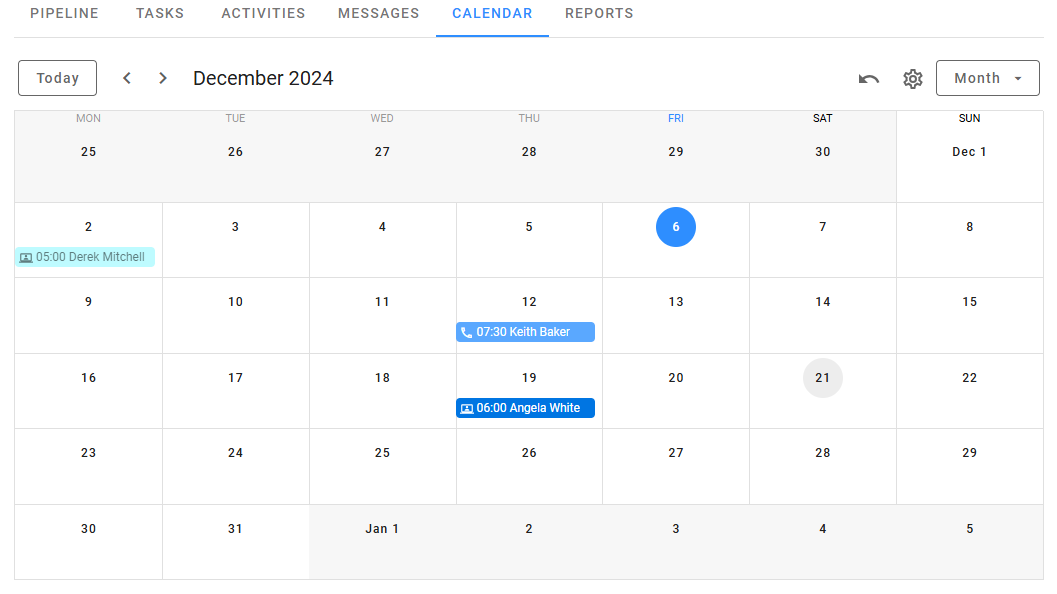
The Calendar section in the Progress Board provides a comprehensive view of scheduled events through a user-friendly interface. With three modes—Month, Week, and Day—it offers flexibility for navigating and managing events efficiently. Users can toggle between displaying events for all jobs or limiting them to the current progress board job. Clicking on an event reveals its details, with direct access to the corresponding candidate details view, ensuring seamless event tracking and management.
Overview
The calendar supports three view modes: Monthly, Weekly, and Daily. In the Monthly and Weekly views, clicking on a specific day switches to the Daily view for a closer look. Use the Back icon to go to the previous period.
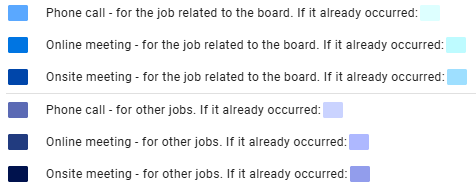
Events are color-coded based on their type and status, distinguishing between upcoming and past events for clarity.
Viewing Event Details
To view the details of a specific event, click on it in the calendar. A popup window will display key information, including the date, time, duration, job, candidate, and a video interview link (if applicable).
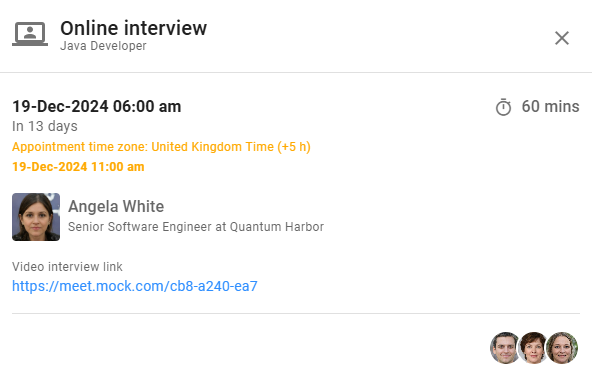
For additional context, click on the candidate's name to access the Candidate Details View.
Customization
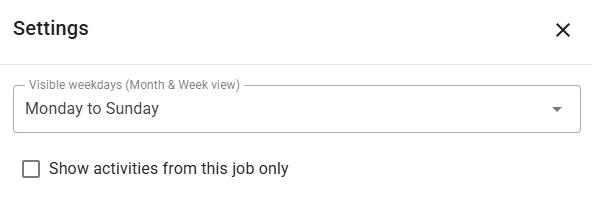
The Calendar section includes customization options to suit user preferences. Click the Gear icon to adjust the following:
- Select which weekdays to display in the Weekly and Monthly view.
- Toggle between displaying events for all jobs or only those related to the current progress board job.